Downloadable Files
You can download Warp Transition for free from the end of this product page.
Make Scene Changes Feel More Natural
Sometimes a simple cut just isn’t enough. You may have two great shots that belong together, but switching directly between them can feel too sudden. This becomes especially noticeable in real estate videos, where transitions between different lighting conditions, angles, or day-and-night shots need to feel smooth and intentional.
Warp Transition gives you a quick way to blend those scenes with dynamic warp-based motion. Instead of building a complicated transition manually, you can drag and drop the effect, choose a suitable warp style, and customize the result directly on the Edit page in DaVinci Resolve.
What Is a Warp Transition?
A warp transition is used to create motion between shots by gently distorting and transforming from one shot to the next. Instead of a simple fade from one shot to another, the image itself flows, stretches, and moves into the next shot.
Warp transitions can be especially useful in day-to-night real estate transitions. For example, if the same real estate is shot both during the day and after sunset, a warp transition can be used to smoothly connect the two shots using motion. This will create a much cleaner transition between the different times of day.
Warp transitions can also be used in interior to exterior transitions, landscape transitions, travel videos, promos, and any other type of transition that requires connecting two shots. The addition of motion between shots via a warp transition can help connect otherwise mundane transitions into more visually interesting ones.
Meet Warp for DaVinci Resolve
Warp is a drag-and-drop transition created for DaVinci Resolve. While it is designed with real estate day-to-night transitions in mind, it is flexible enough to fit many different editing styles and projects.
One of its biggest conveniences is that everything is built for the Edit page. You don’t need to open Fusion or construct a transition from scratch. The package also includes several prebuilt warp styles, giving you different starting points while still allowing you to customize the effect.
It now includes versions for both DaVinci Resolve Free and DaVinci Resolve Studio, making the transition accessible to a wider range of Resolve editors.
Features
Smooth Warp-Based Motion
Warp creates a fluid distortion between two shots instead of relying on a basic cut or dissolve. The resulting movement can help visually connect scenes while giving the transition more character.
Multiple Prebuilt Warp Styles
Several ready-made warp styles are included, so you don’t have to create every look manually. You can experiment with different styles and select the one that best matches the movement and composition of your footage.
Full Edit Page Workflow
There is no need to use Fusion. Warp is designed to work directly from DaVinci Resolve’s Edit page, keeping the transition workflow simple and familiar.
Drag-and-Drop Editing
The effect can be added directly to your edit, making it useful when you want more interesting transitions without interrupting your normal editing workflow.
Customizable Results
The included styles are starting points rather than fixed looks. You can customize the transition on the Edit page to better match the specific shots you are working with.
DaVinci Resolve Free & Studio Support
The package contains versions for both the Free and Studio editions of DaVinci Resolve, so you can use the appropriate version for your setup.
Simple .DRFX Installation
Warp is delivered as a single .drfx file, allowing for a straightforward one-click installation instead of dealing with multiple files and complicated setup steps.
Where Can Warp Work Best?
Real estate videos are an obvious use case, particularly when transitioning between daytime and nighttime footage of the same property. You could show a bright exterior during the afternoon and smoothly warp into a dramatic evening shot with the lights turned on.
But the effect doesn’t have to stay within real estate editing. Try it between two travel locations, different angles of a product, wide and close-up shots, landscape scenes, or any pair of clips where a flowing transformation feels more appropriate than a conventional transition.
The important part is matching the transition to the footage. When the two shots have related framing, subjects, or camera movement, the warp can help reinforce that visual connection.
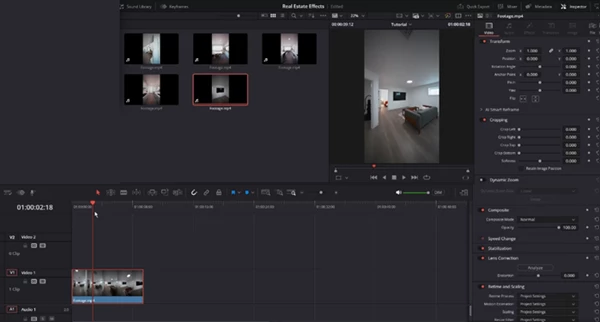
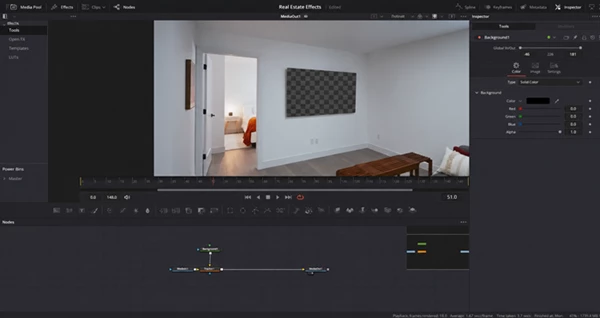
Tips for Better Warp Transitions
For the most natural-looking results, pay attention to the composition of your two clips. If important objects occupy roughly similar areas of the frame, the transition will often feel more connected.
Also consider the existing movement in each shot. A dynamic warp can work particularly well when its direction complements the camera motion instead of fighting against it. Testing several of the included warp styles is an easy way to find the option that fits your footage best.
For day-to-night sequences, try using shots captured from similar positions and angles. The closer their compositions are, the easier it becomes to create the impression that the scene itself is transforming from one time of day to another.
Finally, don’t feel that every cut needs a strong transition. Warp will usually have more impact when it is used deliberately at important scene changes rather than repeatedly throughout an entire edit.
Final Thoughts
Warp Transition allows for smooth and dynamic transitions to be created within DaVinci Resolve without having to create these transitions using effects within Fusion. Warp allows for multiple pre-made warp transition styles, customization on the Edit page, drag and drop functionality, and functionality within both the Free and Studio versions of Resolve.
Real estate day to night transitions are an interesting application for Warp, but it can be used in many more situations. With proper material and an appreciation for motion and composition, Warp can transform a basic transition into a smoother and more visually linked transition.

Files Password : gfxplugin.com OR 123456