Downloadable Files
You can download Smart Segmention for free from the end of this page.
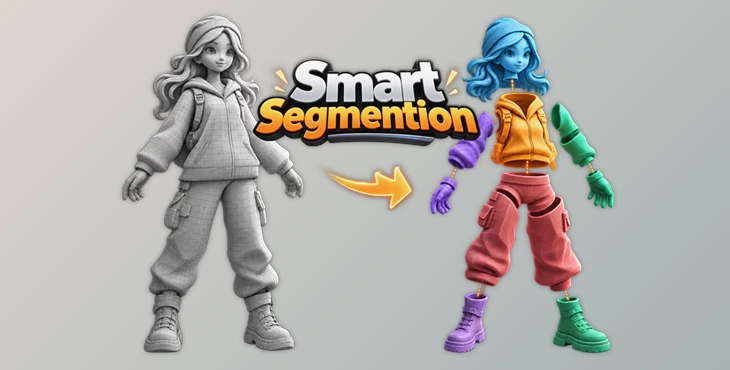
Smart Segmention – Turn a Solid 3D Model into Workable Parts
Working with a 3D model that comes as one large, fused mesh can quickly become frustrating. Maybe you need to prepare it for 3D printing, separate different elements for texturing, or create logical pieces before rigging. Doing all of that manually can take a lot of time, especially with complex models.
Smart Segmention makes this process much easier. It automatically analyzes a mesh and divides it along its natural shape boundaries, while still giving you manual control over exactly how those parts should be organized.
Smarter Model Segmentation Without Random Cuts
The main idea behind Smart Segmention is simple: instead of cutting a mesh into arbitrary chunks, it tries to recognize the natural structure of the model.
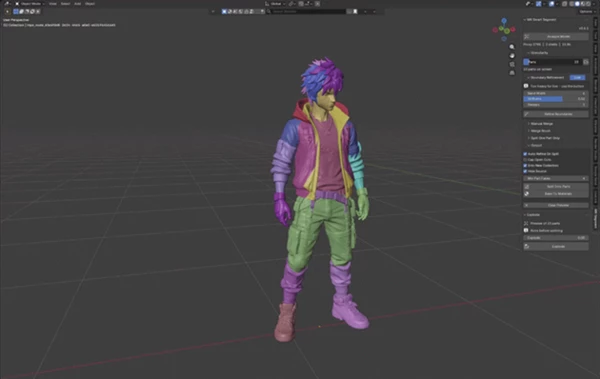
For example, imagine importing a character generated by an AI 3D tool. The head, jacket, arms, boots, and body may all exist as one continuous mesh. Smart Segmention can break that model into more meaningful components, making individual areas easier to edit, texture, prepare for rigging, or print separately.
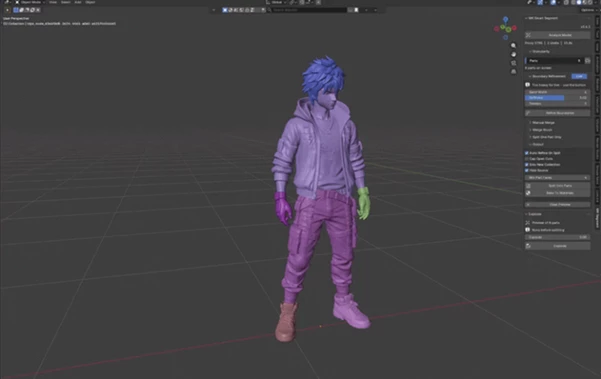
You also decide how detailed the segmentation should be. The Parts slider lets you increase or decrease the number of resulting pieces while seeing the segmentation update live.
This is particularly useful because different projects need different levels of separation. A model prepared for printing may only need a few major components, while another model could require many smaller regions for further editing.
Meet Smart Segmention
Smart Segmention combines automatic, shape-aware segmentation with a set of manual tools for refining the result.
The automatic process gives you a fast starting point, but you are not forced to accept its decisions. If two generated regions should actually be a single component, you can merge them. If one particular area needs additional separation, you can work on that region independently.
This combination makes the workflow flexible: automation handles the repetitive work, while manual controls remain available whenever precision matters.
Features
Shape-Aware Splitting
Smart Segmention follows the model’s natural boundaries, including areas such as limbs, joints, and distinctive features. Instead of simply dividing geometry into random sections, it aims to produce parts that make sense according to the model’s shape.
This can result in cleaner and more practical pieces for downstream workflows.
Live Parts Slider
You decide how many pieces the model should contain. Drag the Parts slider, and the segmentation updates live.
You can start with a simple two-piece division and gradually increase the number until the structure fits your project. This makes experimentation much faster because you can visually judge the result as you adjust it.
Manual Merge
Automatic segmentation is only the beginning. With Manual Merge, you can select individual parts directly in the viewport and combine them.
For example, if the automatic process separates two sections of a jacket that you would rather treat as one object, simply select and merge them.
Brush, Lasso, and Box Merge Tools
For more precise corrections, Smart Segmention provides three selection methods: Brush, Lasso, and Box.
The Brush lets you paint across the faces you want to combine. Lasso is useful for drawing around irregular areas, while Box makes it easy to select larger regions quickly.
The tools also share convenient shortcuts:
- Hold Ctrl to erase.
- Use Ctrl+Z to undo a stroke.
- Use Shift+Click to change the target part while working.
These controls make it possible to refine automatic segmentation without rebuilding the entire result.
Per-Region Part Count
Not every area of a model needs the same level of detail. Smart Segmention lets you isolate a region, lock the rest of the mesh, and choose a separate number of parts for that specific area.
For example, you could keep the torso as a single component while dividing the arms into five pieces. Or you could leave most of the character untouched and concentrate additional segmentation around the head.
This gives you much finer control over complex meshes.
Explode Preview
Before committing to the final split, you can use Explode Preview to temporarily move the individual pieces apart. Seeing the components separated makes it easier to inspect their boundaries and spot unwanted segmentation. Once you’ve checked everything, the pieces can be brought back together.
No Extra Dependencies
Smart Segmention is built with pure Python and does not require additional dependencies. You only need to install the addon itself, making the setup straightforward.
Where Smart Segmention Can Be Useful
One of its most practical uses is 3D printing. Large or complicated models often need to be divided into separate printable components. Splitting along meaningful shape boundaries can make those pieces easier to prepare and assemble.
It is also particularly useful with AI-generated 3D models and scanned meshes. These models frequently arrive as one fused object with little useful internal organization. Smart Segmention can turn that solid mesh into individual components that are easier to work with.
Another useful scenario is texturing and rigging preparation. Separating a model into logical regions can make later stages of the production pipeline much easier to organize.
Tips for Better Segmentation
Start with automatic segmentation rather than immediately trying to create a large number of parts. Move the Parts slider gradually and look for a result that captures the major structural areas of your model.
Once you have a good base, use Manual Merge to clean up unnecessary divisions. The Brush and Lasso tools are especially useful around organic or irregular areas where automatic segmentation may need some guidance.
For complicated models, take advantage of per-region controls. Instead of increasing the number of parts across the entire mesh just because one area needs more detail, isolate that region and adjust it separately.
Finally, use Explode Preview before finalizing the split. Looking at the pieces apart can reveal boundaries or tiny segments that may be difficult to notice when the model is assembled.
From One Fused Mesh to an Organized Model
Smart Segmention offers a useful balance between automatic processing and hands-on control. It can quickly divide a mesh according to its natural structure, but it still lets you decide how many parts you need and how individual regions should behave.
For AI-generated models, scanned geometry, 3D printing projects, or meshes that need preparation for texturing and rigging, this approach can turn an awkward single-piece model into a much more manageable collection of logical components.
Instead of spending all your time manually separating geometry, you can let the addon create the initial structure and then focus your attention on refining the areas that actually need it.

Files Password : gfxplugin.com OR 123456