Downloadable Files
You can download Apple Film Grade for free from the bottom of this product page.
Turn Clean iPhone Footage Into a Cinematic Film Look
iPhone cameras can capture impressively detailed and high-quality video, but straight-out-of-camera footage can sometimes feel a little too clean or digital. If you want your shots to have richer cinematic colors, a more organic texture, and the character of traditional film, color grading becomes an important part of the process.
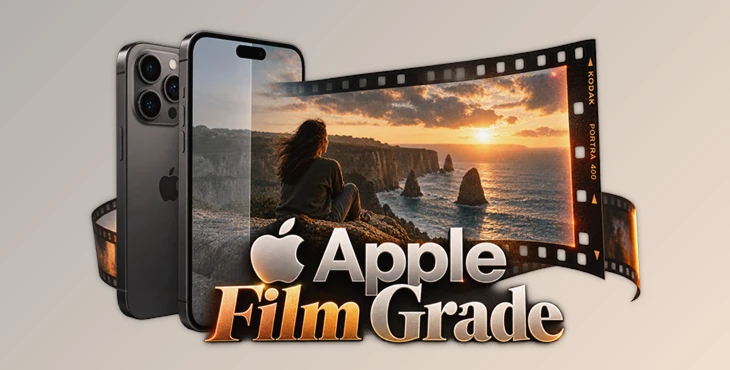
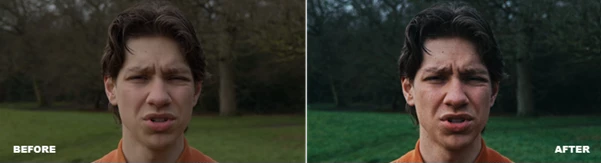
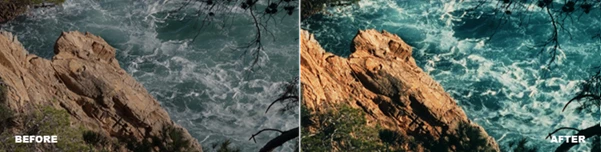
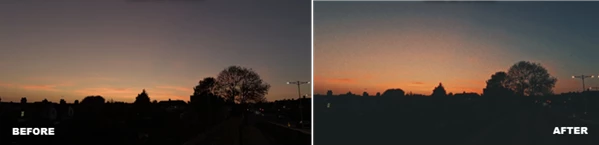
Apple Film Grade is designed to make that transformation much easier. Instead of spending a long time manually building a film-inspired grade, you can apply specially created LUTs, a DaVinci Resolve PowerGrade, and 35mm film grain overlays to quickly give iPhone footage a more cinematic personality.
The package is made specifically for people shooting video on iPhone, including footage recorded in Apple Log, Apple Log 2, ProRes, and regular iPhone video modes.
What Is Apple Film Grade?
Apple Film Grade is a collection of color-grading tools created specifically for iPhone footage. Its main purpose is simple: help turn the clean digital appearance of iPhone video into a more polished, film-inspired image.
The included LUTs provide a fast starting point for color. Instead of adjusting every color parameter from scratch, you can apply a LUT and immediately establish a cinematic direction for your footage.
For example, footage shot outdoors in Apple Log can begin with a flat appearance intended to preserve grading flexibility. Applying an appropriate Apple Log Film LUT gives you a much faster foundation for developing the final look.
The included 35mm Film Grain MP4 overlays add another important layer. Grain introduces subtle texture and variation into an otherwise extremely clean digital image, helping footage feel less sterile and more organic when used carefully.
Apple Film Grade – A Simple Film-Grading Toolkit for iPhone Creators
Apple Film Grade brings several useful grading elements together in one package. Whether you’re working with log footage or regular iPhone video, the goal is to make creating cinematic colors simpler and faster.
Because the LUTs can be integrated into editing software, they can become an easy part of an existing post-production workflow. You can start with a prepared look and then fine-tune the result according to the lighting, exposure, and mood of each individual shot.
Features
3 Apple Log Film LUTs
Three LUTs are included specifically for Apple Log footage, giving you ready-made starting points for creating a film-inspired grade from log recordings.
3 Regular Film LUTs
Not every project needs to be recorded in Log. The package also provides three Film LUTs for regular iPhone video, making the collection useful for more casual shooting workflows as well.
3 35mm Film Grain Overlays
Three MP4 film-grain overlays are included to introduce authentic-looking texture into your footage. They can be layered over your video to help reduce the overly pristine appearance associated with digital capture.
Apple Film DaVinci PowerGrade
DaVinci Resolve users also receive a dedicated Apple Film PowerGrade. This provides another way to incorporate the film look into a Resolve-based color-grading workflow.
Support for Multiple iPhone Recording Formats
The tools are designed around Apple Log, Apple Log 2, ProRes, and regular iPhone video, covering several common ways creators may choose to shoot with their phones.
Installation Guide
Both video and PDF installation guides are included, helping users understand how to add the provided assets to their editing workflow.
Where Can You Use It?
Apple Film Grade can work especially well for cinematic travel videos, short films, lifestyle content, social-media videos, music videos, product footage, and other projects captured on an iPhone.
Imagine shooting a city at night on your iPhone in Apple Log. The original footage gives you a flexible starting point, while an Apple Log Film LUT can establish the overall cinematic color palette. Adding subtle 35mm grain afterward can introduce texture that makes the final image feel more organic.
For everyday footage recorded without Log, the regular Film LUTs offer a simpler route. You can apply a look, adjust its intensity if necessary, and quickly establish a consistent visual style across several clips.
Tips for Getting a More Natural Film Look
A LUT is usually best treated as a starting point rather than the final step. Before applying your final look, make sure the footage has sensible exposure and white balance. A well-balanced source image gives the LUT a much better foundation to work from.
Film grain should also be used with restraint. The goal is not necessarily to make the grain immediately obvious. A subtle amount can add texture while preserving detail and keeping the image believable.
When working with multiple clips, try to balance their exposure and color before applying the same creative look. This helps maintain visual consistency across the entire edit.
For Apple Log or Apple Log 2 footage, take advantage of the additional grading flexibility provided by the recording format. Establish a balanced image first, apply your chosen film treatment, and then make smaller adjustments to contrast and color based on the mood you want.
Finally, don’t feel that every shot needs exactly the same treatment. Daylight, interiors, night scenes, and mixed lighting can react differently to a LUT. Small shot-by-shot adjustments can make the overall grade feel much more professional.
Cinematic iPhone Footage Without an Overcomplicated Workflow
Apple Film Grade provides a straightforward collection of tools for creators who want to give iPhone footage a more cinematic and film-inspired character. With dedicated LUTs for Apple Log and regular video, three 35mm grain overlays, and a DaVinci Resolve PowerGrade, it covers both quick grading and more involved post-production workflows.
Its biggest advantage is simplicity. Rather than building every aspect of a film look from scratch, you have several prepared starting points that can be customized to suit your footage.
If you regularly shoot on iPhone and want to move away from an overly clean digital appearance, experimenting with the different LUTs, grain options, and PowerGrade can be an easy way to discover a more distinctive visual style.

Files Password : gfxplugin.com OR 123456