Downloadable Files
You can download the STACK3D product for free from the end of this page.
Turn Flat Artwork Into 3D Without Leaving After Effects
Adding depth to graphics and logos in After Effects can require a number of steps that can repeat over and over again. There can be time spent on converting artwork, separating shapes, setting extrusion values, materials, path editing, anchoring points to the center, and creating controllers before the animation itself can even start.
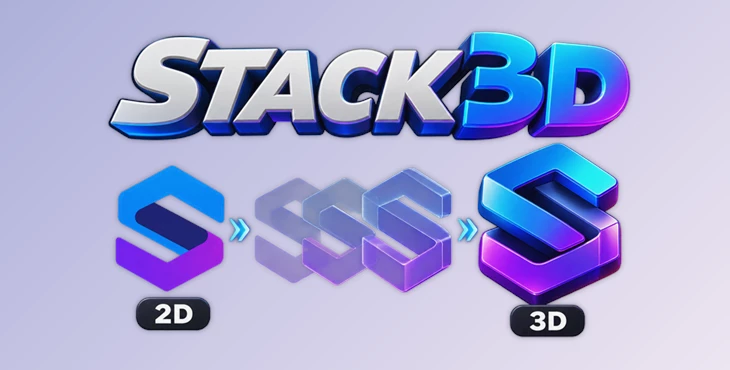
STACK3D combines all of these steps into one dockable plugin for After Effects. With a few clicks, STACK3D can convert both vector and raster art into full 3D shape layers in seconds. Motion designers will be able to more quickly transition from 2D art to clean, rigged 3D depth.
Whether you are creating a sports logo, broadcast title, 3D icon, or a more complicated shape made up of simple shapes, STACK3D allows the complete process to remain within your composition.
What Is STACK3D and What Does It Do?
STACK3D is a professional panel for Adobe After Effects that automates the 3D artwork pipeline. Instead of manually preparing every layer before extrusion, the panel can detect the type of artwork you are using and apply an appropriate workflow.
Vector files such as AI, EPS, and SVG can be converted directly into shape layers. Raster artwork such as PNG, JPG, and PSD can be sent to After Effects’ native Auto-Trace dialog with one click, while masked layers can be extracted into clean shape groups.
Once the artwork becomes editable shapes, STACK3D can separate colors, break individual elements into layers, create extrusion and bevel geometry, apply materials and independent face colors, center anchor points, and connect everything to a properly positioned null controller.
This is especially useful when creating graphics such as:
- Dimensional logos and brand marks
- Sports graphics and team identities
- Broadcast titles and on-screen graphics
- Extruded typography and symbols
- 3D icons and interface elements
- Dimensional artwork created from Illustrator shapes
- Simple constructed objects such as smartphones or block-style models
The main advantage is consistency. Repetitive setup tasks become automated, leaving more time for animation, lighting, composition, and creative decisions.
STACK3D Features
Smart Conversion for Different Artwork Types
One of the first challenges when bringing artwork into After Effects is that different source formats require different preparation methods. STACK3D automatically detects the selected layer type and chooses the appropriate workflow.
Vector artwork can become shape layers directly, raster images can move into Auto-Trace, and masked layers can be extracted as shape groups. This reduces manual preparation and makes it easier to handle mixed artwork within the same project.
Split Complex Artwork by Color
The Split by Color feature separates a complex shape layer into individual layers according to fill color.
STACK3D also names these layers using a tri-code prefix and color label, helping keep larger compositions organized. This can be particularly useful with multicolored logos or illustrations where different sections need their own animation, material, or 3D treatment.
Break Shapes Into Individual Layers
Sometimes separating artwork by color is not enough. If individual elements need independent animation, Break can split every shape group into its own layer.
This gives you much finer control. For example, different parts of a logo can rotate, move, scale, or animate independently instead of behaving like a single object.
Create 3D Geometry With One Button
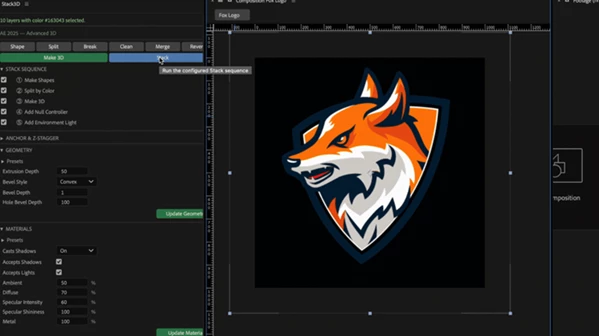
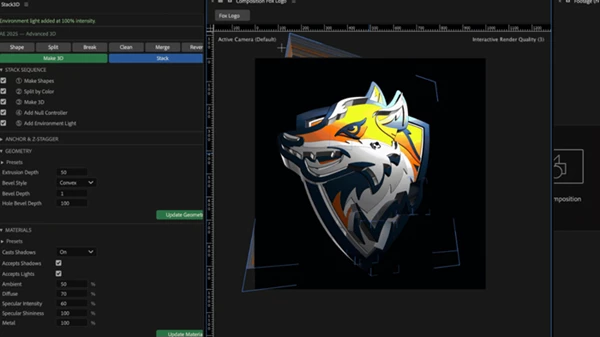
The Make 3D function extrudes selected shape layers using After Effects’ Advanced 3D renderer.
STACK3D provides control over important geometry and material properties, including:
- Extrusion Depth
- Bevel Style
- Bevel Size
- Hole Bevel
- Ambient
- Diffuse
- Specular
- Shininess
- Metal
Geometry and Material presets can also be saved and loaded, making it easier to maintain a consistent look across multiple elements or projects.
Instead of repeatedly rebuilding the same extrusion and material configuration, you can create a setup once and reuse it.
Give Every 3D Face Its Own Color
A dimensional object often looks more interesting when its front, bevel, side, and back surfaces do not all share the exact same appearance.
STACK3D allows independent colors for the Front, Bevel, Side, and Back faces of each shape group.
Its Detect Colors palette can sample fill colors from selected layers. A detected color can then be applied to a specific face with a single click. The Sel controls can also select layers sharing a particular color across the composition.
For example, a logo could keep its original brand color on the front while using darker side faces and a slightly different bevel color to emphasize its depth.
Automatically Create a Centered Null Controller
Rigging multiple 3D layers manually can become frustrating when the controller is not positioned at the true center of the complete artwork.
STACK3D calculates the union bounding box of all selected layers and creates a null controller at their exact geometric center. The controller inherits the layers’ label color and is positioned directly above them in the timeline.
The result is one central pivot for controlling the complete construction, making rotations and larger transformations easier to manage.
Correctly Center Anchor Points
The Center Anchor Point feature moves each layer’s anchor point to its visual center while compensating for scale so the artwork does not unexpectedly jump.
For extruded artwork, the Z anchor is placed at the midpoint of the extrusion depth. This means rotation occurs around the center of the 3D slab rather than directly on its front surface.
That small difference can make rotations feel considerably more natural.
Run the Entire Workflow With Stack Sequence
For an even faster setup, Stack Sequence combines multiple operations into a single automated pipeline.
You can choose which steps should run, including:
- Make Shapes
- Split by Color
- Make 3D
- Add Null Controller
- Add Environment Light
After configuring the desired sequence, pressing Stack executes the selected operations in order and produces an organized, rigged composition.
This is particularly helpful when you regularly prepare similar types of artwork and want to avoid repeating the same setup process for every new design.
Clean Up Problematic Vector and Auto-Trace Paths
Real-world artwork is not always perfectly prepared for 3D extrusion. Vector files can contain unnecessarily complicated paths, while Auto-Trace results may produce jagged edges and excessive vertices.
STACK3D includes a floating Clean palette for dealing with these geometry problems before they cause issues with After Effects’ renderer.
Simplify reduces redundant vertices in traced artwork, while Smooth creates smoother Bezier handles and turns rough traced edges into cleaner curves.
Cleaning the geometry before creating the final 3D setup can improve both the appearance of the artwork and the reliability of the workflow.
More Than a 3D Logo Tool
Although 3D logos are an obvious use case, STACK3D can also work as a small 3D construction toolkit inside After Effects.
Because it operates on shape-layer artwork, relatively complex-looking objects can be assembled from simple 2D geometry. A rounded rectangle combined with a few circles, for example, can become the foundation of a dimensional smartphone-style object.
You can also create multiple simple shapes, give them different extrusion depths, and offset them along the Z-axis to produce block-like constructions with genuine depth.
The goal is not to replace a traditional 3D application. Instead, STACK3D takes advantage of After Effects’ Advanced 3D renderer, shape layers, materials, face colors, and null-based rigging for motion graphics that need to look dimensional without requiring the entire project to move into external 3D software.
In simple terms: if you can construct the artwork as flat shapes, STACK3D can help make those shapes stand up in 3D.
Professional Tips for Better STACK3D Results
Start with the cleanest source artwork possible. Even though STACK3D includes cleanup tools, simple and well-constructed vector paths generally make better foundations for extrusion and beveling.
When working with raster artwork, use Auto-Trace and then check the resulting geometry before creating the final 3D version. If the edges contain too many vertices, try Simplify and Smooth to create cleaner curves.
For more convincing depth, avoid treating every surface identically. Slight differences between Front, Bevel, Side, and Back colors can make the geometry easier to read, particularly when combined with appropriate lighting.
Pay attention to extrusion depth as well. A shallow extrusion can work well for elegant titles and logos, while larger depths can create heavier, more object-like graphics.
For complex artwork, use Split by Color or Break before animation. Separating important elements early gives you more freedom when creating staggered motion, individual rotations, or different material treatments.
Finally, make good use of the centered null controller. Once multiple layers form a single object, controlling the overall construction from one properly positioned pivot can make animation much cleaner and easier.
Final Thoughts
STACK3D consolidates what would typically be numerous After Effects steps into a more cohesive process. It can handle artwork conversion and tracings, path cleaning, object separation, extrusion, material manipulation, face coloring, pivot centering, and null setup. The main focus of the panel is minimizing redundant steps.
STACK3D can be used for more than just logos. Shapes can be transformed into titles, logos, graphics, sports designs, broadcast graphics, or even 3D-style objects all within the After Effects timeline.
For motion designers that often want flat images to have depth and motion, STACK3D provides an option to experiment with After Effects’ Advanced 3D capabilities while still working in a method they are familiar with.

Files Password : gfxplugin.com OR 123456