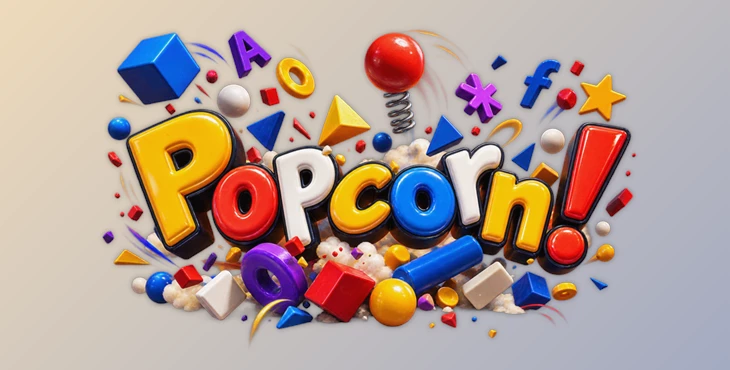
Downloadable Files
You can download Popcorn! for free from the end of this page.
When Motion Needs More Than Keyframes 🎯
Animating several elements in After Effects is generally straightforward. It becomes significantly more challenging when those elements interact with one another.
For example, you may want to drop a group of letters into a composition and have them interact by bouncing off one another, stacking on top of each other, and then eventually come to rest in a natural manner. Alternatively, you might want to have a logo move across a group of shapes and have all the shapes react naturally to the movement of the logo. Manually animating this type of behavior requires manipulating a large number of keyframes and attempting to simulate physical interactions visually.
The problem is that After Effects does not natively support collision between layers. When you have multiple elements that need to bounce off, push against, stack on top of, or otherwise interact with each other, it becomes very difficult to create believable physical motion by hand.
That’s where Popcorn! comes in. With Popcorn! you can turn regular After Effects layers into animated physical objects that can bounce, push, stack, interact with forces and boundaries, and collide with each other.
What Does Physics-Based Motion Mean? 🧩
Physics-based animation is about letting objects move and interact according to forces rather than manually designing every individual movement.
Instead of deciding exactly where every letter should move after hitting another letter, you can define properties such as gravity, bounce, friction, wind, or turbulence and let the interaction determine the motion.
For example, you could create:
- Letters falling into a container and stacking together.
- Shapes bouncing around inside an animated boundary.
- A logo pushing other graphic elements out of its way.
- Images floating through a composition with turbulence.
- Objects filling an area while automatically colliding and settling.
- Typography appearing with energetic pops and physical reactions.
Because the movement comes from interaction between elements, the resulting animation can feel more connected and dynamic than manually animating every object independently.
Meet Popcorn! 🍿
Popcorn! is an After Effects tool designed to transform text, shapes, logos, images, footage, compositions, and other layers into a responsive 2D physical system.
You select your elements, simulate their behavior, and then bake the result into regular After Effects keyframes.
The basic workflow takes only three steps:
- Select: Load the text, shapes, logos, images, or layers you want to animate.
- Simulate: Apply a preset or customize the physical properties and preview the movement.
- Bake: Convert the simulation into editable Position, Rotation, Scale, and Opacity keyframes.
There is no separate rigging or complicated collision setup required. You can quickly create an initial result and then move into more detailed controls whenever the project needs them.
Features – Control How Everything Moves ⚙️
One-Click Presets
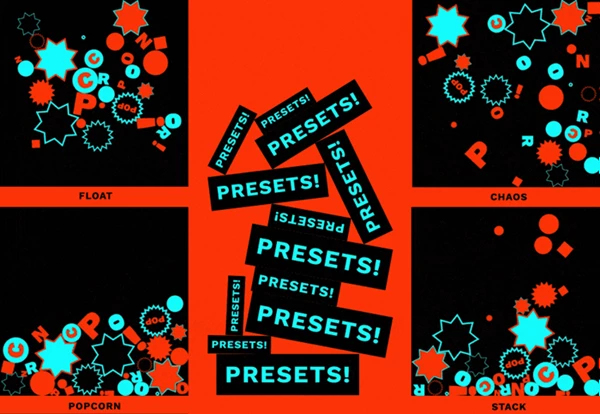
Popcorn! includes presets that provide ready-made starting points for common motion styles. You can use existing layers from your composition or create new text and shapes, apply a preset, and immediately preview the result.
This makes experimentation much faster because you can establish the general behavior first and fine-tune it afterward.
Gravity
Gravity controls how elements fall, rise, and eventually settle.
It can be used for classic falling-object animations, stacked typography, or compositions where objects gradually collect in one area.
Surface Friction
Surface Friction determines how quickly objects lose their sliding movement.
Higher or lower friction can dramatically change whether objects feel slippery, heavy, loose, or firmly planted when they collide with surfaces.
Bounce
Bounce controls how objects react after an impact.
You can move from subtle, soft collisions to highly energetic rebounds, making it useful for both controlled motion graphics and playful kinetic animation.
Repel
Repel pushes elements away from walls and boundaries. This can help create compositions where objects actively avoid edges instead of simply resting against them.
Air Resistance
Air Resistance affects how freely objects travel through the simulation.
Combined with other forces, it can help control whether movement feels fast and energetic or slower and more restrained.
Wind and Turbulence
Wind pushes the entire physical system toward a chosen direction, while Turbulence introduces irregular movement.
These controls are particularly useful for floating objects, bubbling layouts, unstable systems, or animations that need more variation than simple gravity can provide.
Turn Typography Into a Physical Object 🔤
One of the most interesting uses of Popcorn! is kinetic typography.
Text can collide using its bounding box directly, or Popcorn! can generate editable collision shapes around it.
Available generated shapes include:
Rect for rectangular collision shapes, Circle for circular shapes, Star for stars, and Poly for polygons.
You can also adjust padding, fill, stroke, and shape settings before baking.
After baking, the generated result remains editable as real After Effects shape layers. Text properties such as font, style, color, stroke, and fill can also remain editable.
If you need collisions that follow the exact outlines of individual letters, you can first convert the text to shapes inside your composition.
Animate the Container, Not Just the Objects 📦
The environment itself can become part of the animation.
You can draw a mask on a layer and use it as a physical container for your elements. That mask can contain, guide, compress, redirect, or release the objects.
More importantly, the mask can be animated.
As the boundary moves, it physically pushes objects in its path. This opens the door to animations where typography gets squeezed into smaller spaces, shapes are pushed across the frame, or objects are gradually released from a moving container.
Control How Elements Enter the Scene 🚀
Physical interaction does not have to begin after objects are already visible. Popcorn! also gives you control over how elements enter the composition.
Compass Spawning launches elements from a chosen direction, while Custom Position lets you select an exact starting point.
Elements can appear sequentially, randomly, or all at once. Spread determines how widely they are distributed, while Interval controls the timing between individual appearances.
Entry Velocity defines their initial speed, and Push controls how strongly incoming elements affect each other.
You can also use Pop to introduce a scale-based appearance and choose between Overshoot, Elastic, and Linear entrance behaviors. Ease In and Out can then soften the beginning and ending of the animation.
Together, these controls make the entrance itself part of the physical system rather than a separate animation that needs to be created manually.
Sound Cues Right on the Timeline 🔊
Popcorn! can also help when physical animation needs sound design.
When Sound Cue Markers are enabled, the tool creates a guide layer during the bake process and places markers at collision and pop events.
Pops receive green markers, while hits receive cyan markers.
This means the important contact timings are already visible in the After Effects timeline, giving you clear reference points when adding impacts, pops, clicks, or other sound effects.
Features for Different Motion Design Projects 🎨
The physics system can be adapted to many different types of work.
For kinetic typography, letters and words can drop, pack, scatter, bounce, collide, fill spaces, and settle into dynamic arrangements.
For logo and identity animation, logos can physically interact with text, images, and geometric elements instead of simply moving over them.
For broadcast and title design, interacting elements can become part of opens, title cards, transitions, and lower thirds.
For photo and video arrays, images and footage can be distributed through stacking and collisions.
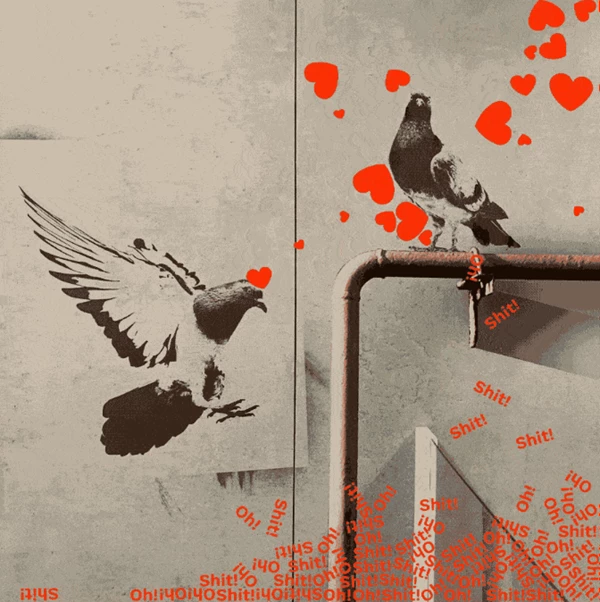
For posters and social graphics, elements can pop, float, collide, and settle to create eye-catching animated compositions.
The system can also be useful for infographics, where physics adds visual movement to information, and pattern or packing animations, where multiple objects automatically distribute themselves within an available space.
A Few Tips for Better Results 💡
Start with a preset before changing individual physics parameters. It gives you a quick reference point and makes it easier to understand which controls are responsible for the overall motion.
When working with collisions, think about the personality you want the objects to have. Increasing bounce can create energetic motion, while friction and air resistance can help calm the animation and make elements settle more naturally.
Try combining forces rather than relying on only one. Gravity with a small amount of turbulence, for example, can produce more irregular movement than gravity alone.
The Seed button is also useful when the settings feel right, but the arrangement does not. It generates a new random configuration without changing your parameters, letting you explore different results quickly.
For typography, experiment with different collision shapes. A word surrounded by a circle behaves very differently from the same word using a rectangular boundary.
Finally, bake the simulation once you find movement you like. Because the result becomes standard Position, Rotation, Scale, and Opacity keyframes, you can continue adjusting the animation directly inside After Effects.
Final Thoughts – Let the Objects Do the Moving 🍿
Creating believable interactions between many layers can quickly become one of the most tedious parts of motion design. Manually deciding how every object should react after every collision means more keyframes, more adjustments, and much more time.
Popcorn! approaches the problem differently by turning layers into parts of the same physical system.
Text can collide and stack, logos can push through shapes, images can float and scatter, and animated boundaries can physically reshape an entire composition. At the same time, controls such as gravity, friction, bounce, wind, turbulence, spawning, and collision shapes provide room to refine the behavior.
The result is a workflow that can start with a playful experiment and still offer detailed control when the animation becomes more complex.

Files Password : gfxplugin.com OR 123456