Downloadable Files
You can download Shape It for free from the end of this page.
Stop Rebuilding the Same Shapes Again and Again
If you work regularly in After Effects, you probably have certain shapes that appear across multiple projects. Maybe it is a custom graphic element, an animated shape, a complex multi-shape design, or even a 3D parametric mesh. Recreating these elements from scratch every time can quickly become repetitive.
Shape It is designed to solve exactly this problem. It gives you a convenient way to save your 2D and 3D shapes and bring them back whenever you need them. Instead of rebuilding a shape or importing it from another project, you can keep your frequently used elements directly inside a customizable panel.
The useful part is that Shape It does not simply remember the basic appearance of a shape. It can preserve many of the properties, effects, and animations that make that shape useful in the first place.
What Is Shape It and How Does It Work?
Shape It is an After Effects panel for saving and reusing shape layers and parametric meshes. Think of it as a personal shape library that stays close to your workflow.
You can assign shapes to buttons inside the panel and reuse them whenever they are needed. For example, if you have created an animated geometric element with a gradient, Trim Paths, Repeater, and Twist settings, you can save it instead of rebuilding that setup in your next project.
This can be especially useful when working on projects that share a consistent visual language. Motion graphics packages, recurring social content, branded animations, and similar projects often reuse the same graphical elements. Having those shapes readily available can make the workflow much faster and also help maintain consistency between projects.
Meet Shape It: Your Reusable Shape Library
Rather than treating every shape as something temporary inside a single After Effects project, Shape It lets you turn useful elements into reusable resources.
Its panel is also highly customizable. Buttons can be added, moved, resized, recolored, remapped, or removed, allowing you to organize the interface around the way you actually work. The panel supports up to 75 buttons, giving you plenty of room for frequently used shapes and meshes.
You can even create different panel layouts for different types of work. One layout might contain commonly used motion graphics elements, while another could focus on 3D parametric meshes or shapes designed for a particular project style.
Features
Save Complete Shape Layers
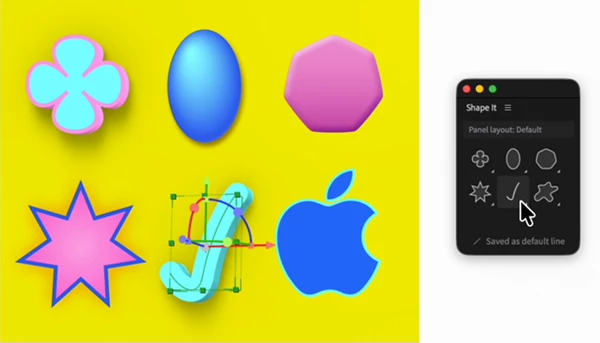
Shape It can save shape layers while preserving much more than their basic paths. Fill, Stroke, Gradients, Pucker & Bloat, Trim Paths, Repeater, Twist, Merge Paths, 3D geometry, and material option settings can remain intact.
Animation applied to these properties can also be saved.
This means a carefully constructed animated shape can become a reusable building block rather than something you have to recreate every time.
Dynamic Button Icons
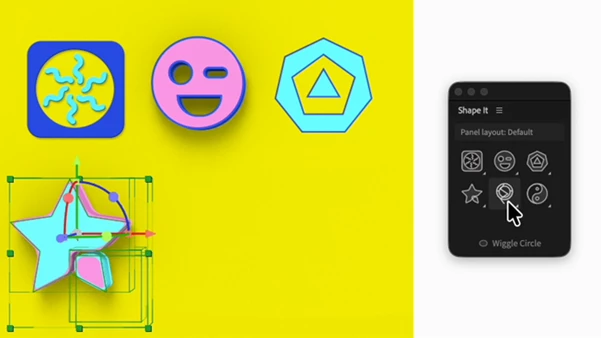
When you save a shape layer to a button, its icon dynamically updates to represent the saved shape. This makes larger collections easier to recognize visually without having to remember what every button contains.
Parametric mesh button icons, however, do not dynamically update to reproduce the unique appearance of the saved mesh.
Up to 12 Default Shape Types Per Button
Each button can store a unique default shape for all 12 shape types. These defaults can be edited or changed independently, giving you more control over how individual buttons behave.
Save Shape Presets
You are not limited to assigning shapes directly to buttons. Shape layers and parametric meshes can also be stored as presets in a library for each shape.
This is particularly helpful when you want several variations of a commonly used element without filling your entire panel with separate buttons.
Save Multi-Shape Setups
Complex shape layers are supported too. You can save a shape layer containing multiple shapes and Merge Paths to a single button.
For example, instead of saving every part of a more elaborate geometric design individually, the complete setup can be stored as one reusable element.
Keep Animation and Effects
One of the most useful capabilities of Shape It is its ability to preserve animation and effects.
If a shape already contains animated properties, you do not necessarily need to rebuild its motion after reusing it. This makes the tool useful not only as a shape library but also as a collection of reusable motion elements.
Save Different Panel Layouts
Shape It lets you create and switch between multiple panel layouts.
Every saved layout can have its own buttons, defaults, and presets. These can be edited, saved, renamed, and deleted independently from the contents of other layouts.
This can keep a large library organized. Instead of placing everything into one crowded panel, you could maintain separate layouts for logos, interface elements, abstract graphics, animated shapes, or 3D assets.
Save Parametric Meshes
Shape It also supports After Effects parametric meshes.
Due to the current limitations of After Effects ExtendScript support, there are some restrictions, but the tool can preserve mesh, bevel, compositing options, transform properties, default material assignment options, and animation applied to those properties.
Working with parametric meshes requires After Effects 26.3 or later.
Import and Export Your Library
Saved shape presets can be exported, and entire panel layouts can also be exported together with their presets.
This makes it possible to move your setup between systems or share organized shape libraries and panel configurations with other users.
Make Shape It More Useful in Everyday Projects
One useful way to employ Shape It is to not save every shape you experiment with. Rather, create a targeted library of shapes that you actually use over and over.
Good candidates for saving are shapes that usually require many steps to recreate. Animating Trim Paths, multi-shape shapes, repeated shape components, gradients, and well-set up 3D shapes are all great candidates for saving because doing so can eliminate redundant rework later.
You may also want to use separate panel configurations for projects that have widely varying needs. Grouping related items together will make them easier to find as you build up your library.
For more complicated projects, you may want to save complete multi-shape configurations rather than individual shapes when those shapes are often used together. This will help retain both the visual grouping and the animation data from the original artwork.
Lastly, utilize presets for variations. If you have multiple versions of the same core shape, it may be cleaner to organize these as presets rather than creating a button on a separate panel for each variation.
A Faster Way to Build with Familiar Shapes
Shape It turns frequently used shapes from After Effects into reusable assets that are much easier to find. Rather than recreating shape layers over and over again, digging through old projects, or re-creating animations, a user can create their own library of the objects they use most frequently.
Due to support for parametric meshes, presets, customizable layouts, animations, effects, and multi-shapes, this tool can be applied to both basic 2D art and more complex applications.
The primary advantage is simplicity. After creating a shape that is useful, there is no need to treat that shape as a one-off. Instead, save the shape, organize it, and reuse it in future projects.

Files Password : gfxplugin.com OR 123456