Downloadable Files
You can download Creative Prompt Studio for free from the end of this page.
Turn Visual Ideas Into Better AI Prompts
Often, when trying to create an AI-generated image, artists have already collected their product photos, brand images, and have a notion of the type of image and mood that they would like to create. Yet, creating the appropriate prompt to describe these visual ideas to AI often takes some time.
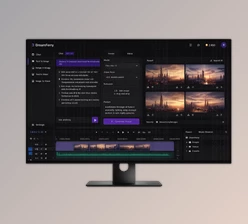
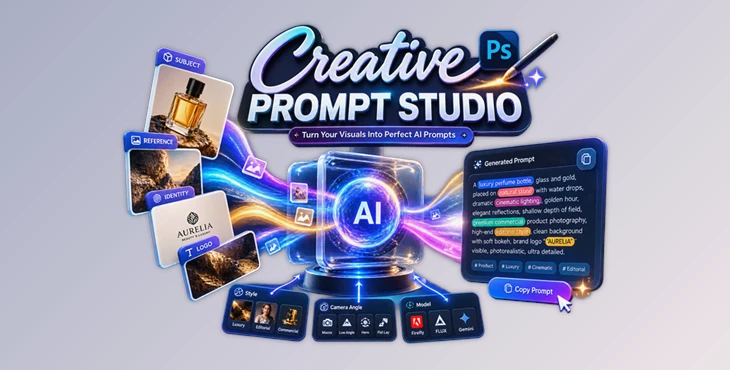
Creative Prompt Studio was built as a tool to make this process easier for artists within Adobe Photoshop itself. Bring in your brand images, describe what each image represents, choose your design style and camera, then click the button to transform your visual ideas into an AI image generation prompt.
Prompt engineering isn’t about writing long, complex prompts to describe your desired image - it’s about giving your AI tool the visual and creative cues it needs to understand your vision.
What Is Creative Prompt Studio?
Creative Prompt Studio is a Photoshop-native panel for building detailed prompts for AI image generation. It is especially useful for product imagery, advertising concepts, editorial visuals, fashion, architecture, lifestyle imagery, and other projects where consistency and creative control matter.
The basic idea is simple: rather than trying to describe everything manually, you give the panel visual inputs and creative instructions.
For example, you might have a product photograph that needs to remain recognizable, a luxury advertising image that represents the desired visual style, a brand logo that needs to be considered, and an idea for a dramatic low-angle composition.
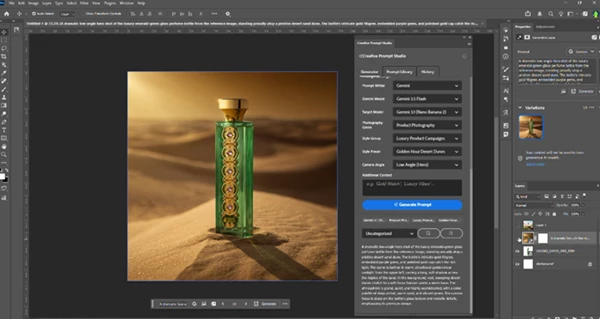
Creative Prompt Studio lets you organize those elements into a structured brief and then creates a prompt specifically written for the AI model you intend to use.
This can improve the final result because the prompt contains clearer information about what should be preserved, what should act as inspiration, and how the generated image should look and feel.
From Visual Brief to Production-Ready Prompt
The workflow is built around four straightforward decisions.
1. Add Your Visual Inputs
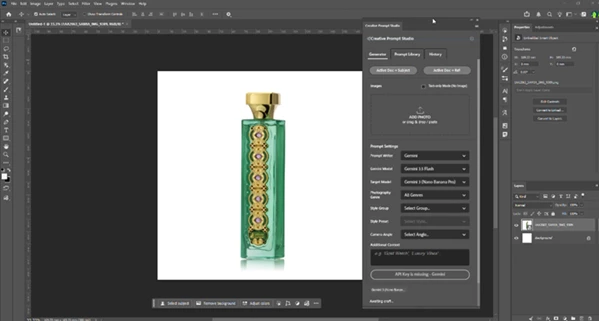
Start by bringing your source material into the panel. You can import files, drag and drop images, paste content from the clipboard, or capture the active Photoshop document.
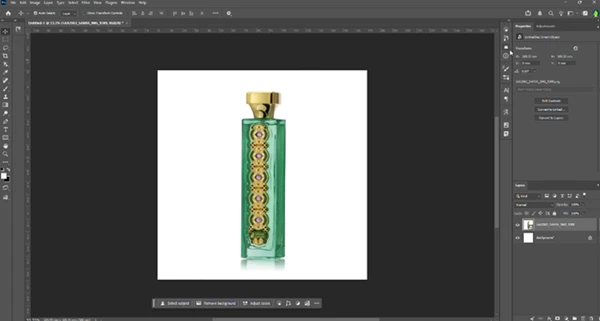
Canvas capture is particularly convenient when you are already developing an image in Photoshop. Instead of exporting the current composition and importing it somewhere else, you can capture the active document and include it directly in your visual brief.
Creative Prompt Studio can also generate prompts without images when you want to work entirely from creative direction.
2. Tell the AI What Each Image Means
Not every reference image has the same purpose, and this is where the role-aware input system becomes especially useful.
You can assign each visual one of four roles:
- Subject – defines the main subject that should be represented.
- Reference – provides visual inspiration or direction.
- Identity – helps communicate elements whose identity should be preserved.
- Logo – identifies brand assets that need their own role in the brief.
This distinction gives the prompt generator more context than simply providing several unrelated reference images.
Imagine creating an advertising image for a cosmetic bottle. The bottle photograph could be the Subject, an existing campaign could become the Reference, and the company mark could be assigned as the Logo. Each visual now has a clearly defined purpose.
Features
Role-Aware Visual Inputs
One of the core features of Creative Prompt Studio is its ability to understand the intended role of your visual references.
By separating Subject, Reference, Identity, and Logo inputs, you can communicate which elements should be preserved and which are there mainly to influence the visual direction.
For product imagery and branded projects, this can make the creative brief much clearer and reduce the amount of information you need to explain manually.
Model-Aware Prompt Writing
Different image models respond to prompts in different ways. Creative Prompt Studio adjusts its generation language according to the target engine you select.
It supports prompt direction for:
- Adobe Firefly: Prompts can be prepared for Image, Fill, and Expand workflows.
- FLUX: The panel supports generation as well as identity-preserving editing directions.
- Gemini / Nano Banana: Creative directions can be translated into rich natural-language prompts suitable for these models.
Instead of writing one generic prompt and expecting it to behave identically everywhere, the wording and structure are adapted to the selected target.
25+ Style Groups
Style can dramatically change how an AI model interprets the same subject.
Creative Prompt Studio includes more than 25 focused style groups covering directions such as commercial, luxury, editorial, botanical, cultural, architectural, and lifestyle imagery.
This makes it easier to explore different visual worlds without having to manually describe every stylistic characteristic from scratch.
For example, the same product could be approached as a clean commercial studio photograph, a luxury campaign image, or an editorial composition simply by changing the creative direction.
16 Camera Directions
Composition is another important part of image generation.
The panel provides sixteen framing and camera directions, including options such as eye-level compositions, hero low angles, macro shots, flat-lay photography, knolling, and levitation-style compositions.
These controls are particularly valuable for product imagery because camera position can completely change how an object feels. A low-angle hero composition can make a product feel bold and premium, while a carefully organized flat-lay can work better for clean commercial or lifestyle visuals.
Photoshop Canvas Capture
Creative Prompt Studio stays close to the Photoshop canvas.
You can capture the active Photoshop document and use it as another visual input in your brief. This keeps experimentation inside the existing workflow and reduces the need to constantly move files between different applications.
Searchable Prompt Library
Good prompts often contain creative thinking worth keeping.
Creative Prompt Studio includes a prompt library where you can save generated prompts together with visual document thumbnails. Prompts can be searched, edited, organized into folders, imported, and exported.
This is useful when developing multiple images for the same campaign or returning to an established visual direction later.
The panel also provides prompt history, allowing previous ideas and directions to remain accessible rather than disappearing after generation.
Live Prompt Workflow
The panel brings several practical controls into one compact workspace. You can track prompt generation progress, cancel a generation when necessary, search previous prompts, and organize saved prompts into folders.
Together, these tools make Creative Prompt Studio feel less like a simple prompt generator and more like a workspace for developing and managing AI image directions.
Where Creative Prompt Studio Can Be Useful
The tool can fit into many visual production workflows.
For product advertising, you could start with an existing packshot, add references from the desired campaign style, choose a hero camera angle, and generate a detailed prompt for a polished promotional scene.
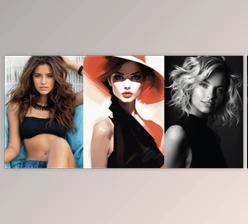
For fashion imagery, reference images can help establish the visual direction while style and camera controls define whether the final concept should feel commercial, editorial, or lifestyle-oriented.
For architecture, visual references and architectural style directions can help describe the desired environment and framing more precisely.
For editorial and lifestyle imagery, Creative Prompt Studio can combine visual context with mood, genre, camera direction, and additional creative instructions to build a much richer prompt than a short manual description.
The same approach can also be useful when experimenting with Fill, Expand, or identity-preserving edits.
Pro Tips for Better Prompts
Give Every Reference a Clear Purpose
Avoid treating every uploaded image as a generic reference. Think about why each image is included and assign its role accordingly.
If an image defines the actual product, use it as the Subject. If another image is only there because you like its lighting or atmosphere, it makes more sense as a Reference.
This makes your creative intention more structured from the beginning.
Start With the Subject, Then Build the Look
For product-focused work, establish what needs to remain recognizable before adding stylistic direction.
Once the subject is clear, experiment with genre, style, camera angle, and additional context. This helps keep the creative concept centered around the important visual element rather than allowing style references to dominate the brief.
Use Camera Direction Intentionally
Don’t treat camera angle as a minor setting.
Try a hero low angle when you want the subject to feel powerful, macro framing when small details matter, or flat-lay and knolling compositions when organization and graphic clarity are important.
A simple camera-direction change can produce a completely different visual concept without changing the underlying subject.
Match the Prompt to Your Target Model
Choose the model you actually plan to use before generating the final prompt.
Creative Prompt Studio changes its language according to Adobe Firefly, FLUX, or Gemini / Nano Banana, so taking advantage of the target-aware system is more useful than relying on one generic prompt for every engine.
Save Successful Directions
When you develop a combination of references, style, camera direction, and creative context that works well, save it to the prompt library.
Folders and searchable history can be especially helpful when working on several visuals for the same brand or campaign. Instead of rebuilding the creative thinking every time, you can return to previous directions and refine them.
A More Visual Way to Engineer Prompts
Instead of requiring creators to think of an entire visual idea for a product and rendering it into words, the Creative Prompt Studio allows individuals to start with the elements creatives already work with and build upon to create their visual ideas.
Role-aware inputs allow designers to understand the contribution of each image. Style and camera systems help to define the visual direction of the image. The model-aware writing prompt ensures the language is ready for Firefly, FLUX, or Gemini / Nano Banana AI models, while the canvas capture and prompt library tools help designers remain connected to Photoshop.
For designers, photographers, and digital artists who work with AI in their image creation processes, Creative Prompt Studio can make the stage between having an idea and producing a prompt more organized.
Rather than guessing at what to type into the next generation box, users can design their image first, then translate their concept into a production-ready prompt.

Files Password : gfxplugin.com OR 123456