
Downloadable Files
You can download Retend for free from the end of this page.
Retiming Nested Comps Shouldn’t Take This Long
Working with deeply nested precompositions in After Effects can quickly become frustrating when you need to change the duration of an entire sequence. A simple three-second extension might mean opening multiple precomps, adjusting layer out-points, and checking every level of the project manually.
The same problem appears when you need to speed up or slow down a complete sequence. Keyframes, markers, layers, video, and audio all need to stay coordinated, and changing them individually can take a lot of time.
Retend simplifies this process by letting you extend or retime an entire nested precomp tree in one action. Instead of editing every composition separately, you choose the target duration or speed and let the tool apply the change recursively through the whole tree.
What Is Retend and How Does It Work?
Retend is designed for changing the timing and resolution of nested After Effects compositions while preserving the way the project itself is built.
You can select a precomp layer to work specifically on that nested tree. Alternatively, you can select nothing and apply the operation to the entire currently open composition.
For example, imagine a motion graphics sequence containing a main composition with several nested precomps, each containing additional compositions. If the complete sequence needs to become longer, manually editing every level can be tedious. With Retend, you can enter the new target duration and update the entire tree together.
When retiming a project, the tool proportionally rescales keyframes, markers, and layer timing while preserving easing. Importantly, it does this without changing the project’s frame rate or adding a Time Remapping layer.
This helps keep projects cleaner and makes timing changes easier to understand for anyone who opens the project later.
Retend: One Change Across the Whole Tree
The main idea behind Retend is simple: one timing adjustment should not require dozens of individual edits.
Instead of opening every nested composition, dragging out-points, adjusting keyframes property by property, and potentially performing many separate undo operations, Retend handles the nested structure recursively.
Its operations work through every relevant level of the selected composition tree, making it particularly useful for complex projects with multiple layers of precomps.
Features
Recursive Precomp Extension
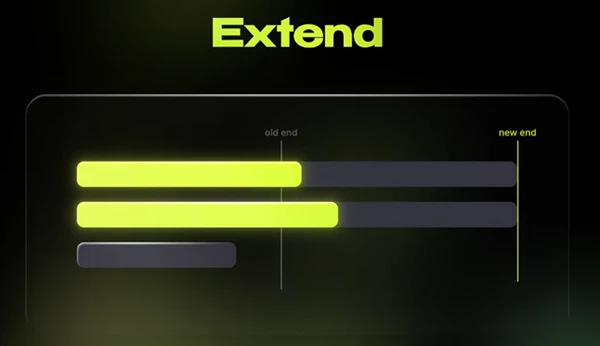
The Extend operation lengthens an entire precomp tree without changing individual keyframes.
Every nested composition grows by the same amount, regardless of how deeply it is located inside the hierarchy.
For example, if you finish an animation and later discover that the ending needs an additional three seconds, you can extend the nested structure without manually opening and modifying every composition.
Complete Recursive Retiming
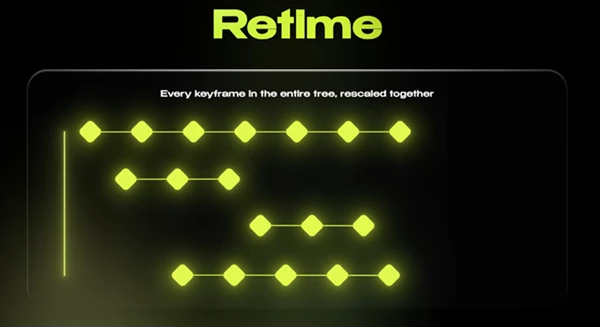
The Retime operation proportionally rescales the timing of an entire nested tree.
Keyframes, markers, and layer timing are scaled together, allowing the complete sequence to become faster or slower while keeping its internal timing relationships intact.
Keyframe easing is preserved as well, helping existing animation curves maintain their intended motion characteristics after the timing change.
Frame Rate Stays Untouched
Retend does not change the frame rate when retiming a sequence.
It also avoids adding a Time Remapping layer. This keeps the composition structure closer to the way it was originally created and avoids introducing an additional retiming system into the project.
Flexible Footage Handling
Video and audio require different treatment because they do not contain animation keyframes that can simply be rescaled.
Retend therefore gives you two approaches.
With Change Speed, footage is stretched so the same content plays faster or slower alongside the retimed composition. With Keep Native Speed, the original playback speed remains unchanged. When the composition becomes shorter, the end of the footage is trimmed. When it becomes longer, the visible range can loop using Cycle or Ping-pong behavior.
This gives you control over how real footage behaves when the surrounding animation changes duration.
One-Click Resolution Rescaling
Timing is not the only property Retend can change. It can also rescale a composition’s resolution.
You can choose presets such as Full HD, 2K, and 4K, or specify a custom target based on the longest side.
This can be useful when adapting an existing composition tree to a different delivery resolution without manually changing every relevant composition.
One Undo for the Whole Operation
Large manual changes can create a long history of individual edits. Retend treats the operation as a unified change.
If the result is not what you intended, one undo can restore everything.
That makes experimentation with different durations and speeds considerably more convenient.
A Simple Three-Step Workflow
Using Retend comes down to three main steps.
First, select the precomp layer containing the tree you want to modify. If you want to work on the whole open composition, leave everything unselected.
Next, enter your target. Depending on the operation, this can be a new duration, a speed multiplier, or a resolution preset.
Finally, click once and let Retend update the complete nested tree.
For example, if an animation needs to play at double speed, you can set the appropriate speed multiplier rather than manually adjusting every nested composition and its keyframes.
What Retend Leaves Alone
An important part of Retend’s workflow is what it doesn’t modify.
The tool focuses specifically on timing and resolution rather than restructuring your project. It does not add Time Remapping layers, change frame rates, re-parent layers, reorder them, or rewrite effects and expressions.
This means you can make broad timing changes while leaving the underlying construction of your composition intact.
Tips for a Cleaner Retend Workflow
Before making a major timing adjustment, decide whether you actually want to extend the sequence or retime it. Extend is useful when the animation itself should remain unchanged but the overall composition needs additional duration. Retime is better when the complete animation should play faster or slower.
Pay particular attention to compositions containing real video or audio. Decide whether the media should follow the new speed or maintain its original playback speed before applying the change.
For large projects, selecting a specific precomp can also be useful when you only want to modify one branch of the project rather than the entire open composition.
And because the whole operation can be reversed with one undo, experimenting with different target durations or speeds is much easier than making the same changes manually across numerous compositions.
Final Thoughts
Retend solves a particular problem in After Effects for those who often have to alter the duration of a composition that contains numerous precompositions.
The plugin’s recursive Extend and Retime functions allow for the adjustment of any number of keyframes, markers, and compositions within a project. Additionally, it also allows for video and audio to be treated separately.
Frame rates will remain untouched throughout the process, as will all of the effects, expressions, and compositions within the project. This makes Retend ideal for those who have built their projects with precompositions, as it simplifies what would otherwise be a more involved process to just three steps.
 Retend (v1.5).rar (Size: 859.9 KB - Date: 10/7/2026 2:15:52 PM)
- Retend - Time Remapping in AE by Aescripts (v1.2).rar (Size: 3.2 MB - Date: 9/12/2026 9:48:03 AM)
- Retend - Time Remapping in AE by Aescripts (v1.1).rar (Size: 858.3 KB - Date: 9/2/2026 1:00:46 PM)
- Aescripts - Retend v1.0.rar (Size: 1.6 MB - Date: 8/29/2026 4:52:49 PM)
Files Password : gfxplugin.com OR 123456