Downloadable Files
You can download Tambourine for free from the bottom of this page.
Create Music and Sound Effects Without Leaving Your Edit
Have you ever reached the perfect moment in an edit and realized you still need the right music bed, transition whoosh, UI click, or cinematic impact?
Normally, that means leaving your project, opening a browser, searching through audio libraries, previewing dozens of files, and hoping you can find something that fits the scene. That interruption can quickly break your creative flow.
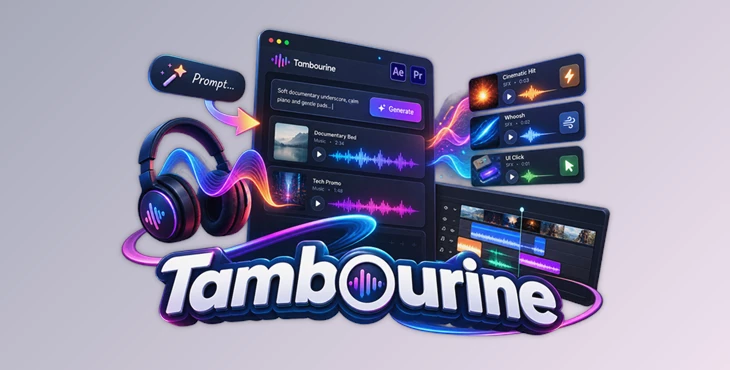
Tambourine offers a different approach. It generates AI music and sound effects directly inside Adobe After Effects and Premiere Pro, allowing you to create audio while you are still working on the edit.
You simply describe what you need, shape the direction of the sound, generate it, preview the result, and place it where your project needs it.
What Is Tambourine?
Tambourine is an AI-powered music and sound effects generator designed specifically for After Effects and Premiere Pro.
Instead of searching for existing audio that is close to what you have in mind, you can describe the sound or music you want using a text prompt.
For example, you could request a soft documentary underscore with ambient piano and gentle pads for an emotional interview. For a technology promo, you might generate an upbeat electronic pulse with light synths and soft drums.
Need something smaller? Tambourine can also create individual sound effects such as a short airy whoosh for a transition, a clean digital click for a UI animation, or a deep cinematic hit for an important visual accent.
Because these sounds can be generated beside your edit, it becomes easier to match the audio to the mood, pacing, and purpose of the scene.
Why Audio Matters More Than You Think
Good audio doesn’t simply sit underneath your visuals. It can completely change how an edit feels.
A subtle whoosh can make a transition feel smoother and more intentional. A deep impact can give a title reveal extra weight. A calm ambient music bed can support a documentary scene without overpowering it, while an energetic electronic track can make a technology promo feel faster and more modern.
Tambourine makes it easier to experiment with these elements while you can still see the scene they are meant to support.
Rather than treating music and sound design as a separate stage of production, you can develop them alongside the visual edit.
From Prompt to Timeline in Three Steps
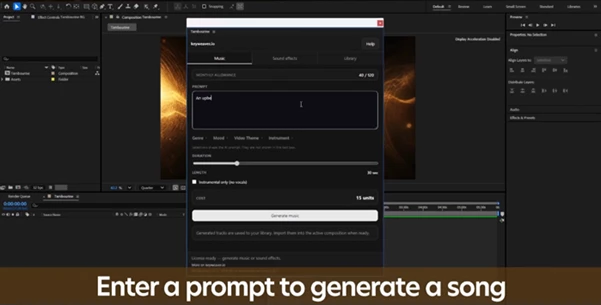
Tambourine keeps the generation process straightforward. The basic workflow consists of describing, choosing, and generating.
1. Describe Your Sound
Start by writing a short prompt describing the music bed or sound effect you need.
You can describe the mood, instruments, intensity, or purpose of the audio. For example:
“Dark cinematic tension underscore, low strings and subtle percussion building slowly.”
A more detailed description gives Tambourine a clearer creative direction and can help you generate audio that better matches the scene.
2. Shape the Direction
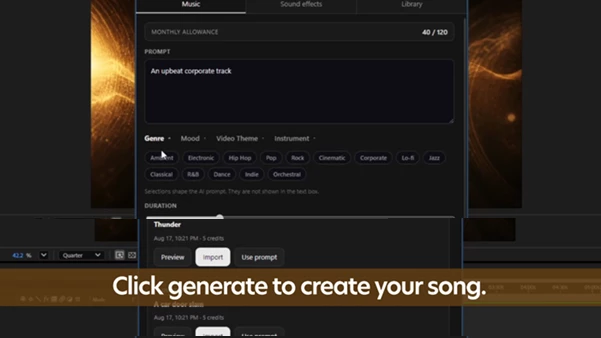
After describing the audio, you can further steer the result by choosing options such as genre, mood, video theme, and instrument.
This gives you more control than relying on a text prompt alone.
You might know that you need background music for a promotional edit, for example, but selecting the right mood and instruments can help push the generated result closer to the personality of the project.
3. Generate and Preview
Once the direction feels right, hit Generate.
You can preview the generated music or sound effect directly from the Tambourine panel. When you find a result that works with your scene, you can place it into your active composition or sequence.
This keeps the creative process close to the timeline instead of sending you back and forth between your editor and a browser.
Features
AI Music Beds
Tambourine can generate background music for different editing situations.
You could create a warm and reflective documentary bed, an energetic electronic track for a technology promo, or a darker cinematic underscore for a tension-filled sequence.
Music beds like these can help establish the emotional direction of a scene without requiring you to search through large external music libraries.
AI Sound Effects
Tambourine isn’t limited to music. It also generates one-shot sound effects for specific moments in an edit.
Whooshes can support transitions and movement, clicks can complement interface animations, and cinematic hits can emphasize titles, cuts, reveals, or other important moments.
After Effects and Premiere Pro Support
Tambourine provides one dual-host panel for After Effects and Premiere Pro.
This is especially convenient for editors and motion designers who regularly move between the two applications because the same audio-generation workflow remains available in both environments.
Editor-First Workflow
Tambourine is designed around real editing sessions.
Instead of generating audio somewhere else and manually bringing it back into your project, you can create sounds beside the cut and then place the generated audio into your active composition or sequence.
This can make experimentation much faster, especially when you need several small sound effects throughout an edit.
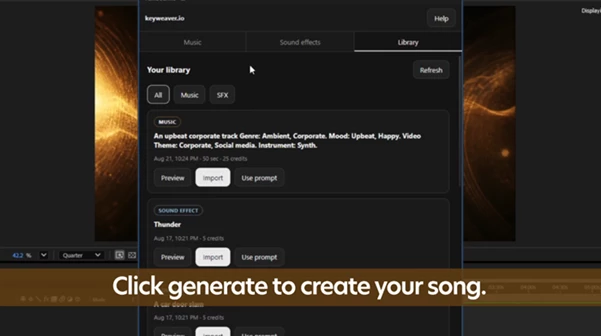
Built-In Library
Past generations can be accessed without leaving the panel.
You can preview previous results, reuse prompts, and import earlier generations into your project. This is useful when you discover a prompt or sound direction that works particularly well and want to use it again.
Music and SFX in One Tool
Having both music and sound-effect generation inside the same panel makes Tambourine useful for different stages of an edit.
You might start by generating a music bed for the overall scene and then create individual whooshes, clicks, hits, and accents to support specific visual moments.
Practical Ways to Use Tambourine
Imagine you’re editing a clean technology advertisement. You could generate a modern electronic music bed with a subtle pulse for the overall sequence. Then, as interface elements appear on screen, you could add short premium UI clicks. Finally, a soft whoosh could accompany a major transition.
For a documentary, the approach might be completely different. A warm ambient piano bed could sit quietly underneath an interview while subtle sound accents help important transitions feel more polished.
A cinematic sequence could use a slowly building tension track before introducing a deep impact sound at the key reveal.
The important point is that each cue can be created with the specific edit in mind.
Tips for Better Results
Try to make your prompts as descriptive as possible, but without making your prompts too complicated. Instead of just asking for “background music,” describe the type of music that you would like to hear.
Additionally, think about the role that each sound will play within the edit. For instance, whoosh sounds may be used to indicate a fast editing transition, while music may be used to play underneath dialogue.
Finally, try to preview different variations of sounds and music generators before selecting the final sound for your edit. Making small changes to the parameters of the sounds can lead to dramatically different results.
Finally, don’t feel the necessity of having sound effects to accompany every movement that you create within your timeline. Instead, use sound effects only in those instances where they will best accompany and highlight the movements within your project.
A More Natural Way to Build Audio Into the Edit
Tambourine allows you to integrate AI-generated music and sound effects directly into your editing process.
Where many AI music tools ask for your project to be described and then require you to navigate to the next step in the process of generating music, Tambourine allows you to simply describe your project and then generate the sounds that you need. You can then select different music beds and sound effects for your project, utilize a built-in library of sounds generated during previous editing sessions, and even integrate your project directly with Adobe After Effects and Premiere Pro.
From documentary soundscapes to promotional music and sound effects, Tambourine allows editors to quickly generate and explore audio ideas within their editing projects.

Files Password : gfxplugin.com OR 123456