Downloadable Files
You can download Edge Decal Generator for free from the end of this page.
Add Detailed Edges Without Slowing Down Your Workflow
Small surface details can make a huge difference in how believable a 3D asset feels. Weld lines, panel seams, worn edges, damaged sections, and other imperfections help break up perfectly clean geometry and give an object more character. The problem is that adding these details manually can quickly become repetitive, especially when working with complex meshes.
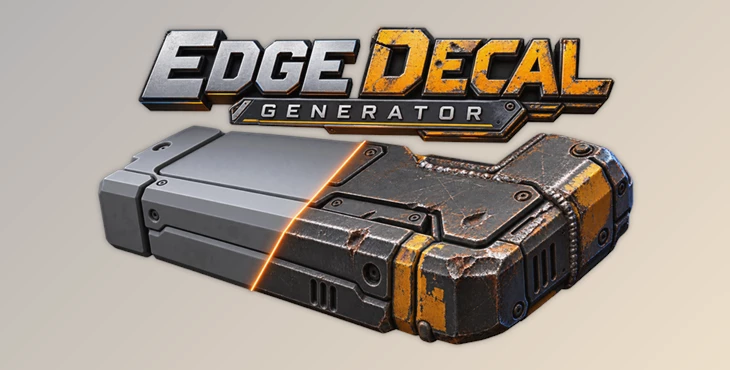
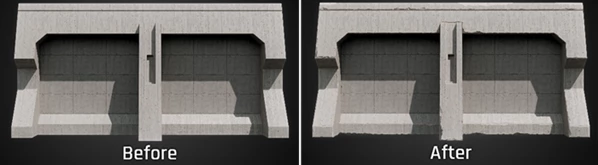
Edge Decal Generator is designed to make this process faster and much easier to control. It lets you turn mesh edges, intersections, bevel areas, and Boolean details into editable mesh decals directly inside Blender.
Instead of manually building and positioning every piece of edge detail, you can generate it where needed and then art-direct the result directly in the viewport.
What Does Edge Decal Generator Actually Do?
Edge Decal Generator is a Blender tool for creating detailed mesh decals along the edges and intersections of 3D objects.
The basic idea is simple: rather than permanently modeling every weld, seam, worn edge, or damaged area into the source geometry, you can create separate editable decals that follow the surface of your asset.
For example, imagine creating a sci-fi metal panel. You may want seams between individual plates, welds where components connect, and damaged details around exposed edges. Edge Decal Generator can help create these elements while keeping them editable.
This approach makes it easier to experiment with the look of an asset because the generated details can still be adjusted instead of becoming permanently baked into the original modeling work.
Why Edge Details Matter in 3D Assets
Perfectly clean edges often make hard-surface objects feel overly artificial. Real manufactured objects usually contain small construction details and imperfections.
A welded metal structure may have visible weld lines. Mechanical panels can have seams where separate pieces meet. Frequently used equipment may show damage and wear around exposed edges.
Adding these details helps communicate how an object was built, assembled, and used.
The important part is control. Adding detail everywhere can make a model unnecessarily noisy. Edge Decal Generator provides several ways to determine exactly where decals should appear, allowing the detailing process to remain intentional.
Features
Automatic Edge Detection
Edge Decal Generator can automatically detect suitable edges based on their angle.
This is especially useful when dealing with complex geometry containing many potential edges. Instead of manually identifying every suitable area, you can quickly generate a starting point and refine the result afterward.
Direct Viewport Art Direction
Generated decals are not simply fixed results.
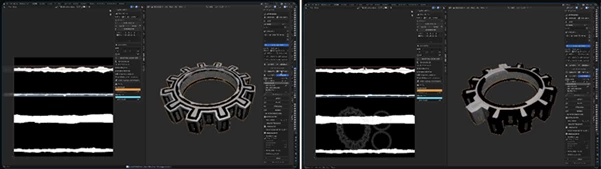
You can place, connect, taper, resize, remove, and undo edge decals directly on the source mesh. This gives you much more freedom when shaping details around the design of your object.
You can generate decals quickly and then adjust individual areas that need additional attention.
Intersection-Based Seams and Welds
When two mesh objects intersect, Edge Decal Generator can create a wrapped decal exactly where those objects meet.
This can be particularly useful for creating:
- Weld lines between metal components
- Panel seams
- Construction joints
- Mechanical connections
- Surface transitions
Because the decal follows the intersection, it can create convincing connection details without requiring you to manually trace the meeting point between the objects.
Generate Decals From Selected Edges
Automatic detection is useful for broad detailing, but sometimes you already know exactly where a decal needs to appear.
Inside Edit Mode, you can select specific edges and generate decals directly from that selection. You can also cover a selected bevel patch.
This makes it possible to combine automated generation with precise manual control.
Boolean-Based Damage
Edge Decal Generator can also work with enabled Object Boolean modifiers on the source mesh.
It can build a combined decal from those Boolean operations without requiring you to apply the Booleans first.
This is useful when creating damaged or cut sections while keeping the underlying Boolean workflow flexible and editable.
Layer-Based Decal Management
Complex assets can contain many different kinds of edge details. Mixing everything into one setup can quickly become difficult to manage.
Edge Decal Generator lets you keep different edge sets, materials, and generation settings in separate layers.
From one place, you can select, reorder, hide, lock, rename, and edit those layers.
For example, welds could stay on one layer, general edge wear on another, and damage details on a third. This makes larger decal setups much easier to modify later.
Precise Masking and Filtering
Not every detected edge needs additional detail.
You can paint areas where decals are allowed to generate, use one decal layer to mask another, and filter unwanted crevices.
This level of control is important when you want automatic generation without losing the ability to art-direct the final asset.
Automated UV Workflow
Repeatedly unwrapping decals can become another time-consuming part of the detailing process.
Edge Decal Generator allows you to place UV pins that control island location and width while automating the rest of the unwrapping process.
This helps reduce repetitive UV work while still giving you control over important placement decisions.
Blender to Unreal Workflow
The workflow does not have to end inside Blender.
Once an asset is ready, you can export the source object together with its decals as FBX.
You can also send the finished result to an open Unreal project using the optional Nanite Blueprint workflow, making the tool useful for assets intended for real-time environments as well.
Where Can Edge Decal Generator Be Useful?
The tool can fit naturally into workflows where detailed hard-surface assets need additional surface information without making every detail part of the original modeling process.
For example, a sci-fi environment could use generated decals for panel separations and worn edges. An industrial machine could use intersection decals to represent welded components. A damaged mechanical prop could combine Boolean-generated decals with manually selected edge details.
It can also be useful for game assets that begin in Blender and eventually need to move into Unreal.
The main advantage in all of these situations is that detailing remains controllable. You can generate large amounts of detail quickly while still deciding where it appears and how it looks.
Tips for More Natural Results
Don’t Detail Every Edge
Just because an edge can receive a decal does not mean it should.
Focus on areas where wear, seams, welds, or damage would logically occur. Selective detailing usually makes the result easier to read and prevents the surface from becoming visually overloaded.
Separate Different Detail Types Into Layers
Use the layer system to organize different categories of detail.
Keeping welds, seams, damage, and general edge details separate makes it much easier to hide, adjust, reorder, or replace individual parts of the setup later.
Start Broad, Then Refine
Automatic angle-based detection can give you a fast starting point. After generating the initial decals, use viewport editing, masking, and filtering to remove unnecessary areas and improve important ones.
This combines the speed of automation with the control of manual art direction.
Use Intersections Where Construction Needs to Feel Believable
Intersection-generated decals are especially useful when two components should look physically connected.
If two metal parts are supposed to be welded together, placing detail precisely along their intersection can make the relationship between those pieces much clearer.
Keep Boolean Damage Editable
When experimenting with damaged surfaces, taking advantage of existing Object Boolean modifiers lets you explore different shapes without immediately committing those changes to the source mesh.
This can make iteration much more comfortable.
Think About the Final Destination
If the asset will eventually move into Unreal, keep that destination in mind while building your decal setup. Edge Decal Generator provides FBX export and an optional Nanite Blueprint workflow, helping bridge the detailing process between Blender and Unreal.
Faster Detailing With More Creative Control
Adding detailing to the edges of a 3D model can add a lot of character to the model. However, manually adding those details can be time-consuming.
Edge Decal Generator allows artists to convert the mesh model to decals, giving them more control over the placement of those decals.
With automatic edge detection, artists can save time in the initial process to add decals to their model. Additionally, being able to edit the model in the viewport, generate intersections between different parts of the model, and work with layers will allow artists to create model with convincing seams and welds. All of this can be accomplished while retaining creative control over the model. Other features include masking, support for Boolean operations, UV pinning, and the ability to directly export models into Unreal.
Edge Decal Generator is beneficial for studios and artists that create a lot of hard-surface models or detailed game assets. By automating some of the detailing processes, Edge Decal Generator allows artists to focus more on the visual elements of their projects.

Files Password : gfxplugin.com OR 123456