Downloadable Files
You can download Cache Monitor for free from the end of this page.
When a Full Cache Quietly Ruins Your After Effects Session
Sometimes an After Effects project starts behaving badly for no obvious reason. The timeline begins to stutter, RAM previews stop after only a few seconds, or a render repeatedly fails somewhere in the middle. Naturally, you start checking the composition, footage, codecs, effects, and project settings.
But the problem can be much simpler: your disk cache is full.
After Effects relies heavily on cached data to keep previews and everyday work moving smoothly. When that storage becomes overloaded, performance can suffer, and troubleshooting the wrong part of the project can waste a surprising amount of time.
Cache Monitor is designed to make that problem much easier to spot. Instead of repeatedly opening preferences and manually checking disk cache usage, it places a tiny visual cache indicator directly inside your After Effects workspace.
A quick glance tells you whether everything is fine—or whether it might be time to clear some space.
What Does Cache Monitoring Actually Mean?
Disk cache allows After Effects to store previously processed frames and other temporary data on your drive so that it does not always need to calculate everything again from scratch.
As you continue working, however, that cache consumes more disk space. On large compositions, long sessions, or projects involving heavy effects and high-resolution footage, it can fill considerably.
Cache monitoring simply means keeping track of that storage usage before it becomes a potential problem.
Imagine spending hours on a complex motion graphics composition. Everything works normally at first, but eventually previews become inconsistent, and performance begins to deteriorate. Without a visible indicator, cache usage may not be the first thing you investigate.
With an always-visible monitor, you can immediately see its current state and decide whether clearing it is worth trying.
The advantage is not that Cache Monitor makes your compositions lighter or changes how After Effects renders them. Instead, it gives you better visibility into an important system resource, helping you identify cache-related problems faster and spend less time troubleshooting blindly.
Meet Cache Monitor
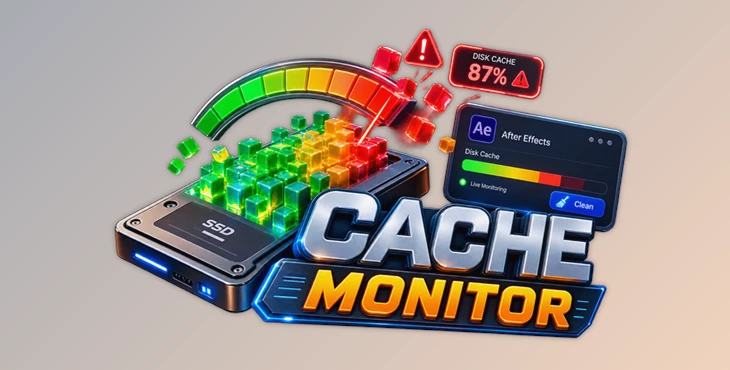
Cache Monitor is an ultra-compact, customizable After Effects panel designed to provide an almost real-time view of your disk cache usage.
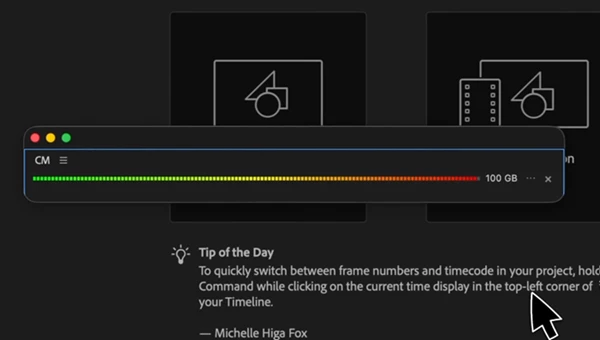
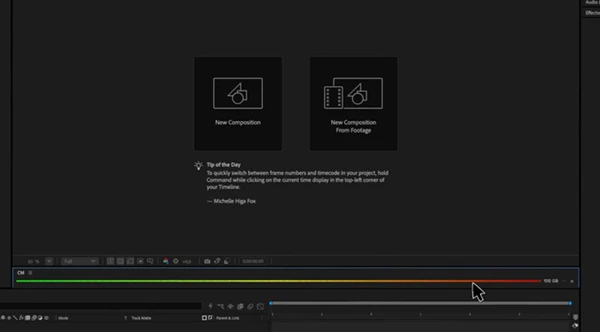
Its main interface can be as simple as a color-coded bar. At lower usage levels, the indicator can remain green. As cache usage increases, its appearance gradually changes, and once it reaches your chosen warning threshold, it can turn red.
Because the panel is designed to occupy very little workspace, you can leave it visible throughout your editing or motion-design session without sacrificing valuable screen space.
Features
Live Cache Bar
The core feature is a live, color-coded cache indicator that reflects your current disk cache usage.
Cache Monitor can automatically refresh every 10 to 60 seconds, depending on your preference. This means you do not have to repeatedly open After Effects settings just to see how much cache space is being used.
For example, during a long compositing session, you can keep working normally while the indicator quietly updates in the corner of your workspace.
Customizable Color Gradient
The panel does not force you to use a specific visual style.
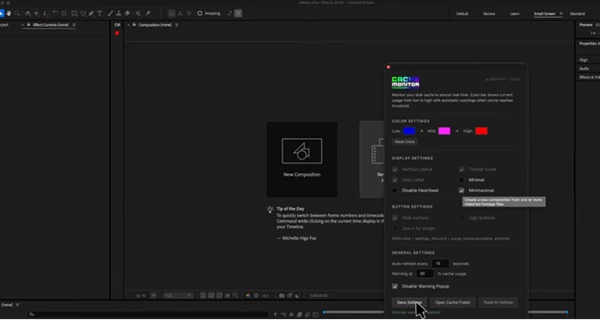
You can choose three colors for the Low → Mid → High cache gradient. A traditional green-to-red configuration makes the status immediately understandable, but you can also create monochrome, minimal, or more colorful combinations.
Built-in RGB controls, hex input, and live previews make it easier to match the monitor to the rest of your workspace.
Five Display Modes
Cache Monitor is built around a very small footprint and provides five different display modes:
- Standard Segmented Bar for a familiar cache meter.
- Thicker Scale when you want the indicator to be more visible.
- Vertical Mode for narrow sidebars.
- Minimal Mode that can reduce the monitor to a tiny 10×10-pixel indicator.
- Minimaximal Mode that turns the entire panel into one solid status color.
Labels and buttons can also be hidden, allowing the monitor to occupy only as much space as you want to give it.
Smart Warning Threshold
You can determine when cache usage should be considered critical.
The default warning threshold is 85%, but it can be adjusted anywhere from 50% to 99%. Once usage crosses the selected level, the panel provides an obvious visual warning.
This can be especially useful when working on cache-heavy projects because you can react before storage becomes completely saturated.
If you do not want warning behavior at all, it can also be disabled.
Instant Cache Purging
When the cache needs attention, you do not have to navigate through multiple menus.
Simply Alt-click anywhere on the panel to trigger After Effects’ built-in purge process. Cache Monitor then reports how much storage space was freed.
For situations where a normal purge is not enough, the included Deep Clean option can target orphaned files that After Effects’ standard tools may leave behind.
Persistent Settings
Once you customize the panel, your configuration is stored and survives application restarts.
You can configure colors, display style, refresh frequency, warning behavior, and other visual preferences once and continue using the same setup in future sessions.
If you want to start over, the Reset All Settings option restores the original defaults.
Where Cache Monitor Can Be Most Useful
The tool becomes particularly valuable during long After Effects sessions where disk cache can gradually accumulate without drawing much attention.
It can help when you’re working with high-resolution footage, large compositions, multiple effects, demanding motion graphics, or projects that involve frequent previews and revisions.
It is also useful when troubleshooting unexpected slowdowns. If your timeline suddenly becomes sluggish, you can glance at Cache Monitor before spending time investigating footage, plugins, expressions, or project settings.
Even when the cache is not responsible, knowing its status helps eliminate one possible cause immediately.
Tips for Getting More From Cache Monitor
Put It Somewhere You Naturally Look
Because Cache Monitor can become extremely small, place it near a part of the After Effects interface you already check regularly, such as the timeline or another frequently used panel.
The goal is to make cache awareness effortless rather than turning it into another thing you have to remember to check.
Choose Colors You Can Read Instantly
A visually attractive gradient is nice, but clarity matters more.
Try to make your high-usage state noticeably different from your normal state. That way, you can recognize a warning from peripheral vision without stopping your work to inspect the meter.
Find the Right Refresh Interval
A shorter refresh interval gives you more frequent updates, while a longer interval keeps monitoring more relaxed.
You probably do not need the most frequent refresh setting for every project. Choose an interval that provides enough information without making you obsess over tiny changes in cache usage.
Set a Practical Warning Threshold
The default 85% threshold is a useful starting point, but different workflows may benefit from different limits.
If your projects generate cache very quickly, an earlier warning can give you more time to react. If your storage setup comfortably handles higher cache usage, you may prefer a later warning.
Don’t Treat Every Slowdown as a Cache Problem
Cache Monitor gives you visibility into disk cache—it does not mean every performance issue is caused by it.
A slow composition can still result from demanding effects, high-resolution footage, expressions, insufficient RAM, plugins, storage performance, or many other factors. Use the monitor as a quick diagnostic signal rather than assuming that purging cache will solve every slowdown.
A Small Panel That Can Save a Lot of Guesswork
Cache problems generally go unnoticed until the project begins to suffer from the issues that cache can cause.
The Cache Monitor takes care of making visible the information that is otherwise hard to see. The status bar, warning threshold, display modes, appearance, automatic refresh, and purge buttons all make it easier to manage the disk cache whilst working in After Effects.
Above all else, the Cache Monitor offers an easy way to see the status of the disk cache without having to guess at what the status might be. For those who spend many hours working in After Effects, this piece of software can considerably speed up the process of troubleshooting issues that may arise.

Files Password : gfxplugin.com OR 123456