Downloadable Files
You can download Gulp for free from the end of this page.
Stop Building the Same CGI Comp Over and Over
Working with CGI renders in After Effects can be rather repetitive. You spend the effort to find the right version of the render, importing the multichannel EXR file, inspecting the passes, creating the layers, setting up EXtractoR, choosing the right channels, setting up the blend modes, depth passes, and split mattes within the Project panel in After Effects.
The next shot comes along, and you do it all over again.
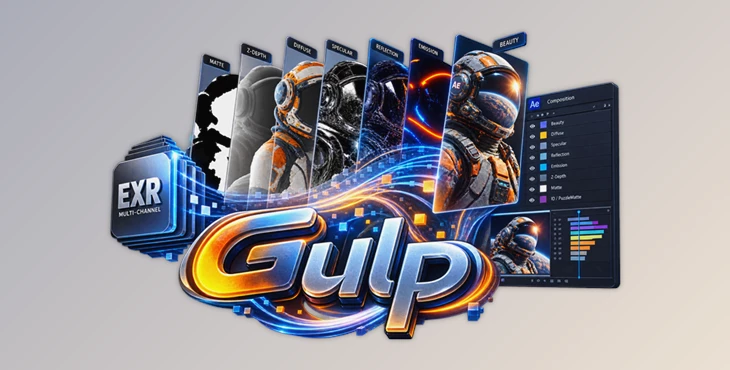
Gulp is a media browser and CGI shot building tool that was developed to help with the repetitive nature of preparing CGI renders in After Effects. Rather than manually finding the right version of the render, importing the multichannel EXR files, inspecting the passes, and building the compositions within After Effects, Gulp brings all of this into one tool to streamline the process.
For artists working on large-scale CGI projects with multiple versions of renders, AOVs, and image sequences, Gulp can make the compositing phase of the pipeline quicker, cleaner, and more consistent.
What Is Gulp and What Does It Actually Do?
At its core, Gulp combines a media browser, multipass EXR inspector, and automated shot builder for After Effects.
You point it toward a render folder and browse its contents directly from the panel. Image sequences are grouped into single entries instead of appearing as hundreds of individual frames, while their actual frame ranges remain visible.
When the tool encounters a multichannel EXR, it can inspect the header and identify passes, channel structure, bit depth, and available frame-rate information before import.
The biggest advantage appears when compositing begins. The tool can create a composition and prepare individual passes automatically, reducing the manual work normally required for beauty renders, diffuse lighting, reflections, specular highlights, depth data, and PuzzleMattes.
Why Better Render Management Matters
Beyond the clicks saved when using a render management tool, another reason to use such software is to reduce the number of mistakes.
As artists manually choose the channels to include in the render pass, the potential for mistakes is high. Such as rendering the wrong AOV, selecting the wrong blend mode for a channel, using an outdated version of the render, or missing frames during the render pass. By automating the preparation of these channels and components, artists can begin compositing with fewer errors.
Features
Browse Render Folders Directly Inside After Effects
The render browser turns the panel into a dedicated browser, allowing you to choose the root folder for your renders and then navigate to the different shots.
Image sequences are automatically collapsed into a single entry in the browser with the actual frame range and count displayed. Multichannel EXRs are shown as multipass files with the different passes made visible for inspection prior to import.
Files can be filtered by filename or file extension (including negative extensions to exclude certain files). Files and folders can be dragged from Explorer or Finder directly into the panel. Favourites can be defined at the global or project level to access the most commonly used directories. Recently used root folders can also be accessed from the browser.
If the footage is already in the After Effects Project panel, the Open selection in Gulp option will take you directly to the file on disk.
Inspect EXR Files Before Importing Them
During browsing, the tool can read EXR headers and identify:
- Available passes and channel layouts
- 16-bit half or 32-bit float data
- Frame-rate information when stored in the file
- Detected colourspace and bit depth
- Sequence frame ranges and gaps
- Specific missing frames
This lets you understand what is inside a render before committing it to the project. For incomplete sequences, the tool can identify exactly which frames are absent, which is particularly useful when troubleshooting render-farm output.
Build Complete Multipass Compositions in One Click
This is where Gulp can dramatically accelerate a CGI workflow.
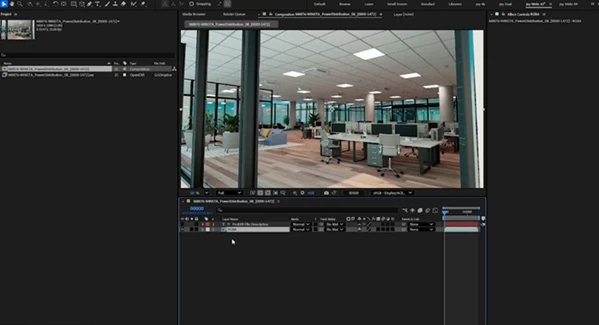
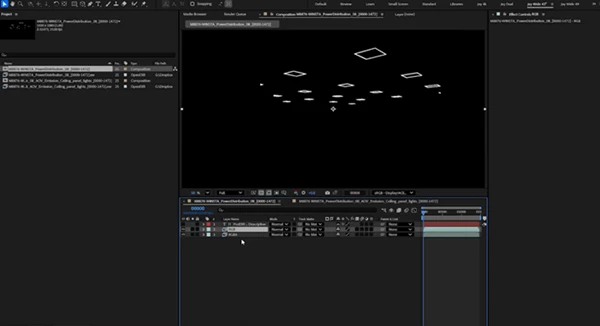
The Build Comp feature creates an organized After Effects composition containing the appropriate passes as labelled layers. It can combine a multipass EXR with standalone pass sequences stored beside it, including formats such as EXR, DPX, TIFF, and PNG.
The automated setup can:
- Create and name individual pass layers
- Organize imported material into project folders
- Assign additive blend modes to lighting passes
- Park data passes that should not affect the initial image
- Configure EXtractoR and IDentifier channel selections
- Keep beauty-first shots visually clean by disabling unnecessary passes initially
Instead of preparing the same technical structure at the beginning of every shot, the tool gives you a composition that is much closer to being ready for creative work.
Smarter Depth Pass Handling
Depth data often requires additional preparation before it becomes useful for atmospheric depth, depth-based grading, or lens blur.
Gulp can automatically route the Z channel into RGB and establish black and white points using a near/far range. When suitable camera metadata is available, such as information written by Redshift, those values can be prefilled automatically.
This provides a more practical starting point for depth-based effects without rebuilding the depth pipeline for every shot.
Automatic PuzzleMatte Splitting
The tool can prepare PuzzleMatte information automatically by splitting it into individual luma-matte layers for each ID, making those layers immediately useful as track mattes.
If the render contains only one ID, it remains a single layer rather than creating unnecessary duplicates. This can save substantial setup time in scenes with many objects or materials requiring isolated adjustments.
Keep Comps Updated While Renders Are Still Arriving
Production does not always wait for the render farm to finish. Gulp can display a completeness bar showing the frames currently available compared with the expected sequence range.
With Watch this shot for renders enabled, the composition and its pass layers can extend automatically as new frames arrive. If earlier frames appear later, the tool asks whether the shot should be shifted to the new starting frame instead of making that decision automatically.
This is especially useful in active VFX and CGI pipelines where compositing starts before final rendering is complete.
Cloud-Friendly File Handling
The tool is designed to work with files stored through services such as Dropbox, OneDrive, and iCloud.
Online-only files are clearly marked, and reading an EXR header does not itself trigger a large download. When files need to be downloaded, the expected data size can be shown first—useful when a render folder contains tens of gigabytes of data.
Split Multipass EXRs into Separate AOV Files
Gulp can also take a multipass EXR and write its individual passes as separate EXR sequences on disk.
This is useful when a specific AOV needs to be sent to another artist, application, colourist, or pipeline stage.
Output compression options include:
- DWAB
- DWAA
- ZIP
- PIZ
The process uses the bundled OpenImageIO oiiotool, provides progress feedback, and can open the output folder when processing is complete.
Relink Missing Footage in Bulk
Moved renders and changed version folders can leave an After Effects project filled with missing footage. The tool can scan the project for missing media and search a specified folder for possible replacements.
Search depth is configurable, and the system works with sequences, still images, and movies. When several possible replacements exist, ambiguous matches can be presented for individual selection instead of being silently chosen.
This makes the tool useful not only when starting CGI shots, but also when repairing projects that have been moved, archived, or re-versioned.
Send After Effects Comps to Premiere Pro
Gulp can send the active After Effects composition to an open Premiere Pro project as a Dynamic Link composition, with the option to place it at the playhead.
If the After Effects project has not yet been saved, you are prompted to save it before continuing.
Quick Import for Everyday Media
The tool is not limited to complicated multipass renders. Its quick-import workflow also supports ordinary footage and provides control over settings such as frame rate, Project panel destination, and layer naming.
Media can optionally be inserted directly into the active composition. Movies and still images can also generate compositions sized and timed according to their footage.
A More Transparent Colour Workflow
Colour management is an area where blind automation can create serious problems, so Gulp takes a more explicit approach.
It asks what colourspace the render was created in and compares that requirement with the current After Effects project configuration. Relevant project information such as working space, bit depth, engine, and OCIO configuration can be inspected.
For common ACEScg workflows, the tool can reversibly patch the colour configurations included with After Effects so EXRs import as scene-linear ACEScg rather than being treated as ACES2065-1.
Importantly, Gulp does not pretend to detect information that an EXR cannot reliably provide. Instead of guessing, it asks the user.
Customizable Interface
Gulp includes five interface themes available through Preferences.
The default appearance is designed to sit naturally beside After Effects’ dark interface and Adobe-style accenting, while alternative muted dark themes and a light option provide additional flexibility.
Professional Tips for Using Gulp
Organize Your Render Folder Structure First
The software can automate a great deal, but predictable render organization still improves the workflow. Keep shots, versions, and related standalone AOV sequences consistently named to make browsing, filtering, relinking, and automatic pass recognition easier.
Check Frame Completeness Before Heavy Compositing
Before investing significant time in a shot, inspect the sequence range and missing-frame indicators. If rendering is still underway, use shot watching instead of repeatedly rebuilding the composition.
Use Beauty as Your Visual Reference
When a beauty render is available, other passes can initially remain disabled. Compare the reconstructed multipass result against the original beauty regularly so unexpected differences can be traced back to individual lighting passes or blend modes.
Treat Data Passes Differently from Lighting Passes
Depth, IDs, normals, and similar technical AOVs are data rather than direct image contributions. Keeping them separate from lighting passes makes complex compositions easier to understand and reduces the chance that technical layers accidentally alter the beauty reconstruction.
Confirm Your Colour Pipeline Before Building Multiple Shots
If renders use ACEScg or another managed colour workflow, establish the correct project configuration before assembling a large batch of shots. Gulp can help expose differences between the current project setup and the render requirements, but understanding the intended render colourspace remains essential.
Getting this right early prevents colour-management mistakes from being repeated across an entire project.
Compatibility and Supported Formats
Gulp supports After Effects 2022–2026 on Windows and macOS.
On Windows, x64 systems are supported. On macOS, the software is universal for Apple Silicon and Intel, and its native plugin is Apple-notarized.
Under the hood, it combines a CEP panel with a native After Effects AEGP plugin for composition building and channel routing. It also includes OpenImageIO’s oiiotool for pixel-processing operations.
Multipass and multichannel EXRs can come from renderers including Redshift, Octane, Arnold, V-Ray, and Cinema 4D.
Shot building works with image sequences supported by After Effects, including EXR, DPX, TIFF, PNG, JPEG, TGA, HDR, PSD, and others. Movies such as MOV, MP4, AVI, MXF, M4V, MPG, MKV, and WebM can also be browsed, imported, relinked, and used to create footage-sized compositions.
True multipass functionality is specifically based around EXR channel layouts. Layered PSDs and multichannel TIFF files currently import as single items rather than being split like multipass EXRs.
From Render Folder to Ready-to-Composite Shot
Gulp focuses on the necessary but repetitive side of CGI compositing: finding renders, understanding their contents, importing AOVs, configuring channels, creating layers, checking sequences, and rebuilding the structure for every new shot.
By bringing these tasks into one workflow, artists can spend less time on technical preparation and more time refining the actual image.
For artists who regularly import CGI shots into After Effects, Gulp offers more than faster setup. Its larger advantage is a more consistent and understandable workflow across shots, versions, and teams—especially as a project grows from a handful of renders to dozens of complex compositions.