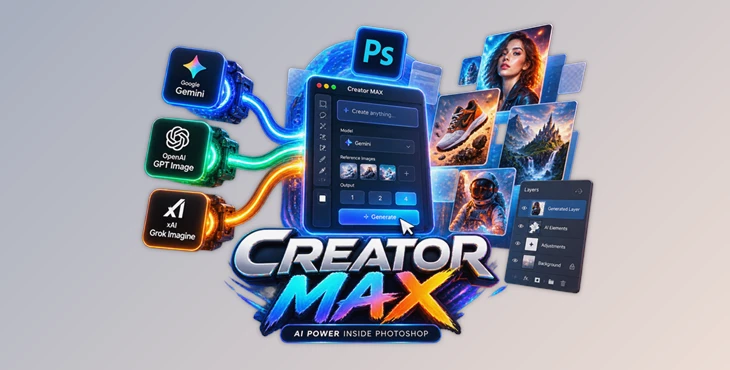
Downloadable Files
You can download Creator MAX for free from the end of this page.
Bring Powerful AI Models Directly Into Your Photoshop Workflow
AI image generation is incredibly useful, but moving constantly between Photoshop, browser-based AI tools, downloaded images, prompts, and reference files can quickly interrupt a creative workflow.
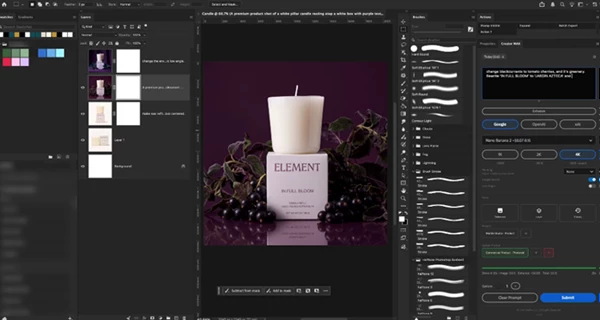
Creator MAX is designed to bring that entire process directly into Photoshop. Instead of leaving your document whenever you want to generate something new or modify part of an image, you can make a selection, describe the result you want, choose an AI model, and generate it from one UXP panel. The generated result is then placed back into your Photoshop document as a new layer.
This makes Creator MAX useful not only for text-to-image generation, but also for retouching, generative fill, object removal, restyling, concept development, product photography, and many other everyday Photoshop tasks.
What Does Creator MAX Actually Do?
At its core, Creator MAX acts as an AI generation and editing workspace inside Photoshop.
You bring your own API key from supported providers such as Google, OpenAI, or xAI. Creator MAX then gives you access to compatible image-generation models through a unified interface.
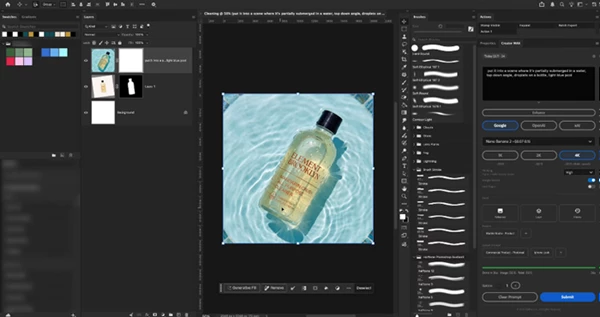
For example, imagine you are editing a product photograph and want to replace only the background. You can select the background, enter a prompt describing the new environment, add visual references if necessary, and generate several alternatives.
Or perhaps a photograph is almost finished, but a small detail such as a hand, texture, edge, or piece of text looks wrong. Instead of regenerating the entire composition, you can select that specific area and use AI-based editing or inpainting to correct it.
Because results arrive as new layers, they remain much easier to mask, blend, compare, and refine using Photoshop’s normal editing tools.
Features
Multiple AI Providers in One Panel
One of the biggest advantages of Creator MAX is that you are not restricted to a single AI provider.
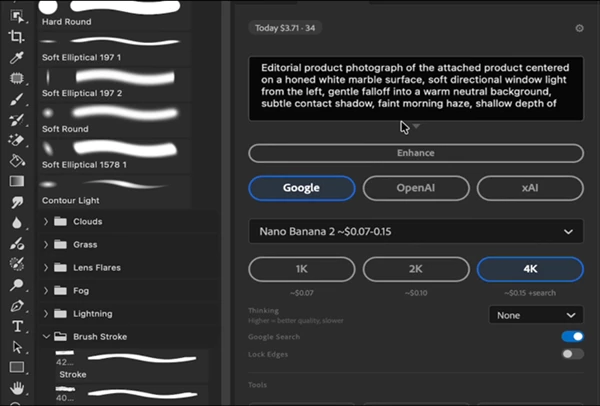
The panel supports models from Google, OpenAI, and xAI, allowing you to switch between providers depending on the job. Available options include models such as Nano Banana Pro, Nano Banana 2, Nano Banana 2 Lite, Nano Banana, GPT Image 2, Grok Imagine Quality, and Grok Imagine.
The interface also adapts to the selected model, showing relevant controls such as quality, resolution, aspect ratio, or other model-specific options while hiding unsupported settings.
This helps keep the workflow cleaner when experimenting with different generation engines.
AI Image Generation Directly in Photoshop
Creator MAX can generate completely new images from text prompts without requiring you to leave Photoshop.
You can use this for concept artwork, backgrounds, visual experiments, social media graphics, product scenes, or elements that will eventually become part of a larger composite.
Up to four variations can be generated in parallel, making it easier to compare different interpretations and keep the strongest result.
Selection-Based AI Editing and Inpainting
Creator MAX becomes especially useful when working with an existing image.
Make a Photoshop selection and use that selected region as the source for an AI edit. This allows you to perform targeted operations such as:
- Removing unwanted objects
- Adding new elements
- Replacing products or objects
- Fixing hands and small details
- Repairing problematic edges and textures
- Correcting garbled text
- Changing environments or scenes
- Recoloring existing artwork
- Restyling parts of an image
Generated edits return to the original document as new, named layers and are cropped according to the selected area.
That layer-based approach gives you considerably more flexibility because AI generation becomes part of the normal Photoshop compositing process rather than a separate workflow.
Up to 15 Reference Images
Prompts are not always enough to communicate exactly what you want.
Creator MAX lets you add up to 15 reference images to a generation. References can be dragged from your computer or taken directly from Photoshop layers, with automatic compression helping prepare them for generation.
This can be particularly useful when developing consistent product imagery, matching a visual direction, exploring a particular design language, or giving the model more context than text alone can provide.
Prompt Enhance
You do not need to begin every generation with a perfectly engineered prompt.
The Enhance Prompt feature can turn a rough idea into a more detailed production-oriented prompt. This is useful when you know what you want visually but do not want to spend time manually writing a long AI prompt.
Prompt History and Easy Re-Runs
Finding a successful generation setup and then losing the exact prompt or settings can be frustrating.
Creator MAX includes a visual Prompt History that stores useful generation information such as thumbnails, prompts, and per-image cost. Previous setups can be loaded again, making successful experiments much easier to reproduce.
History information can also be exported to JSON, CSV, or Markdown.
User Presets and System Prompts
If you repeatedly use similar generation settings, user presets can save those configurations and recall them with a click.
System prompts provide another layer of consistency. You can establish a particular direction or look and reuse it across multiple generations instead of rebuilding the same instructions each time.
This can be especially valuable for projects that require a recognizable visual identity across many images.
Live Cost Information
Because Creator MAX works with your own provider API keys, understanding generation cost can matter when producing many variations.
The panel displays live USD cost information, while generation history can retain per-image cost data. This makes experimentation easier to track, particularly for high-volume workflows.
Customizable Interface
Not every artist needs every available AI control.
Creator MAX allows you to customize the panel and show primarily the controls relevant to your workflow. Combined with its model-aware interface, this can make a feature-heavy AI environment feel much more manageable during everyday Photoshop work.
From Prompt to Photoshop Layer in Four Steps
The workflow is straightforward.
First, choose the AI provider and model appropriate for your task. Creator MAX updates the available controls according to that model.
Next, provide context. You can use your active Photoshop selection and optionally add reference images from files or existing layers.
Then write your prompt or use Prompt Enhance and generate up to four variations. For targeted editing, use the selection to perform an inpainting-style operation.
Finally, review the generated options as new layers in your document. If a previous attempt worked particularly well, Prompt History allows you to reload that setup and run it again.
The important difference is that the AI workflow stays closely connected to the Photoshop document you are already editing.
Where Can Creator MAX Be Useful?
Creator MAX can fit into many different creative workflows.
A designer could generate several visual directions for a campaign before compositing the strongest elements into the final artwork.
A photographer could clean distracting areas, extend an image, modify scenery, or explore a different visual treatment.
A retoucher could select only a problematic region and generate a correction on a separate layer, keeping the result ready for further masking and blending.
A concept artist could rapidly explore environments, moods, compositions, and stylistic alternatives without constantly exporting and importing files.
For e-commerce imagery, the same product could be placed into different scenes or explored in multiple colorways and packshot variations.
Social media creators and marketing teams can similarly use the workflow to produce multiple visual alternatives for different placements while retaining generation history and cost information.
Tips for Better Results With Creator MAX
Use Selections for Precision
Do not regenerate an entire image when only one small area needs attention.
For object removal, texture corrections, hands, edges, or local changes, create a careful selection around the problematic region. Smaller, clearly defined editing areas can give the AI better context while preserving more of your original artwork.
Give Reference Images a Clear Purpose
The ability to use up to 15 references does not necessarily mean every generation needs 15 images.
Choose references that communicate something useful: composition, product appearance, mood, texture, styling, or another important visual characteristic. A smaller group of relevant references can be more practical than adding images without a clear reason.
Generate Variations During Exploration
When the visual direction is still uncertain, generating several alternatives can be more efficient than repeatedly trying to perfect a single result.
Use parallel variations to explore possibilities, select the strongest candidate, and then continue refining that result inside Photoshop.
Keep AI Results on Separate Layers
Creator MAX already places generated results on new layers, so take advantage of that structure.
Rather than treating every AI output as finished artwork, combine it with Photoshop masks, adjustment layers, blending, color correction, and manual retouching. AI can provide the starting material while Photoshop gives you precise control over the final image.
Save Successful Setups
Often when using Prompt History, you will find that one particular prompt, system prompt, model, and settings combination is the best for producing the series of images that you would like. Thus, it is helpful to be able to save these successful setups.
This is particularly helpful in situations where you are producing a series of related images.
Match the Model to the Task
In addition to the different settings within Creator MAX, there are also various models that can be selected for the tool. Each model may have different capabilities with the images that they render, so it is important to choose the correct model for the task that you wish to perform with your images. For instance, one model may be better for high-quality final renders of the images, while another model can render more quickly at a lower cost.
Because Creator MAX includes several different model providers, it is also possible to quickly switch between models as part of the creative process.
A More Integrated Way to Use AI in Photoshop
Creator MAX is about reducing the distance between AI generation and traditional Photoshop editing.
Instead of using AI generators outside of Photoshop, there are several tools within Photoshop to aid in AI generation.
The combination of various AI providers, selection-based editing, the ability to use reference images, variations, presets, prompt history, and cost tracking makes this tool suitable for both quick projects and more lengthy production projects.
For those who spend much of their creative time within Photoshop, this offers an interesting way to experiment with generative AI tools within the program.