Downloadable Files
You can download Label Isolate for free from the bottom of this page.
Quickly Focus on the Layers You Need in After Effects
Working with a large After Effects composition can become surprisingly messy. Once a timeline contains dozens—or even hundreds—of layers, finding and focusing on a specific group can slow down even the simplest edit. Color labels help organize those layers, but manually hiding everything you do not need still takes time.
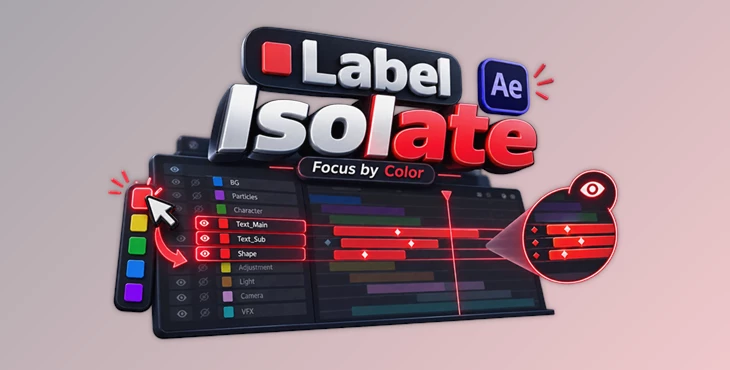
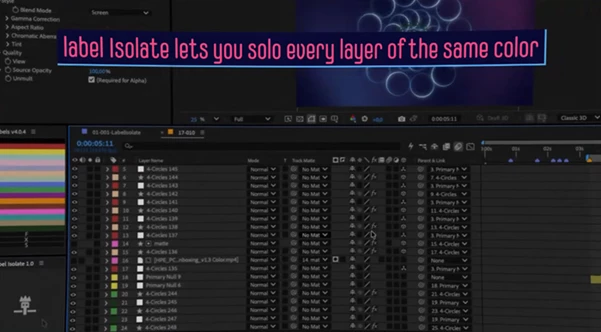
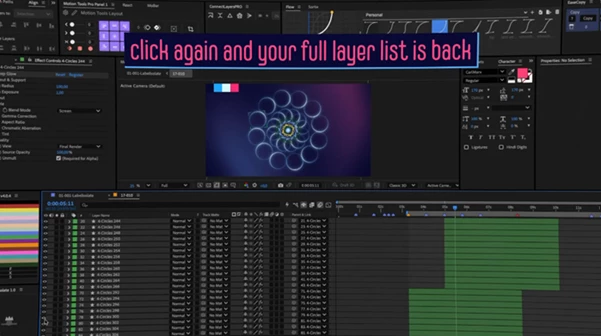
Label Isolate is designed to make that process much faster. With a single click, it lets you isolate layers that share the same label color while hiding the rest using After Effects’ Shy functionality. When you are finished, another click brings your complete layer list back.
It is a simple idea, but in complex compositions it can make navigating the timeline considerably more comfortable.
Focus on What Matters, Not the Entire Timeline
Layer labels are one of the easiest ways to organize an After Effects project. You might use one color for text, another for adjustment layers, another for character elements, and another for background graphics.
The problem appears when the composition becomes crowded. Even if everything is properly color-coded, all those layers are still visible in your timeline.
Label Isolate turns those colors into a practical filtering system.
Select a layer with the label color you want and click the script. Layers with other colors are made Shy, allowing you to concentrate on the relevant group. Click again when you are finished, and the full layer list returns.
For example, imagine a motion graphics composition containing:
- Blue labels for text layers
- Red labels for effects
- Green labels for background elements
- Yellow labels for character animation
If you only need to work on the text, you can isolate the blue-labeled layers instead of searching through the entire composition.
This keeps the timeline cleaner and helps reduce unnecessary visual clutter while editing.
Features
One-Click Label Isolation
The main strength of Label Isolate is its simplicity. Select a layer and click the script to isolate layers that use the same label color.
There is no complicated setup or lengthy configuration process. This makes it particularly useful for repetitive timeline organization during everyday After Effects work.
Isolate Multiple Label Colors
Sometimes one category is not enough.
Label Isolate can isolate more than one color at the same time, giving you additional flexibility when different groups of layers need to remain visible together.
For example, when adjusting an animated title, you may want to see both your text layers and their associated effects while temporarily hiding backgrounds and unrelated elements.
Quickly Restore the Full Layer List
Isolation is temporary. Once you have finished working with the selected labels, click again, and the complete layer list becomes available.
This makes it easy to move between a focused editing view and the full composition without repeatedly managing individual layers.
Keeps Your Composition Intact
An important part of the workflow is that Label Isolate does not delete or move your layers.
Instead, unwanted label colors are hidden through the Shy workflow. Your composition structure remains intact while you get a cleaner workspace for the task at hand.
That is especially useful in larger projects where maintaining the original layer organization is important.
A Simple Companion for Busy Timelines
Label Isolate is intentionally straightforward. Rather than trying to replace After Effects’ organizational tools, it makes an existing system—layer label colors—more useful.
If your projects already use consistent color labels, the script can turn those labels into a fast way of navigating complex compositions.
Where Label Isolate Can Save You Time
The script becomes particularly useful as compositions grow.
In a character animation project, for example, you could assign different colors to facial controls, body elements, shadows, and accessories. When adjusting the face, isolate its label and remove unrelated layers from view.
For a UI animation, labels could separate text, icons, interface panels, and effects. Instead of scrolling through the entire timeline whenever you switch tasks, you can focus on the category you currently need.
The same idea works for title sequences, explainer videos, social media animations, compositing projects, and other After Effects compositions containing many organized layers.
The benefit is not about changing the final render directly. It is about making the workspace easier to navigate so you can spend more time on the actual creative work.
Tips for a Cleaner Label Isolate Workflow
Create a consistent color system. Label Isolate becomes much more useful when label colors have clear meanings. Instead of assigning colors randomly, decide what each color represents across your project.
Group layers by purpose. Consider giving related elements the same label. Text, effects, backgrounds, controls, and other categories can each have their own color.
Use multiple-color isolation when necessary. Do not force everything into a single group. If a task involves two related categories, isolate both colors and keep the context you actually need.
Return to the full timeline regularly. A focused timeline is excellent for detailed editing, but periodically restoring the complete layer list helps you maintain awareness of the overall composition.
Combine labels with good project organization. Label Isolate works best as part of an organized workflow. Clear layer names, sensible label colors, and a structured timeline can make large After Effects projects significantly easier to manage.
A Small Tool That Makes Busy Timelines Easier
Label Isolate focuses on solving one specific workflow problem: quickly showing the layers you need and getting everything else out of the way.
Select a layer, isolate its label color, concentrate on the relevant elements, and restore the full timeline when you are done. Support for multiple colors makes the workflow flexible enough for situations where several layer groups need to stay visible together.
Nothing needs to be deleted or rearranged, so the original composition remains untouched.
For After Effects users who already rely on color labels to organize complicated timelines, Label Isolate provides a simple way to make those labels more useful. Sometimes a faster workflow does not require a huge collection of tools—just one button that removes a repetitive step.

Files Password : gfxplugin.com OR 123456