Downloadable Files
You can download AEP Transplant for free from the end of this page.
A Smarter Way to Move After Effects Projects, Comps, Layers, and Assets
Working across multiple After Effects projects can quickly become messy. Maybe you only need one composition from an older project, a few layers from a template, or a specific asset buried inside a large AEP file. Normally, importing that material can bring along unnecessary folders, duplicate footage, and assets you never wanted in the first place.
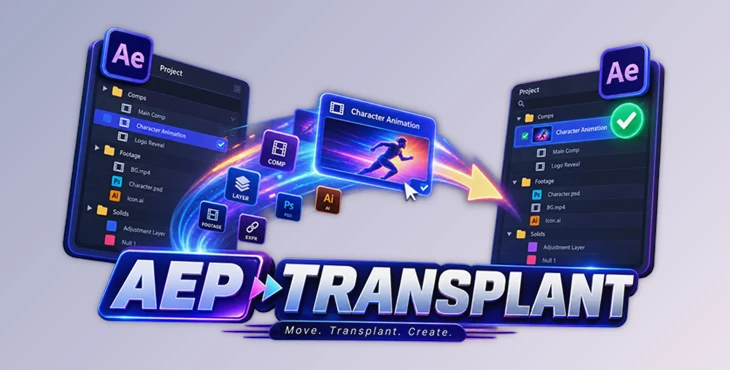
AEP Transplant is designed to make this process much more precise. Instead of treating another project as one large package, it lets you browse its contents and cherry-pick exactly what you need.
You can pull complete compositions, individual layers, folders, footage, and other assets from AEP files directly into your current After Effects project. It also works with layered PSD, PSB, and AI files, making it useful for motion designers, character animators, template creators, and anyone who regularly reuses material across projects.
Move What You Need, Leave Everything Else Behind
The core idea behind AEP Transplant is simple: selective importing.
Imagine you have a large After Effects project containing dozens of compositions, hundreds of assets, and a complicated folder structure. You want to reuse only one finished title animation in a new project.
Instead of importing the entire project and cleaning everything up afterward, AEP Transplant allows you to select that composition. The tool then brings in the dependencies required by that comp while leaving unrelated content behind.
The same approach works at an even more detailed level. If you only need several layers from a composition, you can pull those specific layers instead of importing the complete comp.
This can make project files cleaner, reduce unnecessary duplication, and save considerable time when working with large libraries or frequently reused assets.
More Than a Simple Project Importer
AEP Transplant acts almost like a portal between your current After Effects project and external project files.
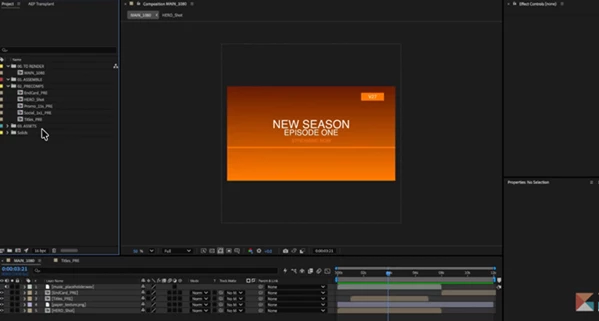
You can browse .aep, .psd, .psb, and .ai files directly from the panel and inspect their contents beside your existing project. From there, you decide exactly what should be transferred.
The important part is that the tool does more than copy files. It also works to preserve the relationships that make those elements function correctly.
For example, when importing selected layers, AEP Transplant can account for dependencies such as parents, track mattes, effect links, and expression targets. This helps transferred elements arrive in a usable state instead of forcing you to rebuild their relationships manually.
Features
Surgical Composition Imports
One of the most useful features is the ability to import individual compositions without dragging the entire source project along with them.
Simply check the compositions you need, and AEP Transplant identifies and imports their required dependencies.
For motion designers who maintain large animation libraries, this means an old project can effectively become a reusable collection of comps without requiring a separate reduced project for every element.
Import Specific Layers from a Composition
Sometimes an entire composition is still too much.
AEP Transplant allows you to open a source composition and select individual layers. When those layers depend on other elements, the tool works out important relationships such as parenting, track mattes, effects, and expression targets.
Selected layers can also be sent directly into an existing composition in your current project while preserving their stacking order and rebuilding relevant relationships.
This is particularly useful when you want to reuse a title setup, animation controller, effect stack, character component, or small group of animated elements.
Smart Folder Merging
Importing content from multiple projects often creates messy Project Panels filled with duplicated folder structures.
AEP Transplant approaches this differently.
With Try to merge with current project enabled, imported folders can be compared against folders already present in your project. Matching can consider exact names, fuzzy names, and folder contents.
Instead of automatically creating another top-level folder every time something is imported, content can be merged into your existing organization.
The folder matching system can also work with editable synonym lists. Built-in synonyms cover multiple languages, including English, Simplified Chinese, French, German, Italian, Japanese, Korean, Portuguese, Russian, and Spanish.
Duplicate Asset Control
Duplicate assets can make large After Effects projects unnecessarily difficult to maintain.
When AEP Transplant encounters a naming collision, it gives you control over what happens. Depending on the situation, you can choose to Replace, Use Current, or Keep Both.
That means duplicate handling becomes a deliberate decision rather than something you discover after your Project Panel has already become cluttered.
Targeted Replacement
AEP Transplant is not limited to importing new material. Existing items can also become targets.
You can point incoming compositions or assets toward an existing item and replace it directly. References and expressions can remain connected through the swap.
Folders can be targeted as well, giving you additional control over exactly where imported material should go. This can be extremely useful when updating templates or maintaining different versions of the same project.
Swap Layered PSD and AI Artwork
A particularly useful workflow is Swap Source.
AEP Transplant can open layered PSD, PSB, and AI files and let you select individual layers. More importantly, it can replace the source artwork used across multiple layers in your project in one operation.
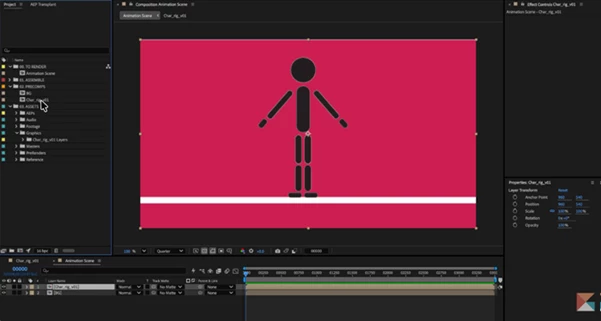
Imagine a character rig built from a layered PSD. The animation is finished, but the character artwork needs a new design. Instead of manually replacing every layer, Swap Source can update the layered source across the project.
This makes the feature especially valuable for character re-skinning, branding updates, localized graphics, and projects where the animation stays the same but the artwork changes.
The workflow does not require Photoshop or Illustrator to be installed just to browse and work with these source files through the panel.
External Asset Management
Projects often reference footage stored outside the main project folder.
When AEP Transplant encounters external footage, you can decide whether those files should remain linked to their current locations or be copied into your current project folder.
This is useful when consolidating a project for delivery, moving work between computers, or simply trying to establish a cleaner file structure.
Search and Filter Large Projects
A source project containing hundreds of items can still be difficult to navigate, even when selective importing is available.
AEP Transplant includes filtering by asset type and name-based search, helping you quickly narrow the source project down to the material you actually need.
Instead of digging through an enormous project tree manually, you can search directly for a particular comp, asset, or group of items.
Recent Files and Source Update Detection
If you regularly reuse material from the same projects, the Recent Files system provides quicker access to previously opened sources.
AEP Transplant also checks both the loaded source project and recent files for updates. When a source has changed, it can be marked with a blue dot.
This is a small feature that can become surprisingly useful in collaborative or evolving workflows where source projects continue to change over time.
Where AEP Transplant Can Make a Real Difference
The advantages become clearer when you look at practical situations.
Suppose you create motion graphics for multiple clients and have accumulated years of After Effects projects. One old project contains an excellent lower-third animation that you want to reuse. Rather than opening the project, reducing it, saving another version, and importing that version into your current job, you can browse the old AEP and pull the required composition directly.
Or imagine a character animation where the same rig needs to be reused with new artwork. Instead of rebuilding or manually replacing every Photoshop layer, you can use the layered artwork replacement workflow.
The same concept applies to template development. A master project might contain dozens of modular components. AEP Transplant allows individual components to be reused without turning every destination project into another copy of the complete master file.
Tips for a Cleaner AEP Transplant Workflow
Even though the tool automates much of the process, a few habits can make it even more effective.
Keep your source projects organized. Clear names for compositions, footage, and folders make searching and selective importing much faster.
Use folder merging carefully. When projects follow similar folder conventions, smart merging can keep the destination project extremely clean. For unusual projects, review matches before deciding how content should be combined.
Check collisions instead of automatically keeping everything. Duplicate handling is one of the strongest parts of the workflow. Choosing Use Current or Replace where appropriate prevents unnecessary copies from accumulating.
Import at the smallest useful level. If you only need three layers, consider importing those layers rather than the whole composition. If you need a complete animation system, importing its comp with dependencies may be the safer option.
Think about external footage before transferring projects. For a temporary internal workflow, keeping footage linked may be convenient. For archiving, delivery, or moving to another workstation, copying external assets into the project structure can make the project more portable.
Use targeted replacement for version updates. When the structure of a project should remain intact, but its content needs to change, replacing an existing target can be cleaner than deleting and re-importing elements manually.
A Better Way to Reuse After Effects Work
AEP Transplant addresses a common problem in professional After Effects workflows: projects contain valuable reusable pieces, but extracting those pieces cleanly can be unnecessarily cumbersome.
By allowing you to browse external AEP, PSD, PSB, and AI files, selectively import compositions and layers, resolve duplicate assets, intelligently merge folders, preserve important dependencies, manage external footage, and replace existing sources, it turns project reuse into a much more controlled process.
Its biggest advantage is not simply importing content faster. It gives you more control over exactly what enters your project and where it goes.
For artists who regularly move animations, compositions, artwork, rigs, and assets between projects, that can mean cleaner Project Panels, fewer duplicate files, less repetitive setup, and a much smoother workflow.
 AEP Transplant (v1.3.1).rar (Size: 29.2 MB - Date: 10/8/2026 12:49:35 PM)
- AEP Transplant (v1.3.0).rar (Size: 29.2 MB - Date: 9/29/2026 1:01:43 PM)
- AEP Transplant - After Effects Workflow Tool by Aescripts (v1.1.4).rar (Size: 23.9 MB - Date: 9/12/2026 2:27:42 PM)
- AEP Transplant - After Effects Workflow Tool by Aescripts (v1.1.1).rar (Size: 24.3 MB - Date: 8/31/2026 11:45:21 AM)
- Aescripts - AEP Transplant v1.1.0.rar (Size: 24.3 MB - Date: 8/27/2026 11:14:29 AM)
Files Password : gfxplugin.com OR 123456