Downloadable Files
You can download Find Intersections for free from the end of this page.
Automatically Find and Render Path Intersections in After Effects
Working with animated paths in After Effects can produce some amazing motion graphics, but things become much more complicated when you need to detect exactly where those paths cross.
Imagine several animated lines moving across the screen. Every time two paths intersect, you want a dot, icon, glow, graphic, or another layer to appear precisely at that crossing. Doing this manually would mean constantly tracking changing coordinates—and once the paths start moving or Shape Layer operators modify their geometry, the workflow becomes even harder.
Find Intersections solves this problem automatically. It detects intersections between animated paths and lets you render selected layers directly at every crossing, live on every frame.
What Does Find Intersections Actually Do?
At its core, Find Intersections is an After Effects plugin designed to analyze paths and determine exactly where they intersect.
Instead of manually calculating intersection points or building complicated expression setups, you can apply the effect to your artwork and let the plugin handle the geometry.
It works with several common types of After Effects paths, including:
- Mask Paths
- Shape Paths
- Parametric Ellipses
- Parametric Rectangles
- Polystars
- Paths located on different layers
- Animated paths
- Self-intersecting paths
The plugin can also follow the transforms of the layers containing those paths automatically.
This means you can build complex animated compositions where intersection points remain accurate even while the original artwork moves, scales, rotates, or changes shape.
Why Path Intersections Can Be So Useful
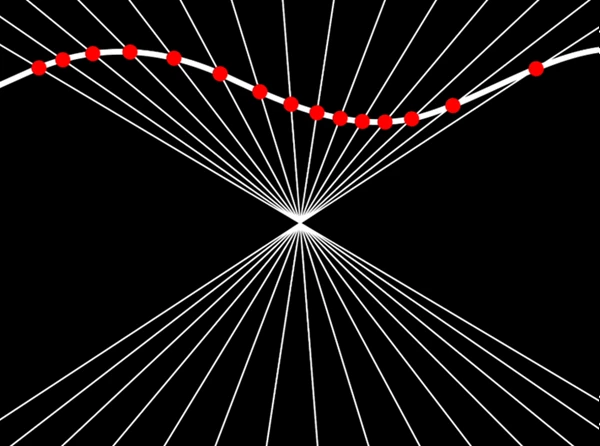
An intersection is simply the point where two paths cross—or where a path crosses itself.
That sounds simple, but dynamically knowing those positions opens the door to many creative motion-design techniques.
For example, imagine an animated network made from dozens of moving lines. Find Intersections can automatically place small nodes wherever those lines meet.
You could also create an abstract animation where glowing elements appear at every crossing, place icons along intersecting routes in an infographic, or use custom artwork to create decorative procedural patterns.
Because the intersection positions update as the paths animate, these designs can remain completely dynamic.
Find Intersections and Shape Layer Operators
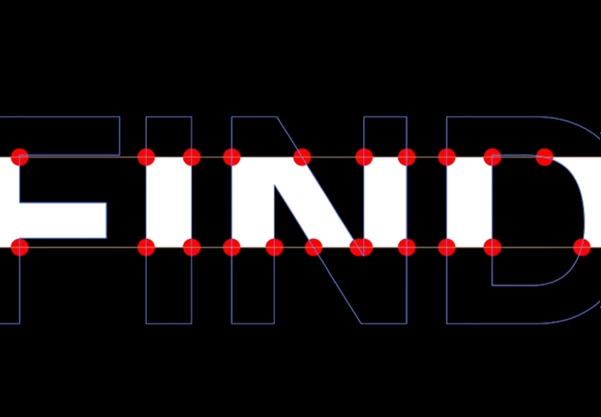
One of the most interesting parts of Find Intersections is its ability to detect geometry after many Shape Layer operators have modified the original paths.
Normally, operators can dramatically change what appears on screen at render time. The visible result may no longer match the original editable path.
Find Intersections can calculate intersections from that resulting geometry.
It supports paths affected by operators such as:
- Trim Paths
- Repeater
- Merge Paths
- Offset Paths
- Round Corners
- Zig Zag
- Pucker & Bloat
- Twist
According to the provided product information, essentially everything is supported except Wiggle.
This makes the plugin especially useful for procedural Shape Layer animations where the final visible geometry is constantly changing.
Features
Automatic Intersection Detection
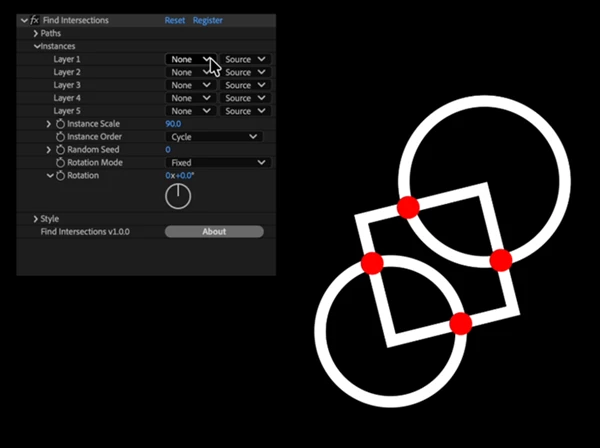
With Use All Paths enabled by default, the plugin can immediately search through the available artwork and locate its crossings.
For many projects, the workflow can be as simple as applying the effect, choosing the layers you want to render, and adjusting the appearance.
If you need more control, you can select specific paths instead.
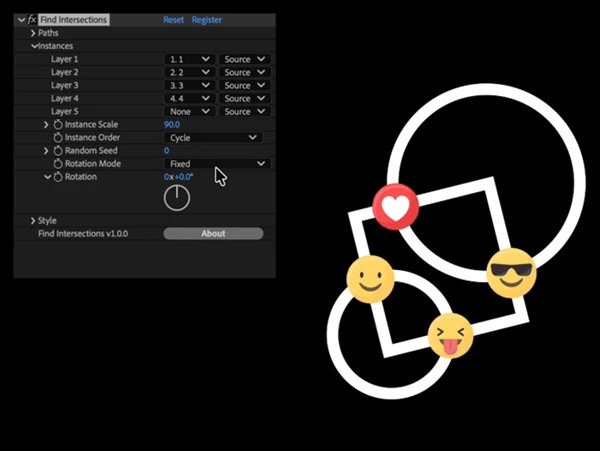
Render Layers at Every Crossing
Find Intersections does more than show where intersections occur.
You can select up to five layers and have them rendered at the detected crossing points.
These could be:
- Icons
- Logos
- Small graphics
- Glowing elements
- Decorative shapes
- Symbols
- Custom motion-design elements
The selected layers can cycle in sequence or appear in a shuffled order using a seed.
A global scale control also makes it easy to resize the rendered instances without rebuilding your source artwork.
Mix Paths from Different Layers
Your paths do not need to exist inside one Shape Layer.
Find Intersections can combine paths coming from different locations in the composition. For example, you could use a Mask Path from a solid together with Shape Layer paths and parametric shapes.
Layer transforms are followed automatically.
This is particularly useful when creating more complicated compositions because you don’t need to build additional parenting or expression systems just to keep intersection graphics aligned.
Live Animated Intersections
The calculations happen continuously while your paths animate.
If two paths move apart, their intersection disappears. If new crossings are created, new instances appear at those locations.
This makes the effect suitable for procedural animations where the geometry changes from frame to frame.
Self-Intersection Detection
A path does not necessarily need another path to create a crossing.
Find Intersections can detect self-intersections, meaning it can recognize locations where a single path crosses over itself.
This can be especially useful for loops, ribbons, abstract line animations, complex illustrations, and decorative patterns.
Multiple Rotation Modes
Rendered layers can also react to the direction and angle of the intersection.
Available rotation behaviors include:
- Crossing Bisector
- Fixed
- Random
- Path Direction
For example, Path Direction can help graphical elements visually follow the flow of a line, while Random rotation can make abstract compositions feel less repetitive.
Dots Mode
You don’t always need custom layers.
If no instance layers are selected, intersections can become clean, colorable dots.
This provides a quick way to visualize the detected crossings and can also work as a finished graphical style for network animations, technical graphics, or minimalist motion designs.
Stackable Effects
Multiple instances of Find Intersections can be chained on the same layer.
This gives you room to create more elaborate combinations—for example, one instance could generate small markers while another adds larger graphical elements using different settings.
Adjustment Layer Friendly
The effect can be used above existing artwork through an Adjustment Layer workflow.
This helps keep compositions organized and provides a more non-destructive approach when working with complex designs.
Grow Bounds
Sometimes generated elements need to extend beyond the original boundaries of a layer.
The Grow Bounds control allows the result to render past those edges, helping prevent graphics near the boundaries from being unexpectedly clipped.
Accurate Bezier Geometry
Under the hood, Find Intersections solves crossings using the actual Bezier geometry of the paths.
According to the provided description, intersections are calculated with sub-pixel accuracy and processed in milliseconds per frame.
That accuracy is particularly important when small graphics need to stay precisely attached to rapidly moving intersection points.
Creative Ways to Use Find Intersections
The plugin can fit into many different motion-design workflows.
One strong example is a dynamic network animation. Create several animated lines, let them move through one another, and place glowing nodes at every intersection. As the network changes, the nodes automatically follow it.
For infographic work, paths can represent routes or connections while icons automatically appear where those routes cross.
Abstract motion graphics are another natural use case. Combine Repeater, Twist, Offset Paths, or Zig Zag with animated shapes and let Find Intersections generate constantly changing patterns from their crossing points.
It can also work well for futuristic HUD graphics, technology visuals, geometric animations, map-style designs, procedural backgrounds, and music visualizations.
Tips for Better Results
Start with Dots mode when building a complicated setup. It gives you a simple visual representation of every detected intersection before you introduce custom artwork.
When using custom layers, keep the source graphics relatively clean and centered around their anchor points. This usually makes their placement at intersections easier to control visually.
Experiment with the rotation modes as well. A fixed rotation works well for logos and interface icons, while Path Direction or Crossing Bisector can produce much more integrated results when your graphics should visually respond to the geometry.
Shape Layer operators are also worth exploring. Instead of animating dozens of individual paths manually, try combining Find Intersections with tools such as Repeater, Twist, Trim Paths, or Offset Paths. A relatively simple source shape can generate surprisingly complex animated intersection patterns.
Finally, when a composition becomes visually dense, avoid placing large graphics at every crossing. Smaller nodes or subtle markers can make the structure of the animation easier to understand without overwhelming the original paths.
Final Thoughts
Find Intersections turns something technically complicated—tracking the changing intersections of animated paths—into a much more direct creative workflow inside After Effects.
Its biggest advantage is not simply finding where two static paths cross. The plugin can follow animated paths, work across different layers, detect self-intersections, handle geometry affected by many Shape Layer operators, and place custom layers directly at the resulting crossing points.
For motion designers working with procedural shapes, networks, abstract line animations, infographics, HUD graphics, or complex Shape Layer setups, this can eliminate a considerable amount of manual positioning and technical setup.
More importantly, it makes intersections something you can actually design with. Instead of treating crossings as positions that need to be calculated manually, they become dynamic points that can drive graphics throughout an animation.

Files Password : gfxplugin.com OR 123456