Downloadable Files
You can download AVIF Pro Web for free from the end of this page.
A Smarter Way to Export Media for the Web
Preparing to export animations to the web can be very time consuming. Depending on the project requirements, your files may need to be exported to WebM, WebP, GIF, and AVIF formats. Each of these formats may require a little extra processing to export your project and could create additional delays within your otherwise smooth creative process.
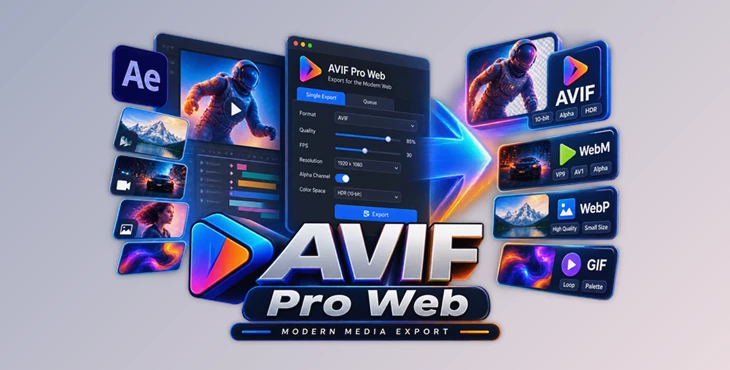
AVIF Pro Web was created to help motion designers and animators streamline the export process of their projects from After Effects to modern web formats.
Skip the application switching and the command-line encoding tools. Everything you need to control the exported media is within an interface.
The exported media files are ready to use in your websites, portfolios, landing pages, or any other digital project.
What Is AVIF Pro Web?
AVIF Pro Web is a tool that features an After Effects panel and a standalone desktop application.
Use the panel to export your compositions from After Effects, or use the desktop application outside of After Effects to convert your videos, folders, or image sequences.
The tool supports four important web-oriented formats:
- AVIF
- GIF
- WebM
- WebP
Having these formats within the same tool is particularly useful for projects that must be delivered to several different platforms with different technical requirements.
For example, a motion designer could create an animated element in After Effects, export it as a WebM file for their production website, export it as a WebP file for another platform, and then export it as a GIF for yet another platform with technical requirements for that format.
Why Modern Web Export Matters
A beautiful animation is only part of a successful web asset. File size, dimensions, transparency, frame rate, compression, and browser-friendly encoding can be just as important.
Large or inefficient files can make web pages slower, while incorrect dimensions or codec settings can cause rendering and playback problems.
AVIF Pro Web puts these delivery controls directly into the export workflow. You can adjust quality, FPS, dimensions, aspect ratio, compression, alpha settings, and format-specific parameters before creating the final file.
It can also handle codec-safe even-numbered dimensions, helping avoid invalid-dimension errors during encoding.
This gives you more control over the balance between visual quality and practical file size.
Two After Effects Workflows
One of the useful aspects of AVIF Pro Web is that it does not force every export job into the same workflow. Its After Effects panel provides Single Mode and Queue Mode.
Single Mode
Single Mode is intended for quick exports.
When you are working with the active composition, simply choose your desired format, select or adjust the preset, configure the necessary settings, and export.
It is particularly convenient for quick previews, individual animations, small web elements, and projects where you only need one finished output.
Queue Mode
Queue Mode becomes more useful when a project contains several compositions or requires multiple delivery formats.
You can add multiple compositions to a queue and give individual items their own formats and presets. One composition might be exported as WebM while another is rendered as WebP or AVIF.
Instead of manually repeating the export process for every composition, you can organize the jobs first and process the entire list through one interface.
Features
AVIF Export with Advanced Options
AVIF Pro Web provides AVIF output with support for transparency as well as 8-bit and 10-bit pixel formats.
It also includes SDR and HDR color-space options, giving users additional control when preparing media for different display and delivery requirements.
This makes AVIF useful when efficient compression is important, but you still want strong image quality and modern format capabilities.
Flexible GIF Creation
GIF remains useful for simple animations, previews, messages, demonstrations, and platforms where compatibility matters.
AVIF Pro Web provides controls for:
- Palette settings
- Dithering
- Loop behavior
- Optional Gifsicle optimization
Gifsicle optimization can help reduce animated GIF file sizes, making finished assets more practical for web delivery.
WebM with VP9 and AV1
For WebM exports, you can choose between VP9 and AV1 and configure suitable bitrate settings.
Optional Opus and Vorbis audio options are available, while VP9 can also be used with alpha-channel support.
This is especially useful for transparent motion graphics. For example, an animated logo or interface element can be exported with transparency so that the website background remains visible around the animation.
Animated WebP
AVIF Pro Web supports both lossy and lossless animated WebP.
You can select presets and configure looping behavior depending on the project. This provides another lightweight option for delivering animated graphics on the web.
Alpha-Channel Support
Transparency is particularly valuable for motion designers creating overlays, logos, icons, interface animations, decorative elements, and other graphics that need to sit over existing website content.
With alpha-compatible export options, these assets can be delivered without permanently adding a background behind the animation.
Custom Presets
Repeatedly entering the same export parameters wastes time, especially when working on projects with consistent delivery specifications.
Custom presets allow frequently used configurations to be reused, making repetitive production tasks faster and more consistent.
Smart Resizing and Dimension Controls
AVIF Pro Web allows you to adjust output dimensions, FPS, aspect ratio, and related sizing options.
Its codec-safe sizing controls are particularly helpful because some codecs require suitable even-numbered dimensions. Keeping these requirements within the export workflow can prevent avoidable encoding failures.
Batch Processing
Batch processing is one of the biggest advantages when dealing with larger projects.
Instead of exporting files individually, multiple compositions or existing media files can be organized into a production queue and processed together.
This is useful for animation libraries, website asset packages, multiple advertising variations, interface animations, and projects containing many deliverables.
A Standalone App for Existing Media
AVIF Pro Web is not limited to After Effects.
Its standalone application for macOS and Windows uses the same export engine to process media that has already been created.
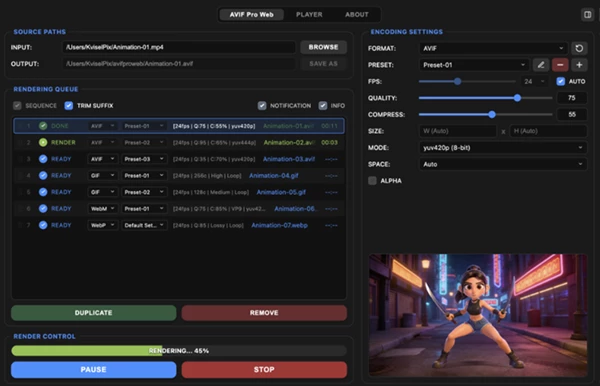
You can drag videos, folders, or numbered image sequences into the application, organize them into a queue, configure output settings, and convert them into web-ready formats.
The application can also automatically group image sequences, which makes it much easier to work with rendered frames without manually organizing every individual image.
Smarter Output Management
Large conversion jobs can create a surprising number of files, so AVIF Pro Web includes options for keeping output organized.
Files can be sent to the default avifproweb folder or to a custom destination.
Sequence suffixes can also be trimmed to produce cleaner final filenames.
During longer batches, rendering can be paused, resumed, or stopped, while progress feedback helps you see what is happening without losing track of the production queue.
Preview Before Final Delivery
Exporting is only half the job. You also need to make sure the resulting media actually looks right.
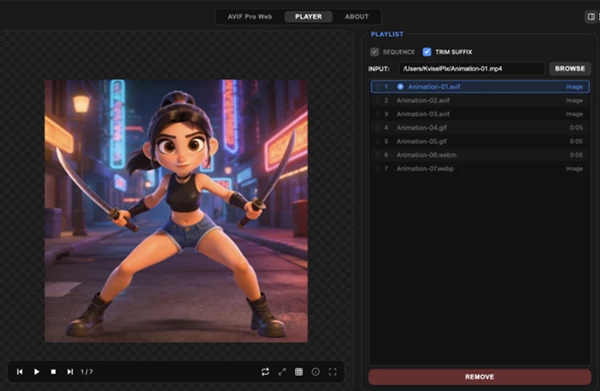
AVIF Pro Web includes a built-in player for inspecting videos, exported web formats, and image sequences.
For transparent assets, the alpha channel can be viewed over a transparency grid. You can also inspect looping motion, switch between fit and fill viewing modes, and move through a playlist of outputs.
For example, if you are creating a transparent looping WebM logo, you can inspect both the transparency and animation loop before sending the asset to a developer.
This helps catch visual or encoding issues earlier in the delivery process.
Built on FFmpeg and Gifsicle
Behind its streamlined interface, AVIF Pro Web uses established encoding technologies including FFmpeg and Gifsicle.
The advantage is that users can access powerful encoding capabilities through a focused graphical workflow rather than configuring everything manually through command-line instructions.
For designers and animators who want control without turning media conversion into a separate technical workflow, this can make web delivery considerably more approachable.
Tips for Better Results
Match the Format to the Content
Do not automatically export every project using the same format. Consider where and how the asset will be displayed.
WebM can be a practical option for web video and transparent motion graphics, while animated WebP can work well for lightweight web animation. GIF can remain useful when compatibility is more important than compression efficiency.
Reduce FPS When Appropriate
Not every animation needs a very high frame rate.
For simple icons, graphic loops, or subtle interface animations, experimenting with a lower FPS can reduce file size while keeping the motion visually convincing.
Keep Dimensions Practical
Exporting an animation much larger than its actual display size usually creates unnecessary data.
If an animation will only appear as a small element on a webpage, resize it accordingly during export rather than delivering an oversized file.
Use Presets for Repeated Deliverables
If you regularly prepare assets with the same dimensions, quality, FPS, or codec settings, create reusable presets.
This not only saves time but also helps maintain consistency across multiple exports.
Always Check Transparency
When exporting your asset with alpha, make sure to preview it against the transparency grid.
Elements with alpha channels can often exhibit different behaviors in the finalized export, so checking the exported file against the transparency grid is important.
Test Your Loops
For continuously repeating animations, inspect the transition between the last and first frames.
A technically correct export can still have an obvious visual jump. Using the built-in preview makes it easier to catch these issues before the asset reaches the final website.
Balance Quality and File Size
The maximum quality setting does not automatically translate to the best setting for the exported file.
Try saving your animation at various quality settings. Often, there is a balance between quality and file size that serves your project best.
One Practical Workflow for Modern Web Media
AVIF Pro Web brings several stages of web-media preparation into one workflow: exporting directly from After Effects, converting existing media through a desktop application, batch-processing multiple jobs, configuring modern codecs, and previewing finished results.
Support for AVIF, GIF, WebM, and WebP means creators can prepare different versions of the same project without building separate workflows for every format.
Features such as alpha-channel support, smart resizing, custom presets, format-specific encoding controls, batch queues, image-sequence handling, and built-in previews make the tool particularly relevant for motion designers and animators who regularly deliver content for the web.
Whether you are preparing a transparent logo animation, optimizing an animated graphic, converting a rendered image sequence, or delivering dozens of compositions in several formats, AVIF Pro Web provides a more structured way to move from creative work to web-ready media.

Files Password : gfxplugin.com OR 123456