Downloadable Files
You can download Photoshop Brushes for free from the end of this product page.
Transform Ordinary Photos into Dramatic Artwork
Sometimes a photo has a strong subject and composition but still feels a little flat. The missing ingredient may simply be atmosphere, depth, texture, or believable light. Instead of rebuilding these effects manually in Photoshop, specialized brushes can make the process considerably faster.
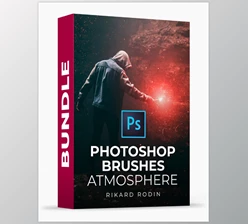
Photoshop Brushes is a large collection designed specifically for adding dramatic and atmospheric effects to photographs and digital artwork. With more than 200 high-resolution Photoshop brushes across 9 collections, the package gives you quick access to effects such as fog, smoke, dust, snow, haze, light rays, and environmental lighting.
The idea is simple: choose an appropriate brush, paint the effect into your composition, and then refine its size, opacity, position, and blending until it naturally becomes part of the image.
What Are Photoshop Effect Brushes?
Photoshop brushes are not limited to ordinary painting. A carefully designed brush can reproduce complex visual elements that would otherwise require additional photography, stock overlays, or several editing steps.
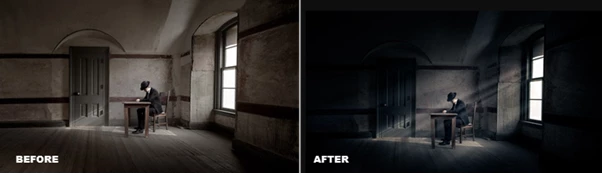
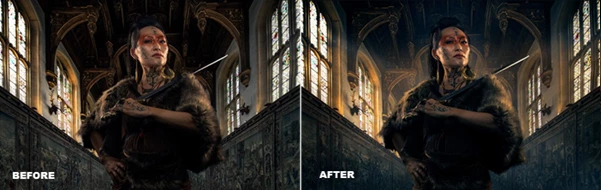
For example, imagine a portrait photographed in a dark interior. A subtle light ray behind the subject can improve separation and make the scene feel more dimensional. Adding a little haze can soften the environment, while carefully placed dust can catch the simulated light and give the image additional texture.
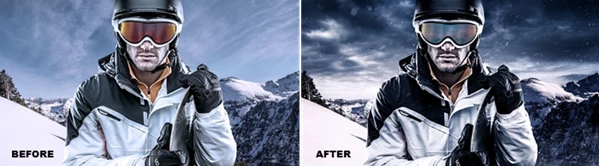
The same principle works with outdoor scenes. Fog can introduce depth into a landscape, snow can transform the season and mood of a photograph, and smoke can bring additional atmosphere to cinematic compositions.
The main advantage is control. Because these elements are painted directly inside Photoshop, you can decide exactly where they appear and how strong they should be.
Meet Photoshop Brushes
Photoshop Brushes combines nine different effect collections into one versatile creative toolkit. The package contains more than 200 high-resolution brushes created to help photographers, retouchers, designers, and digital artists quickly enhance the atmosphere of their images.
Rather than focusing on one specific effect, the collection covers several important aspects of creative photo manipulation—from realistic environmental elements to dramatic lighting.
This makes the brushes useful for everything from portraits and composites to conceptual photography, cinematic artwork, posters, and creative photo edits.
Features
Atmosphere Photoshop Brushes – 24 Brushes
The Atmosphere Photoshop Brushes collection contains 24 high-resolution atmospheric light-ray effects.
These brushes can be especially useful when a subject needs more separation from the background. Painting subtle atmospheric illumination behind a person or object can create visual depth and guide attention toward the main focal point.
They work particularly well for portraits, conceptual photography, and cinematic compositions where light is an important part of the storytelling.
Dramatic Photoshop Brushes – 16 Brushes
Sometimes an image needs stronger lighting to communicate the intended mood.
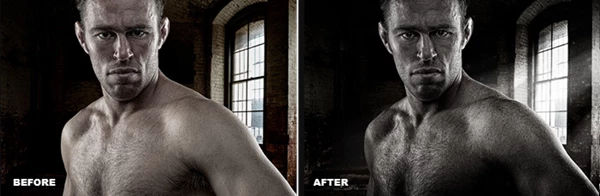
The collection includes 16 Dramatic Photoshop Brushes designed for painting dramatic light into an existing scene. They can enhance lighting that is already present or introduce a completely new visual direction.
For example, a simple studio portrait can become more theatrical when controlled directional light is introduced around the subject.
Dust Photoshop Brushes – 35 Brushes
The package includes 35 Dust Photoshop Brushes for introducing realistic texture and airborne particles.
You can apply dust broadly for a rough, grungy appearance or use it selectively around specific areas of an image.
Dust becomes particularly effective when combined with directional lighting. Small particles illuminated by a light ray can make the atmosphere feel more tangible and add another layer of depth to the composition.
Fog Photoshop Brushes – 20 Brushes
The 20 Fog Photoshop Brushes provide an easy way to introduce atmospheric perspective.
Fog can be placed in the foreground to create separation between the viewer and the subject or pushed into the background to create additional distance.
It can also completely change the mood of an image. Stronger fog works well for mysterious or spooky scenes, while lower-opacity fog can subtly enhance landscapes, portraits, and cinematic artwork.
Haze Photoshop Brushes – 10 Brushes
Haze is often used during professional photography to make light more visible and create a softer atmosphere.
With 10 Haze Photoshop Brushes, you can reproduce a similar visual effect digitally without needing a physical haze machine during the shoot.
A small amount of haze can soften backgrounds, improve light diffusion, and help different elements of a composite blend together more naturally.
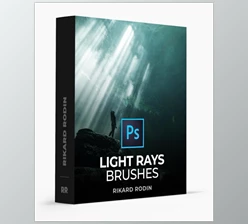
Light Rays Photoshop Brushes – 30 Brushes
Natural light rays can look spectacular, but capturing them exactly where you need them during photography can be difficult.
The package provides 30 Light Rays Photoshop Brushes that allow you to paint believable beams of light directly into your composition.
They are particularly useful around windows, doors, forests, clouds, and other areas where directional illumination would naturally appear.
Lights Photoshop Brushes – 19 Brushes
The 19 Lights Photoshop Brushes are designed for enhancing or activating visible light sources inside photographs.
They can be applied to lamps, streetlights, stars, and similar objects to make them appear brighter and more convincing.
This can be especially useful in night photography and composites, where a light source may technically be present but lacks the visual intensity needed to attract attention.
Smoke Photoshop Brushes – 15 Brushes
Smoke is an effective way to add depth, motion, and atmosphere to an image.
The included 15 Smoke Photoshop Brushes allow you to introduce atmospheric smoke without needing to photograph or composite separate smoke elements.
Smoke can work especially well in cinematic portraits, fantasy artwork, conceptual images, posters, and dramatic composites.
Snow Photoshop Brushes – 60 Brushes
With 60 Snow Photoshop Brushes, this is the largest individual collection included in the package.
The brushes allow you to quickly introduce snowfall into photographs, ranging from subtle atmospheric snow to much more dramatic winter effects.
Using different snow brushes at different sizes can also help create depth. Larger particles can appear closer to the camera while smaller particles can sit farther into the scene.
Why These Effects Can Improve an Image
Atmosphere does more than make an image look dramatic. When used carefully, it can strengthen the visual hierarchy of a composition.
Light rays can direct attention toward the subject. Fog and haze can separate foreground and background elements. Smoke can introduce movement and depth. Dust can provide texture, while snow can completely alter the environmental mood.
Because Photoshop Brushes brings these effects together in a single collection, you can also combine them instead of relying on one effect alone.
For example, you might start with subtle haze in the background, introduce a directional light ray, and then add a small amount of illuminated dust. Each individual effect can remain understated while collectively producing a richer and more cinematic image.
Creative Ways to Use the Brushes
The collection can fit into many different Photoshop workflows.
For a cinematic portrait, you could place atmospheric haze behind the model, add directional light from one side, and finish with subtle dust particles.
For a night street photograph, the Lights brushes can enhance streetlights while fog or haze creates additional depth around them.
For a winter composite, multiple Snow brushes can be layered at different sizes and intensities to create a more dimensional snowfall effect.
For conceptual or fantasy artwork, smoke, dramatic light, and atmosphere can be combined to turn an otherwise simple composition into something much more expressive.
Tips for More Natural Results
The biggest secret to using effect brushes successfully is restraint. A brush should usually support the original photograph rather than overpower it.
Create effects on separate layers whenever possible. This gives you much more freedom to change opacity, reposition elements, apply masks, or remove an effect later without damaging the original image.
Also pay close attention to the existing direction of light. If your photograph is illuminated from the left, a strong light ray entering from the opposite direction may look unnatural unless there is a believable secondary light source.
Varying brush size is equally important. Repeating the same smoke, snow, or dust pattern at identical sizes can quickly reveal that the effect is artificial.
For atmospheric elements such as fog, haze, dust, and smoke, experimenting with lower layer opacity can produce much more convincing results than applying the effect at maximum strength.
Finally, try combining multiple collections subtly. A small amount of haze plus light rays and dust can often look more realistic than using one extremely strong effect.
A Versatile Toolkit for Creative Photoshop Editing
Photoshop Brushes provides a broad collection of tools for photographers and digital artists who want more control over atmosphere, lighting, texture, and mood.
With more than 200 high-resolution brushes divided into 9 collections, you can create everything from subtle atmospheric enhancements to dramatic transformations without manually building every effect from scratch.
Fog, haze, smoke, dust, snow, dramatic lighting, and light rays each solve a different creative problem. Used thoughtfully, they can help turn a relatively simple photograph into an image with considerably more depth and visual impact.
The real strength of the collection is its flexibility. You can keep the effects almost invisible for realistic photo enhancement or push them much further for cinematic, conceptual, and artistic compositions.

Files Password : gfxplugin.com OR 123456