Downloadable Files
You can download DAE Importer/Exporter Revival for free from the end of this page.
Bring COLLADA Back to Modern Blender
Working with 3D files from older programs or from cross-platform applications can quickly become frustrating when you find that your modern version of Blender does not support those file formats - or, even worse, does not support them correctly. Missing textures, incorrect object hierarchies, incorrect object scale, and broken materials are common import problems with COLLADA files in Blender 5.0 and later versions.
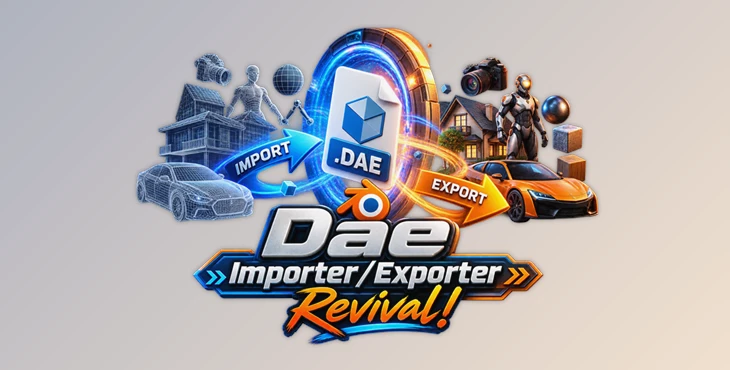
DAE Importer/Exporter Revival brings COLLADA import and export support back to Blender 5.0 and later versions, and does so in a way that cleans up many of those imported scene issues.
If you frequently trade 3D assets between applications, game engines, or need to open an older .dae file in modern versions of Blender, this Blender add-on will make your experience considerably smoother.
What Is COLLADA and Why Does DAE Support Matter?
COLLADA, commonly recognized by the .dae file extension, is an interchange format used for transferring 3D assets and scene information between compatible applications. A DAE file can contain much more than basic mesh geometry. Depending on the source, it may also include materials, textures, cameras, lights, hierarchy information, and skeletal structures.
The challenge appears when that information does not translate cleanly into Blender.
Imagine importing an architectural model from another application. The geometry might arrive correctly, but dozens of unnecessary empty parent objects could make the Outliner difficult to navigate. Textures might point to missing locations, while the model itself could appear at the wrong scale.
DAE Importer/Exporter Revival addresses these practical compatibility issues rather than simply bringing geometry into the scene. By handling units, materials, textures, hierarchies, and additional scene entities, it helps preserve more of the original project structure and reduces the amount of manual repair required afterward.
DAE Importer/Exporter Revival for Blender 5.0+
DAE Importer/Exporter Revival is a lightweight Blender add-on created to restore native-like COLLADA functionality in Blender 5.0 and newer.
Once installed, it integrates directly into Blender’s familiar File > Import and File > Export menus. This means you can access COLLADA workflows without introducing a complicated new interface or significantly changing the way you normally manage files.
For importing, use:
File > Import > COLLADA Custom (.dae)
For exporting, use:
File > Export > COLLADA Custom (.dae)
Behind this straightforward workflow are several useful controls designed to solve common problems associated with transferring DAE files.
Features
Smart Texture and Material Management
One of the most inconvenient parts of transferring 3D projects is discovering that the model arrived, but its textures did not.
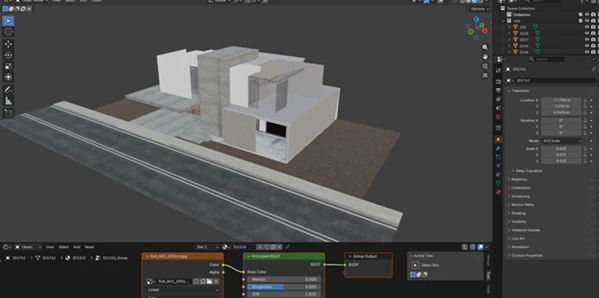
DAE Importer/Exporter Revival can automatically create structured material node trees and load associated images during import. This helps imported assets arrive closer to their intended appearance instead of requiring every texture to be manually reconnected.
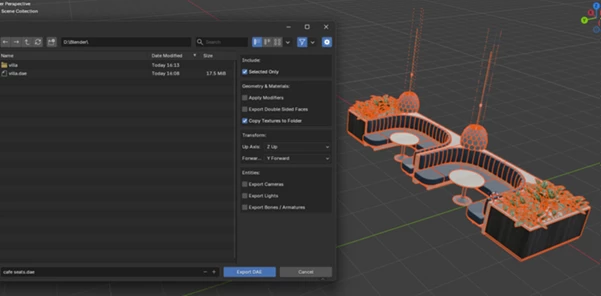
During export, the Copy Textures to Folder option can copy image assets into a dedicated folder beside the exported DAE file. Keeping textures together with the project helps prevent missing file references when the asset is opened elsewhere.
Clean Hierarchy Engine
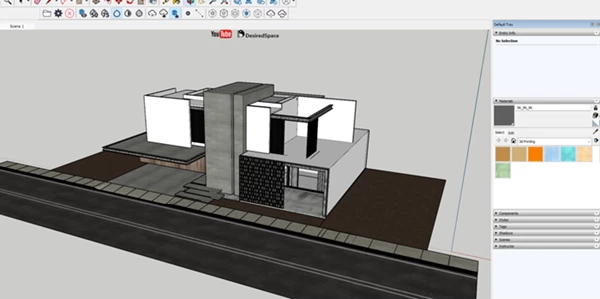
DAE files exported from third-party software such as SketchUp or 3ds Max may contain multiple nested empty objects and helper parents.
The Clean Hierarchy option strips unnecessary empty containers and connects useful scene objects into a cleaner collection structure.
This can make a major difference in large projects. Instead of searching through layers of meaningless parent objects to locate a mesh, you get a more manageable scene graph that is easier to edit, organize, and prepare for production.
Automatic and Custom Unit Scaling
Scale differences between applications are a common source of trouble in 3D pipelines.
DAE Importer/Exporter Revival can automatically read the length scale stored in the DAE XML data. If automatic detection is not appropriate for a particular project, you can manually choose between common units, including:
- Millimeters
- Centimeters
- Meters
- Inches
- Feet
Correct scaling is particularly valuable when transferring architectural assets, environment models, props, or objects that must maintain real-world dimensions.
Double-Sided Material Support
Some assets depend on different shading behavior for their front and back faces. Basic import workflows can lose this information and change the visual appearance of the model.
The add-on supports double-sided materials using Blender’s Backfacing geometry logic. During import, it can interpret back-facing data and construct suitable shader nodes.
When exporting, double-sided face handling can preserve this behavior more effectively for compatible external workflows and game-engine pipelines.
Geometry Cleanup
The Merge Nearby Vertices option performs distance-based vertex welding during import.
This can help clean up small seams or disconnected vertices introduced during file conversion. For assets that have moved through several applications or export formats, a small amount of automated geometry cleanup can save considerable manual editing.
Cameras, Lights, and Armatures
DAE Importer/Exporter Revival goes beyond mesh-only transfers.
You can individually control the import and export of cameras, lights, and armature bones. Perspective cameras and supported light information can be recreated as Blender objects, while joint structures can be reconstructed as editable Blender armatures.
This makes the add-on more useful for complete scenes where preserving supporting objects is just as important as transferring the model itself.
Modifier Support on Export
The Apply Modifiers option allows active Blender modifiers to be applied to mesh data during export.
For example, if your model uses Subdivision Surface or Solidify, you can bake the resulting geometry into the exported asset without permanently changing the original modeling workflow beforehand.
Flexible Axis Conversion
Different 3D applications and engines may use different definitions for their Up and Forward axes.
With customizable Up Axis and Forward Axis controls, exported assets can be oriented according to the requirements of the destination software. This helps avoid models arriving rotated or facing in the wrong direction.
Selected or Complete Scene Export
Not every export needs the entire Blender scene.
You can choose to export all supported objects or use Selected Only when you need just a particular character, prop, building, or collection of objects. This keeps smaller asset-transfer tasks fast and organized.
Installing DAE Importer/Exporter Revival
Installation follows the standard Blender add-on workflow.
Download the custom_dae_io.zip package and open Blender 5.0 or newer. Navigate to:
Edit > Preferences > Add-ons
Choose Install, or Get Add-ons > Install from Disk where applicable, and select the downloaded ZIP package. After installation, enable DAE COLLADA Importer/Exporter from the add-on list.
The new COLLADA Custom options should then become available inside Blender’s Import and Export menus.
Tips for a Cleaner DAE Workflow
For large DAE files, importing with Clean Hierarchy enabled can save considerable time. This import option is especially helpful when dealing with files that contain empty objects that are nested within the imported model.
If the imported model appears unusually large or small, check the unit settings before attempting to scale the imported object. Selecting the Auto preset will allow the DAE Importer to read the unit settings from the imported file. The manual unit presets are helpful for those who know the units in which the source file was created.
Import Materials should remain enabled for any model whose visual appearance is important. If the model is only being imported for retopology or other modeling purposes alone, it is beneficial to disable this setting to produce a cleaner Blender file.
When exporting to another application, make sure to check its coordinate system to ensure the Up and Forward axes are correctly adjusted. This is much cleaner than having to rotate each of the imported assets from the project that exported them.
For projects that are to be shared with others, make sure to enable the “Copy Textures to Folder” option. This will ensure that the textures are included with the .dae file, so they can be referenced on a different computer or application.
Lastly, make sure to use the “Selected Only” option when exporting just a single asset from a scene that contains many different models. This will prevent any unrelated models from being included in the exported project file.
A Practical Upgrade for COLLADA Workflows
DAE Importer/Exporter Revival brings a familiar but still useful 3D interchange format to Blender, with various fixes to the problems with older COLLADA import and export.
Beyond simply importing and exporting .dae files, there are features like automatic texture handling, cleaner hierarchies, unit scaling, double-sided materials, geometry cleanup, automatic axis conversion, modifier support, and controls for cameras, lights, and armatures to make the imported or exported files easier to work with within Blender.
For those using Blender 5.0+ who also use COLLADA files or rely on other software using the COLLADA (.dae) file format, this plugin can restore that functionality without adding complexity to an already-feature packed application.

Files Password : gfxplugin.com OR 123456