Downloadable Files
You can download Realocean for free from the end of this product page.
Create Dynamic and Realistic Oceans in Blender
Building a convincing ocean in Blender can quickly become more complicated than it first appears. Large-scale waves, subtle surface details, foam, reflections, wakes, materials, and animation all need to work together if you want the water to feel believable rather than simply looking like a moving plane.
Realocean is a Blender add-on designed to make this process much easier. Instead of manually building every part of an ocean setup, it gives you ready-to-use ocean presets combined with detailed controls for waves, foam, materials, animation, and physics.
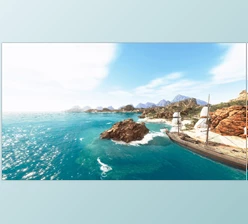
Whether you are creating a calm cinematic sea, rough open water, an animated ocean environment, or a scene where objects interact with the water, Realocean provides a practical starting point while still giving you plenty of room for customization.
Build Better Oceans Without Starting From Scratch
The main idea behind Realocean is straightforward: generate an ocean quickly, then refine its appearance and behavior through organized controls.
After installing the add-on, the Generate Ocean tab gives you access to its preset system. Presets are loaded by clicking the refresh button, after which you can select the ocean style that best suits your scene.
The generated ocean can be placed directly at the World Origin with coordinates 0, 0, 0, or at the 3D Cursor for more precise positioning. Once the location and preset are selected, the Generate Ocean button creates the ocean inside the scene.
This workflow can be especially useful when producing cinematic environments, coastal scenes, offshore shots, animated boats, islands, stormy waters, or large background oceans where manually constructing the entire water system would take unnecessary time.
Why Ocean Controls Matter
The ocean should not simply be a flat surface with a wave modifier applied. The various environments that a game’s ocean could exist in would require different characteristics for that water within the game engine.
For example, calm waters might be required for a peaceful coastal area, while choppier and stormy waters might be required for areas where the seas are more wrathful towards mariners passing through those areas. Finally, cinematic environments of massive scales may require a series of ocean sections to be played in sequence to portray the vast oceans in those games.
Realocean brings these controls together to allow you to adjust the ocean according to the actual needs of your shot.
Small changes to parameters like wave scale, depth, resolution, or wind velocity will have a significant impact on how large and powerful the ocean appears in your scene. The material controls will allow you to adjust these various parameters to achieve the desired look.
Features
Ocean Generation and Presets
Realocean allows you to generate oceans based on a series of presets. Choose a preset, choose where you would like it to be located in your scene, and it will be generated. Within the ocean generation settings, there is an option to use the Repeat function.
The Repeat function will allow you to mirror your ocean along both the X and Y axes using the different variations of ocean that are already built into the plugin. This is useful for scenarios where you would like a much larger portion of the ocean to be visible in the scene.
Detailed Wave Controls
The Generate Settings tab contains controls for shaping the ocean simulation.
Resolution determines the amount of grid detail. Increasing it can produce a more detailed result, although higher settings also require additional computational resources.
Depth helps simulate shallower water by introducing higher-frequency details and smaller waves, while Scale adjusts the overall size of the ocean surface without changing the fundamental wave behavior.
Spatial Size determines the physical width of the simulated ocean area, and Seed generates alternative variations while preserving your other settings.
Wave size can be controlled through Scale Max and Scale Min, giving you control over both larger and smaller wave structures. Choppiness changes the roughness and irregularity of wave crests, while Wind Velocity influences wave intensity.
You can also switch between different Noises or wave spectrum models to experiment with different ocean characteristics.
Flexible Foam Generation
Foam plays an important role in making moving water feel energetic and believable. Realocean includes a dedicated Foam toggle along with a Coverage control for increasing or decreasing the amount of foam appearing across the waves.
The material system expands this further with controls such as Foam Color, Foam Roughness, Ocean Foam Strength, and Foam Scale Texture.
There is also an Objects Foam Strength setting for controlling foam generated around objects interacting with the ocean. This becomes particularly valuable in scenes involving boats or other objects moving through water.
Customizable Ocean Materials
The Material Settings tab gives you control over the visual character of the water.
Main Color defines the base water color, while Specular Strength controls reflection intensity. Roughness Strength determines whether reflections appear clean and smooth or softer and more diffused.
Normal Map Strength adjusts the intensity of smaller surface waves, helping add fine detail without relying entirely on large-scale geometry.
The IOR Map Strength affects refraction behavior, while Transmission Map Strength determines how transparent the water appears. Higher transmission can reveal submerged objects and allow more light to travel through the water.
Together, these settings make it possible to create anything from darker, rough ocean water to cleaner and more transparent coastal environments.
Wake and Surface Details
Realocean includes additional controls for enhancing water interaction and wake effects.
Waves Deep can simulate wave depth at particular locations, while Wake Start Noise Scale adjusts the detail visible in wake water. Wake End Noise Scale influences the detail of foam as the wake begins to dissipate.
These settings can help avoid overly clean or artificial-looking trails behind moving objects.
Ocean and Foam Emission
For stylized or unusual scenes, Emission Ocean Strength controls the color and intensity of light emitted from the water, while Emission Foam Strength does the same for foam.
This opens up interesting possibilities for fantasy environments, glowing oceans, surreal scenes, and other projects where physically ordinary water is not the goal.
Wave and Foam Animation
The Animation Settings tab separates two important elements of ocean movement.
Waves Animation controls the motion of the ocean waves, while Foam Animation controls movement in the foam texture.
Animating both elements helps prevent the surface from feeling static and gives the ocean a more convincing sense of continuous movement.
Physics and Object Interaction
One of Realocean’s more useful features is its physics workflow.
The Add Ocean Physics button applies the required physics specifically to an object representing the ocean, while Add Object Physics prepares other objects to interact with it.
Settings such as Spread Speed, Scale Influence, and Radius provide additional control over how the interaction behaves.
Time To Out determines how long generated foam remains visible. Higher values allow wakes and foam residue to remain for longer periods after an object has passed.
You can define the simulation range using Frame Start and Frame End, while Sub-Steps add additional simulation samples between frames. This can be particularly useful when objects are moving quickly, and the standard frame interval is not enough to capture their interaction smoothly.
An Anti-Aliasing option uses 5× multisampling to smooth edges, and once everything is configured, Bake Physics prepares the simulation for saving and rendering. Delete Physics removes the baked simulation when you need to make changes or start again.
Practical Ways to Use Realocean
Imagine a boat moving through a wide ocean shot. You can start with an appropriate ocean preset, increase the spatial size to cover the camera view, and then adjust wind velocity and choppiness until the water matches the atmosphere of the scene.
Foam can then be enabled and customized so the wave crests remain visible without overwhelming the image. Adding object physics to the boat allows interaction with the water, while wake noise and foam persistence can be adjusted to make the trail feel less uniform.
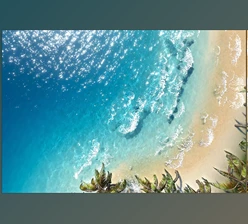
For a calmer coastal environment, you could take the opposite approach: reduce wave intensity, use smoother material settings, increase transmission where appropriate, and keep foam coverage subtle.
The same toolset therefore supports very different visual directions without requiring a completely new ocean setup every time.
Tips for More Natural Results
Avoid pushing each of the parameters to their maximum value. The most natural-looking water will typically be achieved through a combination of larger scale movement and more subtle detail.
Establish the look of the waves and the movement of the wind first. Then adjust the Normal Map Strength to add more detail to the waves.
Pay close attention to the following parameters: Specular Strength, Roughness Strength, and Transmission Map Strength. These material parameters are just as important to creating a realistic looking ocean as the movement of the water itself.
Foam should also support the movement of the wave. Start with moderate foam cover and adjust the Ocean Foam Strength until you are satisfied. For animated objects, adjust the Objects Foam Strength and Time To Out controls to ensure the foam continues to kick in for believable amounts of time.
For fast simulations, it may be necessary to increase the number of Sub-Steps for the simulation. While this requires more calculation to perform the simulation, it will allow for more believable interactions between the objects and the ocean.
Finally, ensure that the resolution is appropriate for your project. Generally, extremely high resolutions are not required for the ocean simulation to perform well. Starting at a more manageable resolution and increasing the resolution when preparing to render the project will make it easier to manage the simulation altogether.
A More Convenient Ocean Workflow in Blender
Relocean brings together ocean, waves, materials, foam, animation, and physics into a convenient package for Blender users. With presets and controls, users can define the look of their ocean and then adjust the parameters to fit their scene.
Whether creating calm waters or rough seas for a boat animation, the ability to control both the look and interaction of the ocean with objects in the scene can save artists considerable time.
The presets are a great starting point for most projects. By playing with the parameters for waves, wind, choppiness, foam levels, materials, and physics, artists can find the perfect ocean for their scene. The main benefit of the Realocean shader is that it gets artists to a workable ocean quickly while providing a level of control to define every aspect of the ocean within their project.

Files Password : gfxplugin.com OR 123456