Downloadable Files
You can download Citron for free from the product section at the bottom of this page.
Take Full Control of Your Animation Curves
If you spend a lot of time animating in After Effects, you probably know that smooth motion is about much more than simply choosing Ease In or Ease Out. The actual shape of a curve determines how an object accelerates, slows down, overshoots, settles, and ultimately feels on screen.
That is where Citron comes in. Citron brings a proper, dockable graph editor directly into After Effects, offering a workflow inspired by professional 3D applications such as Maya, Blender, and Cinema 4D. Instead of relying on a collection of easing presets, you can work directly with the curves themselves. This gives you much more control over timing, values, tangents, and multiple animated properties at the same time.
Whether you are creating motion graphics, UI animations, logo reveals, title sequences, or complex character motion, Citron can make curve editing more visual, precise, and manageable.
Why the Shape of the Curve Matters
In animation, keyframes only tell part of the story. Two animations can use exactly the same starting and ending values but feel completely different depending on what happens between those keyframes.
Imagine a simple title moving from the bottom of the frame into its final position. A basic linear movement may feel mechanical. Adding standard easing makes it smoother, but sometimes you need more control. You may want the title to accelerate quickly, slow down gradually, or arrive with a carefully controlled transition.
This is where working with the complete animation curve becomes useful.
Instead of thinking only about individual keyframes, you can shape the motion between them. This helps create movement that feels smoother, more deliberate, and better suited to the visual style of your project.
Citron is designed around exactly this workflow.
Meet Citron: A Real Graph Editor for After Effects
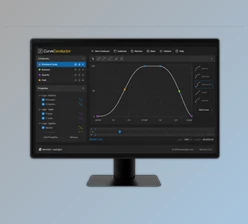
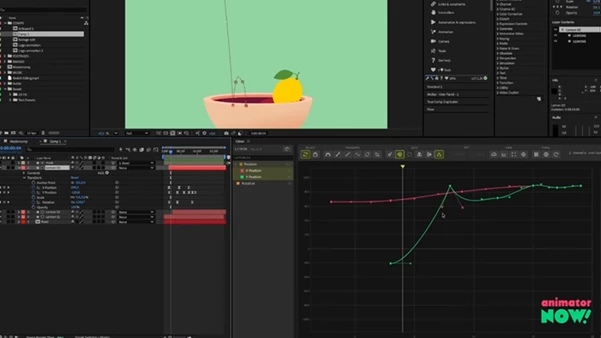
Citron is a dockable, Maya-style curve workspace created for After Effects. Its goal is to provide the type of graph editing environment commonly found in professional 3D software while keeping everything directly inside your After Effects workflow.
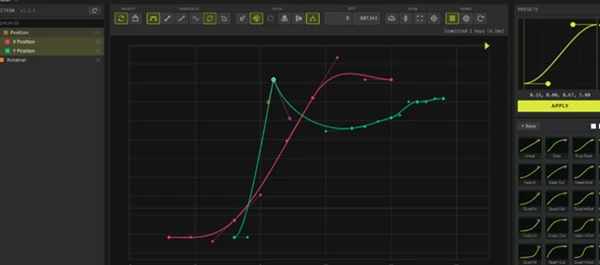
You can view multiple animated properties together, identify them through color-coded curves, manipulate tangents, navigate around complex graphs, and even reshape groups of curves simultaneously.
The result is a workflow where you are not simply selecting an easing option—you are designing the motion itself.
Features
A Real Dockable Graph Editor
At the heart of Citron is a dedicated graph editor designed around workflows familiar to Maya, Blender, and Cinema 4D users.
Because the workspace is dockable, it can become part of your regular After Effects layout. This is especially useful when animation is a major part of a project, and you constantly need access to your curves.
For example, while building a motion graphics sequence with dozens of animated elements, you can keep Citron available alongside your composition and adjust the movement without constantly changing your workspace.
Multi-Channel Curves
Complex animations often involve several properties at the same time. Position, scale, rotation, and other parameters may all contribute to a single movement.
Citron allows you to see and shape multiple properties together using color-coded curves.
This makes relationships between different channels easier to understand. If a logo is simultaneously moving, scaling, and rotating, for example, viewing those curves together can help you coordinate the timing and create a more cohesive animation.
Familiar 3D-Style Navigation
Navigating complicated graphs can quickly become frustrating when many keyframes and properties are visible.
Citron uses navigation inspired by Maya, Blender, and Cinema 4D. You can pan and zoom around the workspace and use F to fit your selection or the entire curve into view.
For artists coming from 3D software, this familiar behavior can make the graph editing process feel much more natural.
Real Tangent Control
One of Citron’s most important features is detailed tangent manipulation.
You can break tangents, weight them, and work with auto-bezier behavior. Instead of simply deciding whether a keyframe should ease in or out, you can shape how the curve enters and leaves individual keys.
This extra control is particularly valuable when creating polished motion where acceleration and deceleration need to feel intentional rather than generic.
Multiple Curve Views
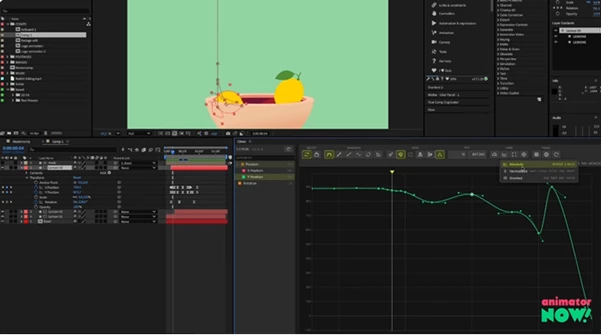
Different animation tasks benefit from different ways of reading data, so Citron includes Stacked, Normalized, and Absolute views.
You can switch between these modes depending on the curves you are editing.
Normalized views can be particularly useful when comparing properties with very different value ranges, while absolute views help when the exact relationship between actual values matters.
Lattice / FFD Cage
Editing many curves one keyframe at a time can become slow, especially when you already like the overall animation but want to change its broader timing or shape.
Citron provides a Lattice / FFD cage that can be placed over a selection of curves. You can then reshape multiple curves together with a single gesture.
For example, if several animated elements need to reach their peak slightly earlier, you can make a broader timing adjustment instead of manually modifying every individual key.
Add Keys Directly on the Curve
Adding another keyframe in the middle of an existing animation can sometimes affect motion you have already carefully designed.
Citron lets you click directly on a curve to add a key while preserving the curve’s existing shape.
This is useful when you need another control point for refinement without immediately disrupting the motion you already created.
Exact Frame and Value Controls
Sometimes visual adjustments are enough. Other times, precision matters.
Citron allows you to enter the exact frame and value for a selected key. Instead of repeatedly nudging a keyframe until it looks approximately correct, you can specify exactly where it should be.
This can be especially helpful for technical animations, synchronized motion, interface animations, and projects where several elements must match precisely.
Speed Graph Editing
Citron also lets you switch to a speed-over-time graph.
From here, you can drag a key to modify its speed or retime it, and manipulate handles to shape the easing.
This gives you another useful way to understand motion. Instead of focusing only on how a property’s value changes, you can concentrate directly on how quickly the animation is moving at different points in time.
Practical Ways to Use Citron
Citron becomes especially useful when an animation needs more personality than standard easing can provide.
For a logo reveal, you could carefully control how individual elements accelerate into position and settle into their final state. In a title sequence, multiple channels can help coordinate position, scale, and rotation curves. For UI animation, precise frame and value controls can make transitions more consistent.
The Lattice / FFD cage can also be valuable on larger motion graphics scenes. If several curves already work well together but the entire movement feels too slow or reaches an important moment too late, reshaping the selection as a group can be much faster than rebuilding the animation.
The key idea is to treat the graph as part of the creative process rather than something you only open when standard easing does not work.
Tips for Better Curve Editing
Start by creating the basic timing of your animation before making very detailed tangent adjustments. Once the important poses and keyframes are in the right places, use Citron to refine how the animation travels between them.
When several properties contribute to one movement, use the multi-channel view to examine them together. Looking at position, scale, or rotation in isolation can sometimes hide timing relationships that become obvious when the curves are displayed side by side.
Use weighted and broken tangents when you need more control, but avoid making every curve unnecessarily complicated. Smooth, intentional curves are often easier to manage and can produce more natural-looking motion.
The different viewing modes are also worth using strategically. If one property’s values make another curve difficult to read, switch to a normalized or stacked view rather than struggling with the current graph.
Finally, use the speed graph when the movement technically reaches all the correct values but still does not feel right. Looking at speed over time can reveal abrupt acceleration or deceleration that may not be obvious from the value curve alone.
Make the Curve Part of the Creative Process
Good animation is not only about where an object starts and ends. The way it travels between those points is what gives movement weight, rhythm, energy, and personality. Citron brings a more complete curve-editing workflow into After Effects, combining multi-channel editing, detailed tangent controls, multiple graph views, precise keyframe values, speed editing, and bulk curve reshaping in one dockable workspace.
For animators who frequently work with the Graph Editor—or anyone who wants more control than standard easing options provide—it offers a different way to approach motion: instead of choosing an ease, you shape the entire curve.
If you want finer control over the timing and character of your After Effects animations, Citron is definitely worth exploring.

Files Password : gfxplugin.com OR 123456