Downloadable Files
You can download Heatmap for free from the bottom of this page.
Turn Ordinary Footage Into Thermal Vision
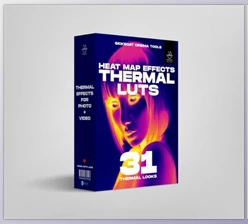
Ever wondered what your footage would look like through a thermal camera? Heatmap brings that effect to After Effects and Premiere Pro by using an AI-trained neural network to estimate heat across each frame and render the result as a realistic thermal image.
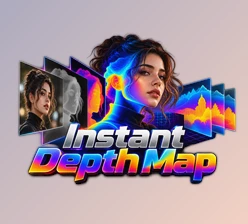
Unlike a simple gradient map applied to brightness, Heatmap analyzes the scene to separate subjects from the background and respond to potential heat sources. The result feels much closer to footage captured by an actual thermal sensor.
What Is Heatmap?
Heatmap is an AI-powered thermal imaging effect for Adobe After Effects and Premiere Pro. It allows you to turn any video footage into thermal-style footage with fine control over the behavior of the imaginary thermal sensor.
The effect can be used to produce surveillance, sci-fi, night vision, experimental, or even thermal sensor-based footage. As the effect estimates the heat of subjects in the scene, it can maintain an appropriate relationship between the subject, the background, and the subject's heat.
Features
AI Thermal Estimation
The heatmap uses a trained neural network to analyze every frame and estimate the heat distribution within the scene. It can distinguish the main subject from its surroundings and react to heat sources, producing a more convincing thermal appearance than a basic color effect.
Multiple Palettes
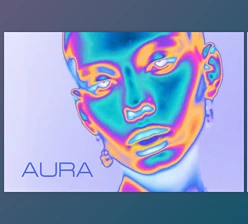
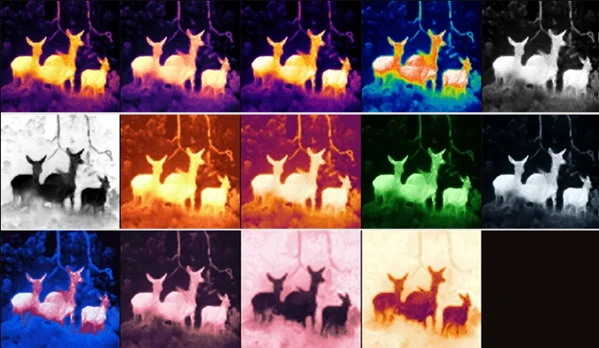
The tool includes twelve palettes for mapping estimated heat across the image. Popular looks include Inferno, Magma, Ironbow, Rainbow, and Arctic.
You can also use Invert to reverse a palette and create cold-body or inverted thermal looks.
Ready-to-Use Presets
Heatmap’s preset system provides quick starting points for common visual styles, including broadcast thermal cameras, night-vision surveillance, and inverted cold looks.
A preset adjusts the effect’s parameters automatically, but you can continue modifying them afterward to match your footage.
Temporal Stability
Frame-by-frame AI estimation can sometimes create unwanted flicker or crawling on moving footage. Temporal Stability helps solve this by carrying the estimation between frames.
It provides three modes designed to keep the perceived heat more consistent during handheld shots, camera movement, and other motion-heavy footage.
Detailed Sensor Controls
Heatmap gives you extensive control over the simulated sensor, including:
- Sensor Resolution
- Quality
- Edge Snap
- Texture
- Material Response
- Levels
- Gamma
- Blend with Source
Every parameter is animatable, giving you plenty of flexibility when creating more complex shots.
Sensor Simulation
Real thermal cameras have their own visual imperfections, and Heatmap can reproduce many of them through its Sensor Simulation controls.
You can adjust:
- Thermal Noise
- Fixed Pattern
- Blooming
- Scan Lines
- Scan Line Count
- Vignette
These controls let you move from a relatively clean thermal image to a more imperfect handheld-camera or broadcast-rig appearance.
Professional Tips for Better Results
Start with one of the presets instead of building the look from scratch. Once you have a style close to what you want, adjust individual parameters to better fit your footage.
For moving shots, Temporal Stability is especially useful. If the thermal image appears to flicker or crawl between frames, experiment with its available modes until the heat remains visually consistent.
Don’t overlook Texture and Material Response. These settings can help make the thermal rendering feel less artificial and better suited to the surfaces and subjects in your footage.
For a more authentic camera aesthetic, combine the main thermal look with subtle Thermal Noise, Fixed Pattern, Blooming, Scan Lines, and Vignette. The goal is usually to add believable sensor imperfections without making the effect distracting.
You can also animate parameters over time. This is useful when a shot gradually transitions from normal footage into a thermal view or when the simulated sensor needs to react differently throughout a scene.
Give Your Footage a New Perspective
Without ever looking at thermal camera footage, Heatmap allows you to simulate the thermal world. The AI-based estimation of heat and the sensor simulation tools provide more control over the thermal effect than you will find with merely adding a thermal color map to your footage.
From simulation to editing tools, Heatmap provides you with everything you need to create your own thermal channel. Try the presets and experiment with the available tools to simulate thermal sensor noise and heat response to your footage.