Downloadable Files
You can download Bounce Motion for free from the end of this page.
Make Every Bounce Easier
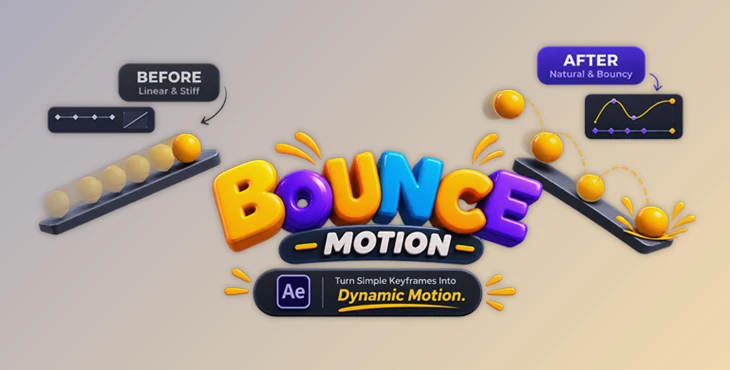
Bouncing a ball is one of the first animation exercises many designers learn, but creating a convincing bounce can quickly become a tedious keyframing task. You have to place position keyframes, adjust timing, shape the motion curve, and often add squash and stretch to make the movement feel alive.
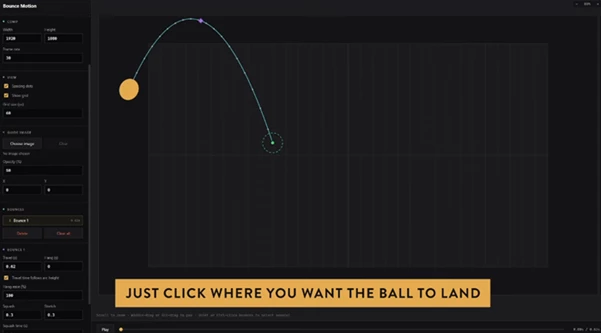
Bounce Motion takes care of much of that repetitive work. Instead of building every bounce manually, you simply choose where the ball starts and click where you want it to land. The tool then creates the bounce motion for you, giving you a quick starting point that you can refine to match your project.
What Is Bounce Motion?
Bounce Motion is an animation tool designed to create smooth and believable bouncing movement with just a few clicks. You can define a starting point, add multiple landing positions, and adjust important elements such as the arc, timing, stretch, and squash.
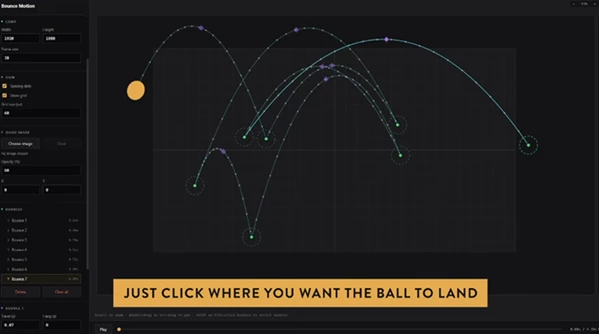
This approach makes bouncing animations much easier to build while still leaving room for creative control. For example, if a ball needs to bounce across a scene, you can quickly set several landing points instead of manually creating and adjusting a long sequence of position keyframes.
The result is a faster workflow and more natural-looking motion, especially when you need to create several bouncing elements in the same project.
Meet Bounce Motion
Bounce Motion is built for animators who want believable bounce animations without spending unnecessary time editing graphs and keyframes. It turns a traditionally repetitive process into a simple point-and-click workflow.
Whether you’re creating a bouncing ball for an animation exercise, adding playful movement to a motion graphics project, or animating an object across an existing layout, Bounce Motion gives you a practical way to build the movement and then fine-tune it.
Features
Natural Bounce
The tool automatically creates realistic bouncing movement, helping you get a more convincing result without having to manually construct every part of the motion.
One-Click Workflow
Choose the starting point, place your bounce locations, and let Bounce Motion generate the animation. This makes it much easier to experiment with different movement paths.
Customizable Motion
You can fine-tune the bounce by adjusting the arc, timing, stretch, and squash. This is especially useful when the default motion needs to feel faster, softer, heavier, or more energetic.
Flexible Output
Once the animation looks right, you can export it as baked keyframes or editable expressions. This gives you flexibility depending on how you prefer to continue working in After Effects.
Background Guides
Bounce Motion can import background images as guide layers. This is useful when you need to animate an object accurately over existing artwork, layouts, or visual references.
Fully Editable Results
The generated bounce is not a locked result. You can continue refining the animation and adjust it to fit the style and timing of your project.
Put It to Work
Imagine you need a ball to bounce across a motion graphics composition. Instead of manually placing and adjusting every position keyframe, you can click the starting location and then select each point where the ball should land.
You can then adjust the arc and timing to make the movement feel more natural. Adding squash and stretch can give the ball more personality, while changing the timing can make it feel light and playful or heavier and more physical.
The same workflow can also be useful when working over an existing illustration. By importing the artwork as a background guide, you can place bounce points directly in relation to the composition.
Professional Tips for Better Bounces
Think About Weight
Timing has a major effect on how heavy an object feels. A faster bounce can make an object appear light and energetic, while longer pauses and slower movement can suggest more weight.
Use Squash and Stretch Carefully
Squash and stretch can make a bounce much more expressive, but it works best when used with purpose. A stronger squash at the moment of impact can emphasize the landing, while a subtle stretch during fast movement can make the animation feel more dynamic.
Vary the Bounces
Realistic bouncing rarely looks perfectly repetitive. Try changing the height, spacing, and timing of successive bounces. As the object loses energy, the bounces can become smaller and closer together.
Refine the Arc
The landing points are only part of the movement. Adjusting the arc can help the object follow a more believable path and make the overall animation feel smoother.
Use Backgrounds as References
When animating over existing artwork, use the background guide feature to position your bounce locations accurately. This can save time when the animation needs to interact with specific elements in a composition.
Less Keyframing, More Animating
Bounce Motion focuses on one of those small animation tasks that can consume far more time than expected. By turning bounce creation into a click-based workflow, it lets you spend less time building repetitive keyframes and more time refining the actual animation.
With natural bounce generation, customizable timing and arcs, squash and stretch controls, background guides, and flexible output options, it can be a useful addition to an After Effects workflow.
If you regularly create bouncing animations, Bounce Motion is worth trying. A task that normally requires careful keyframing and graph editing can become a much quicker process, while you still have control over the final result.

Files Password : gfxplugin.com OR 123456