Downloadable Files
You can download GlideVideo Studio for free from the end of this page.
A Faster Way to Handle Everyday Video Tasks
Video editing does not always involve opening an editing suite, creating a timeline, organizing your project, and performing a variety of editing functions. Instead, you may just want to trim a video clip, clean up audio, create subtitles, create social media shorts, convert a video file, or even upsample video footage.
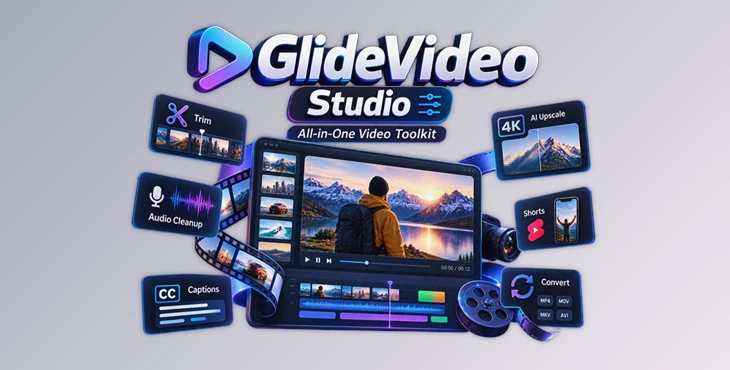
GlideVideo Studio combines 14 video tools within one easy-to-use desktop application for Windows. Import your media files to GlideVideo Studio, and then export your media using any of the 14 video tools included within the application.
The software was specifically built to allow for fast and simple editing of videos, with all processing performed on your local computer. GlideVideo Studio is an excellent application for social media editors, clients, and individuals who edit their videos for specific purposes.
What Is GlideVideo Studio?
GlideVideo Studio is a local-first video processing workspace for Windows that combines video preparation, cleanup, assembly, publishing, and conversion tools in a single application.
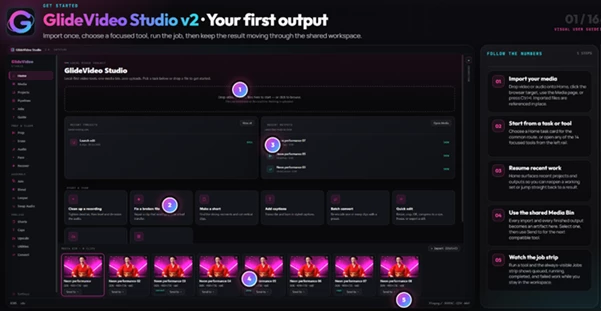
Its central idea is simple: import a video into the shared Media Bin, process it with whichever tools you need, and keep every generated result connected to its original source.
For example, you could import a long talking-head recording, remove unnecessary pauses, clean up the voice, generate captions, convert the strongest moments into vertical clips, and finally export them in a delivery-ready format.
Instead of treating each operation as an isolated task, GlideVideo Studio allows these stages to become part of one connected workflow.
This can improve both speed and consistency, especially when you are processing multiple videos using similar settings.
Features
14 Focused Video Tools in One Workspace
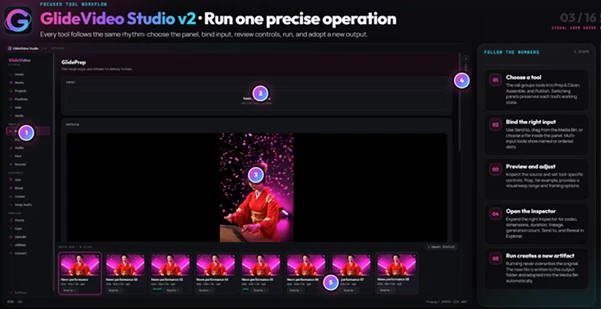
GlideVideo Studio organizes its tools into three main stages: Prep & Clean, Assemble, and Publish.
Prep & Clean
The preparation tools help get raw footage ready before publishing or further editing.
Prep allows you to trim clip edges and quickly reframe footage for popular aspect ratios, including 16:9, 9:16, 1:1, and 4:5.
Erase uses local inpainting to remove unwanted logos and marks from footage.
Audio helps reduce background noise, improve voice clarity, and normalize loudness.
Pace is particularly useful for spoken content because it can tighten pauses and dead air.
Recover provides tools for repairing damaged or interrupted video files.
Together, these features can turn rough source footage into cleaner material before you move into the next stage.
Assemble Clips Without a Heavy Timeline
Not every video needs a traditional editing timeline.
With Join, multiple clips can be combined in sequence, while Blend provides smarter cuts and frame-matched transitions between footage.
The Looper tool can transform short clips into seamless loops, which can be useful for social posts, backgrounds, demonstrations, and repeating animations.
Swap Audio also makes it easy to replace, add, or mute audio tracks without opening a separate editing application.
Local Captions with Whisper
Captioning is another major part of GlideVideo Studio.
The Caps tool uses Whisper locally by default to generate subtitles directly on your device. Once captions are generated, you can edit individual lines and customize their appearance before rendering them into the final video.
This is particularly useful when creating Shorts, Reels, tutorials, interviews, and other spoken content where burned-in captions improve accessibility and make videos easier to follow without sound.
Turn Long Videos into Short-Form Content
The Shorts tool helps identify useful moments inside longer recordings and turn them into social-ready clips.
Imagine working with a long podcast, interview, tutorial, or presentation. Instead of uploading the entire recording to a browser-based service, you can review and prepare the footage locally, choose suitable moments, adjust framing, and export shorter versions.
This provides a practical workflow for creators regularly repurposing long-form material.
Upscaling and Video Utilities
GlideVideo Studio also handles many of the technical tasks that often happen after editing.
The Upscale tool supports FFmpeg-based processing as well as Real-ESRGAN AI upscaling. A stronger GPU can help with AI-heavy operations such as upscaling, but it is not required for most everyday tasks.
The Utilities section provides tools for resizing, cropping, creating GIFs, extracting still images, and compressing videos.
Finally, Convert offers delivery presets, remuxing, and batch conversion options for preparing files in the format you actually need.
Shared Media Bin with Lineage
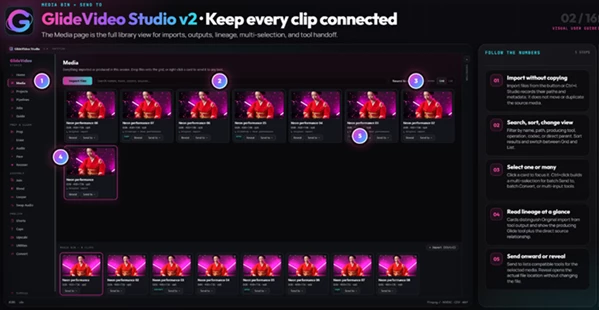
One of the most useful workflow features is the shared Media Bin.
You import footage once and can then send compatible clips directly to different tools. Outputs are automatically added back to the Media Bin while retaining information about their source.
For example, you might start with an original recording, clean its audio, generate captions, and then convert the finished result. Because outputs stay connected, it is easier to understand how each version was created.
Your original files are also left untouched.
Automate Repetitive Work with Pipelines
For repeated workflows, Pipelines can save even more time.
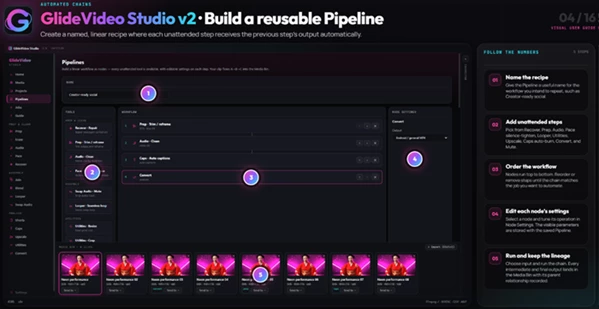
Pipelines use a visual node canvas where multiple processing stages can be connected together.
A practical pipeline could look like:
- Pace → Audio → Caps → Convert
This could tighten pauses, clean the audio, generate captions, and convert the result automatically. Once the pipeline is configured, you can reuse it with future clips rather than manually repeating every stage. This becomes particularly valuable when processing batches of similar content.
Unified Job Queue, Projects, and Presets
All rendering tasks are handled through a shared jobs bar where you can follow progress or cancel a job when necessary.
Projects can restore your complete working set, while tool presets can be exported as shareable files.
GlideVideo Studio also autosaves the latest session, making it easier to return to unfinished work without rebuilding your workspace.
Local-First Processing
Privacy and control are important parts of the GlideVideo Studio workflow.
Core processing happens locally, meaning your footage does not need to be sent through a cloud queue or online account system for routine operations.
Optional cloud steps may exist for supported features, but they only come into play when explicitly enabled.
For private recordings, client footage, internal presentations, or large files that would be inconvenient to upload repeatedly, local processing can make the workflow considerably more practical.
Tips for Getting Better Results
Build Presets for Repeated Deliverables
If you regularly create the same type of content, save presets instead of configuring every export from scratch.
For example, you could prepare separate presets for vertical Shorts, square social posts, standard MP4 deliveries, and compressed preview files.
This reduces repetitive setup and helps maintain consistent output between projects.
Turn Common Workflows into Pipelines
Pay attention to operations you repeat on almost every clip.
If you regularly remove pauses, clean dialogue, generate subtitles, and convert the final video, build those steps into a Pipeline.
The more repetitive your workload becomes, the more useful this automation system can be.
Clean Footage Before Upscaling
When working with lower-quality footage, perform your basic preparation and cleanup before committing to expensive AI processing.
Trim unnecessary sections, correct framing, prepare the audio, and decide which clips you actually need. Then upscale only the footage that will appear in the finished project.
This can reduce processing time while keeping your workflow organized.
Review Automatically Generated Captions
Local Whisper transcription can dramatically speed up subtitle creation, but automatic captions should still be reviewed.
Check names, technical terminology, punctuation, and unusual words before rendering burned-in subtitles. A quick manual pass can make the finished video feel significantly more polished.
Use the Media Bin as Your Workflow Hub
Instead of repeatedly importing and exporting files manually, take advantage of the shared Media Bin.
Sending generated results directly into the next tool keeps related versions together and makes multi-stage workflows easier to follow.
A Practical Workspace for Faster Video Processing
Positioned somewhere between the single-purpose video software and professional editors, GlideVideo Studio aims to offer users a space to perform the tasks associated with video editing without the need for complete editing suites of software.
With 14 different tools for trimming videos, reframing videos, cleaning up videos, applying audio effects, adding captions, creating short-form video clips from longer videos, joining videos together, creating loops within videos, upscaling videos, converting videos to different formats, and more, this software can help with a variety of editing tasks.
The Media Bin and Pipelines allow users to manage their edited videos and editing processes together, and the focus on local systems means that many editing tasks can be performed directly on the user’s computer.
This software is beneficial for individuals who edit videos often and need to add subtitles to videos, create short-form video clips from long-form videos, clean up audio from videos, and more.

Files Password : gfxplugin.com OR 123456