Downloadable Files
You can download StyleForge for free from the end of this page.
Build Stylized Blender Worlds Faster
Creating a stylized environment in Blender often means jumping between scattering systems, Geometry Nodes, materials, color palettes, UV tools, outlines, and asset-generation workflows. While Blender already provides powerful tools for all of these tasks, setting everything up manually can quickly become time-consuming, especially when you want to experiment with different visual styles.
StyleForge brings these workflows together inside a dedicated Blender toolkit. It is designed for creating stylized environments, generating procedural assets, painting objects and colors directly in the viewport, building palettes from images, creating outlines, and quickly changing the overall look of a scene.
Instead of repeatedly building systems from scratch, you can use a more visual and streamlined workflow while keeping control over the final result.
What Is StyleForge?
StyleForge is an all-in-one environment creation and stylization toolkit for Blender. It combines procedural generation with interactive painting tools, allowing you to build scenes using both automatic and hands-on techniques.
For example, you can generate rocks, grass, and trees, scatter them across terrain, paint specific objects exactly where you want them, create a coordinated color palette from a reference image, and add stylized outlines to your models.
This combination is particularly useful when building stylized landscapes, game-inspired environments, fantasy scenes, low-poly worlds, concept environments, and other projects where consistency and fast iteration are important.
Why Use StyleForge?
One of the biggest advantages of StyleForge is that several normally separate Blender workflows are connected inside one toolkit.
Imagine creating a small stylized forest. You could generate several tree and rock variations, procedurally scatter them across the terrain, and then use scatter painting to manually add vegetation to important areas. Height, slope, shoreline clearance, and noise-based distribution controls can help make the procedural placement more believable.
After the environment is built, you can create a palette from a reference image, paint individual mesh faces, generate materials, apply a world theme, and add outlines to selected objects.
The result is a workflow where scene building and visual styling can evolve together instead of being handled as completely separate stages.
Features
Interactive Scatter Painting
StyleForge lets you click and drag directly inside the 3D Viewport to scatter objects across mesh surfaces. Grass, rocks, trees, flowers, mushrooms, and other assets can be painted onto terrain using vertex-based scatter masks.
Brush radius, strength, and falloff can be adjusted to control placement. Holding Ctrl while painting erases scattered objects, making it easy to refine an area without rebuilding the entire scatter layer.
Separate scatter layers can also be created for different asset types, helping complex environments remain manageable.
Procedural Scattering
When manually painting every object is unnecessary, StyleForge provides procedural scattering across mesh surfaces.
You can control:
- Scatter density and random seed
- Minimum and maximum object scale
- Random rotation
- Multiple object variants
- Minimum and maximum placement height
- Flat and steep surface placement
- Slope limits
- Water-level avoidance and shoreline clearance
- Noise-based patches, scale, detail, and threshold
These controls help prevent procedural scattering from looking completely random. Trees can be restricted to suitable terrain, vegetation can avoid water, and objects can appear in irregular natural-looking clusters.
Procedural Asset Generation
StyleForge includes procedural generators for common environment assets such as irregular rocks, blade grass, grass clumps, and trees.
Randomized variations make it possible to produce multiple versions instead of repeatedly using an identical object. These generated assets can then be used directly with the StyleForge scatter system.
For environment artists, this creates a convenient loop: generate assets, create variations, scatter them, and refine their placement.
Live Face Painting
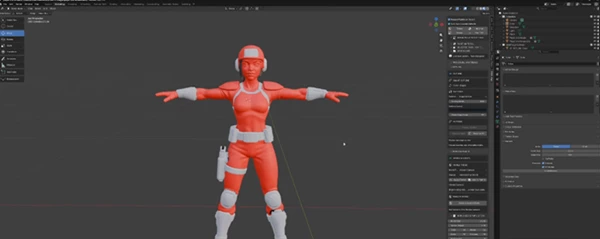
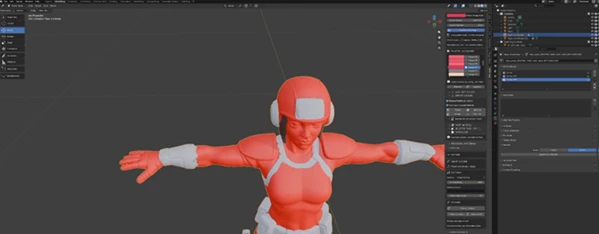
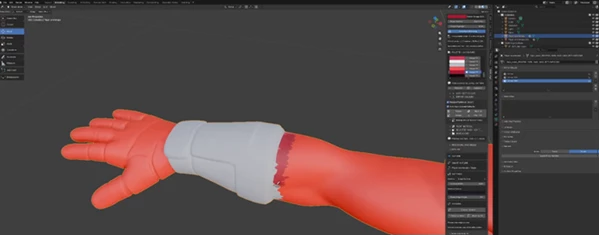
StyleForge expands face-color painting with Live Paint Faces, allowing you to click and drag directly across mesh faces in the 3D Viewport rather than relying only on pre-selected faces.
A visible brush cursor helps show where you are painting, while [ and ] resize the brush during painting. Shift + [ and Shift + ] provide finer brush adjustments, and the extremely small minimum brush radius makes precise individual-face painting possible.
You can also use Ctrl+Z to undo individual strokes without leaving Live Paint.
The system supports navigation while painting, including improved SpaceMouse / 3Dconnexion behavior, so you can move around the model while keeping the painting workflow active.
Integrated Color Palette Workflow
Palettes, colors, and Live Paint Faces work together as a unified workflow.
You can switch the active palette color while Live Paint remains active, use viewport palette swatches for quick color changes, and synchronize sidebar palette selections with the current painting color.
Previously painted faces keep their original colors when you switch to another palette color, making multi-color stylization much faster.
Image-to-Palette Tools
Reference images can be transformed into reusable color palettes.
StyleForge supports dominant-color and unique-color extraction, with controls for the maximum number of colors, image sampling, color separation, transparency filtering, and alpha threshold.
Supported formats include PNG, JPG, JPEG, BMP, TGA, TIFF, WebP, EXR, and HDR.
This can be especially useful when you have concept art or a reference image and want the Blender environment to follow a similar visual identity.
Hexadecimal Palette Import and Export
Palettes can be exported as readable TXT files containing hexadecimal colors. Because they use a simple format, palettes can also be edited in a normal text editor and imported again.
Imported colors can replace the existing palette or be appended to it, while duplicate-color filtering helps keep palettes organized.
Procedural and Themed Materials
StyleForge can generate reusable procedural Blender materials and apply them directly to selected objects.
Material colors are customizable, and themed or stylized presets can provide a faster starting point. Material colors can also be imported into the Face Palette, helping maintain consistency between materials and painted geometry.
Smart Outline System
The Smart Outline System automatically chooses an appropriate outline method depending on the geometry.
It supports flat meshes, open meshes, closed 3D objects, edge outlines, silhouettes, boundaries, sharp edges, and expanded inverted-hull outlines.
Outline width and color can be customized, while dedicated update and removal tools make it easier to experiment without leaving unnecessary objects and data behind.
Plane-safe outlines are particularly useful because they avoid creating an unwanted duplicate surface above flat objects.
Themes and World Presets
Built-in themes provide coordinated environment colors for different visual directions, including nature, desert, snow, fantasy, game-inspired, 1980s-style, and arcade-style looks.
Theme colors can also be imported into the Face Palette, allowing a world preset to influence individual assets throughout the scene.
This makes it much easier to test alternative art directions without manually rebuilding the scene’s color scheme.
UV, Mesh, and Image Plane Tools
StyleForge includes Smart UV unwrap and UV preparation tools for generated and painted materials.
It can also automatically prepare planes and subdivide meshes into paintable vertex grids for scatter painting.
Image-reference planes can be created directly in Blender, giving artists a convenient way to keep concept art, environment references, or color references visible while working.
Streamlined Blender Workflow
All major controls are organized inside a dedicated StyleForge tab in the Blender 3D Viewport.
Automatic mask creation, Geometry Nodes refreshing, scatter-layer status indicators, suitable outline selection, update tools, and cleanup functions reduce the amount of repetitive setup required.
The toolkit is designed to make workflows such as Geometry Nodes-based scattering more approachable without removing the controls needed for detailed customization.
StyleForge is compatible with Blender 5.2 according to the provided product information.
Tips for Better Results
One of the best ways to create better results is to combine procedural scattering with manual scatter painting. Use procedural scattering to automatically place assets across your scene.
Then use manual scatter painting to add more assets to areas of interest within your scene. For landscaping and other natural scenery, use the height, slope, shoreline, and noise controls. Vegetation that is placed in a uniform way across the terrain can look unnatural. Using scattering controls to create patches of vegetation will look more natural than trying to scatter the vegetation uniformly across the terrain.
When working with colors, start with a limited palette. Extracting a few colors from concept art will allow the entire visual theme of the environment to be created using only a few colors.
For procedural assets, generate a few different variations of the same procedural asset. This will introduce enough variation in the generated assets so as to make them visually interesting.
Use Live Paint with a large brush to color in the entire environment. Once colored, gradually reduce the brush radius to work on the individual faces and details of the procedural models. The active color and swatches will allow for quick color selection without leaving the painting application.
A More Connected Stylization Workflow
StyleForge brings together environment generation, scattering, color design, materials, outlines, UV tools, and procedural assets into one connected Blender workflow.
Rather than working with a tool that forces users to continuously choose between procedural and artistic control, StyleForge allows users to automatically populate their scene, manually adjust it, extract colors from references to paint onto their game assets, and much more.
For anyone working in the field of game art or stylized environments in Blender who is interested in exploring the potential of procedural tools that allow artists to have more time for the final touches of their project, StyleForge is a tool worth considering.

Files Password : gfxplugin.com OR 123456