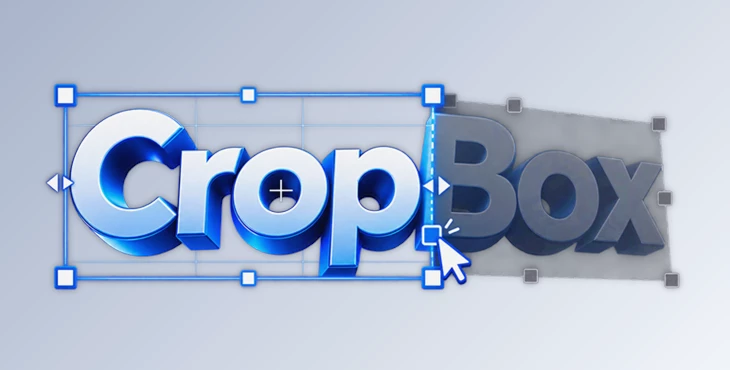
Downloadable Files
You can download CropBox for free from the bottom of this page.
Crop Faster, Without Breaking Your Flow
While cropping a composition in After Effects may seem like such a simple task, it can quickly become a chore. Changing the composition dimensions, cropping offsets, repositioning the crop, and then finally previewing the result can take up valuable time from a project - especially if multiple compositions must be prepared in the same After Effects project.
CropBox makes this entire process visual and intuitive instead of requiring the technical knowledge to crop a composition in After Effects.
Drag the frame, resize it with interactive handles, position it exactly where you want, and crop. This straightforward workflow ensures that you focus on your composition rather than the calculations.
What Is CropBox and How Does It Work?
CropBox is an interactive cropping tool for Adobe After Effects that allows you to visually resize, position, and crop compositions or layers directly from the Composition panel.
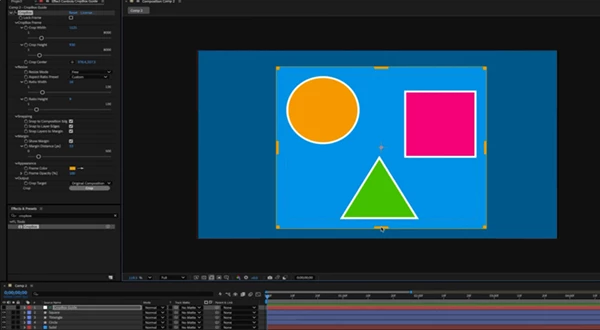
The main idea is simple: you define the visible area using an adjustable crop frame. The frame gives you immediate visual feedback, so you can see exactly which part of your composition will remain and which areas will be removed.
For example, imagine you have created a widescreen 16:9 animation but also need a vertical 9:16 version for social media. Instead of manually changing composition settings and repositioning everything through trial and error, you can use CropBox to visually frame the important area and create the new crop much faster.
The same workflow can be useful when tightly cropping around a selected layer, removing unnecessary empty space, creating square versions of graphics, or preparing several aspect ratios from one master composition.
Because the crop is visible while you work, framing decisions become easier and more accurate.
Meet CropBox: A More Visual Way to Crop in After Effects
This product is designed to make cropping feel like a natural part of the creative process rather than a separate technical operation.
You work directly over your composition using an interactive frame. Resize it using handles, drag it into position, and double-click inside the frame when you are ready to crop.
This approach is especially useful for motion designers who regularly create content for multiple platforms. A single project may need widescreen, vertical, square, and portrait versions, and CropBox provides built-in tools to make those adjustments more manageable.
Features
Interactive On-Screen Cropping
CropBox provides adjustable handles directly inside the Composition panel. You can drag these handles to resize the crop area while seeing the result visually.
The entire frame can also be repositioned, making it easy to experiment with different framing choices before committing to the crop.
Once everything looks right, simply double-click inside the frame to crop.
Smart Snapping
Precision becomes particularly important when the crop needs to align with existing elements.
CropBox can automatically snap the crop frame to:
- Composition edges
- Layer edges
- Custom pixel margins
You can also adjust the snapping distance, giving you control over how close the frame needs to be before snapping occurs.
This can help avoid tiny alignment errors that are difficult to notice while working manually.
Visual Margins
This tool allows you to define custom margins in pixels and display them directly inside the crop frame.
These margins can work purely as visual guides or become snapping boundaries.
For example, if you are preparing social media graphics and want important text to remain a consistent distance from the edges, visible margins can help you maintain that spacing while reframing the composition.
Built-In Aspect Ratios
Creating different versions of the same design becomes easier with common aspect ratios already available. CropBox supports formats such as:
- 16:9 - Standard widescreen video
- 9:16 - Vertical videos and social media content
- 1:1 - Square posts and graphics
- 4:5 - Portrait-oriented social media content
You can also work without a fixed aspect ratio whenever you need complete freedom over the crop dimensions.
Grid and Center Crosshair
For compositions that require more precise visual alignment, CropBox includes a customizable grid and center crosshair.
These guides can make it easier to center subjects, balance graphic elements, or maintain consistent framing between multiple compositions.
Frame Locking
Once you have found the right crop dimensions and position, you can lock the frame.
This prevents accidental changes while you continue checking or adjusting other parts of the project.
Multiple Cropping Workflows
Not every project should be cropped in the same way, so this product provides several options for handling the final result.
You can crop the original composition, create and crop a duplicate, crop according to a selected layer, or generate a completely new composition from the cropped area.
The resulting composition opens automatically, allowing you to continue working without unnecessary interruptions.
Customizable Frame Appearance
Depending on your footage or design, a crop frame can sometimes become difficult to see.
This tool lets you adjust the frame color and opacity so it remains clearly visible against different backgrounds.
An outside overlay also separates the area you are keeping from the area that will be removed, making the final framing easier to understand before applying the crop.
Practical Ways to Use CropBox
One of the most useful scenarios for CropBox is adapting a finished animation to different platforms.
Suppose your original composition is 16:9 and the main subject is centered. You can switch to a 9:16 ratio, reposition the CropBox frame around the subject, use snapping or margins for precision, and create a vertical version without manually calculating the new composition boundaries.
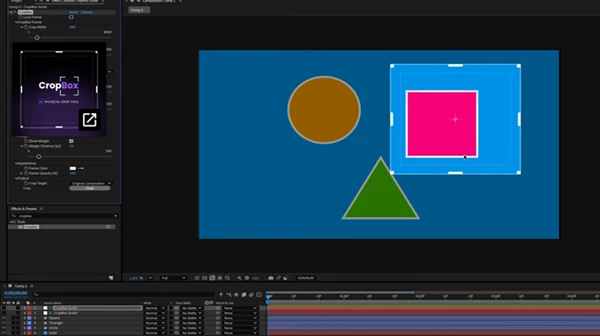
Another useful workflow is cropping around a specific layer. If a composition contains a logo, title animation, or isolated graphic surrounded by unnecessary empty space, CropBox can help define a tighter composition around that element.
It can also be useful when preparing multiple deliverables from one master project. Consistent margins, snapping, and aspect-ratio controls help keep those variations visually related even when their dimensions are different.
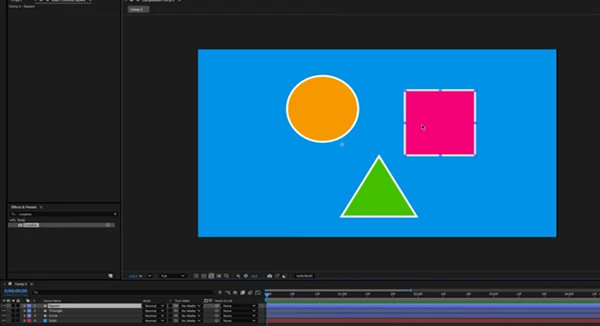
Tips for Better Results
Use the built-in aspect ratios whenever you are creating content for platforms. This will make it so that you do not have to adjust the composition again later on.
Utilize margins for projects that contain titles or elements close to the edges of the composition. This will ensure that all deliverables maintain a consistent visual boundary.
For projects that require precise compositions, enable the grid and the center crosshair before finalizing the crop. This will assist in ensuring that elements are correctly positioned within the project.
When experimenting with a new crop, always create a duplicate of the composition instead of experimenting with the original composition.
Use snapping in After Effects when you need to ensure that the elements within your composition are correctly positioned relative to one another. However, adjust the snapping distance to match the way that you work within the software.
A Simpler Approach to Cropping in After Effects
CropBox takes a complex process and simplifies it for the user.
With interactive handles to the crop box, as well as additional snapping options, visible margins, grids, and cropping modes, users have greater control over their composition when accuracy is of the essence.
Perfect for creating vertical compositions for social media or simply removing unnecessary space from within your composition, CropBox takes the time and effort out of cropping within After Effects.
For After Effects users who work with many compositions, CropBox could save

Files Password : gfxplugin.com OR 123456