Downloadable Files
You can download the Buttons Title Pack for free from the product section at the bottom of this page.
Make Your Videos Feel Interactive
Sometimes a video needs more than standard text and titles. When you're creating tutorials, product promos, explainers, or social media content, small interface-inspired elements can make the viewer feel like they're interacting with the video rather than simply watching it.
Buttons are a great example. A clean Subscribe, Download, Learn More, or app-style action button can instantly guide attention toward an important part of the screen. The problem is that building these elements from scratch—especially with polished animation—can take much longer than expected.
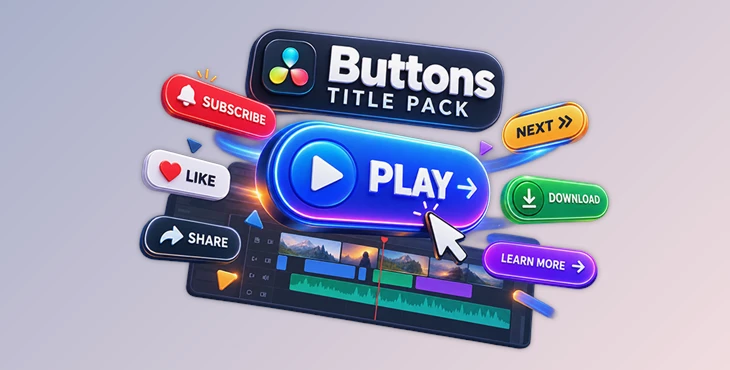
Buttons Title Pack is designed to make that process much faster in DaVinci Resolve, giving editors a ready-made collection of animated button titles that can be dropped directly into a project and customized without spending hours inside Fusion.
Why App-Style Buttons Work So Well
Modern viewers are surrounded by interfaces every day. Websites, mobile apps, streaming platforms, and social networks all use buttons and visual cues to tell users where to look and what to do next.
Using the same visual language in a video can make information easier to understand. For example, a tutorial can display a button when explaining where the viewer should click, while a promotional video can use an animated call-to-action to highlight a product, website, or important feature.
These elements are especially useful because they combine text, motion, and visual hierarchy. Instead of placing another plain line of text on screen, you can turn an important message into something that immediately catches the eye.
The key is keeping these graphics consistent. When buttons use completely different fonts, animation styles, and colors, the edit can quickly start feeling like a collection of unrelated templates. A cohesive design system helps the entire video feel like one finished piece.
Meet Buttons Title Pack
Buttons Title Pack is a collection of 30 app-style animated button titles for DaVinci Resolve. The assets are designed for editors who want professional motion graphics without having to build every animation manually in Fusion.
The templates are animated out of the box and can be added directly from the Effect Library. Once they're in your timeline, important elements such as text, colors, and timing can be adjusted from the Inspector on the Edit Page.
That makes the pack useful not only for experienced Resolve users, but also for editors who simply want attractive motion graphics without adding another complicated step to their workflow.
Features
30 Ready-to-Use Button Titles
The pack includes 30 different assets, giving you multiple options for adding interface-style titles and buttons to your videos.
You could use them to highlight actions such as Buy Now, Subscribe, Start, Download, Next, or any custom message that fits your project.
Animated Out of the Box
You don't need to animate every button manually. The assets already include motion, allowing you to focus more on editing, pacing, and storytelling instead of spending extra time creating graphics from scratch.
No Fusion Knowledge Required
One of the biggest advantages is accessibility. You can use the templates without needing advanced Fusion knowledge.
Simply add the asset to your project and make your adjustments from the familiar Edit Page workflow.
Customize from the Inspector
Text, colors, and timing can be edited through the Inspector, making it easy to adapt each button to the visual identity of your project.
For example, if you're producing a branded tutorial, you can change the button colors and text so the graphic feels like a natural extension of the brand rather than a generic overlay.
Flexible Animation Controls
The pack also lets you adjust animation timing and type, giving you more control over how each element enters and behaves in the edit.
This is particularly useful when matching motion graphics to music, voice-over, transitions, or important moments in your timeline.
Built as a Cohesive System
Instead of combining unrelated templates with different typography and motion styles, the assets share a common visual language.
That consistency can make a noticeable difference when several graphics appear throughout the same video. Your titles and buttons feel connected rather than looking like they came from completely different template packs.
Resolution and Frame Rate Flexibility
The assets can work with different resolutions and aspect ratios when used with a compound clip, making them suitable for everything from traditional horizontal videos to vertical social content.
They also support frame rates ranging from 24 to 120 fps, providing flexibility across different editing workflows.
Made for Reuse
If you regularly create similar content, you can save customized versions to Power Bins and reuse them in future projects.
This can be particularly handy for recurring YouTube videos, branded social posts, tutorials, or client projects where the same visual language needs to appear again and again.
Where Can You Use These Buttons?
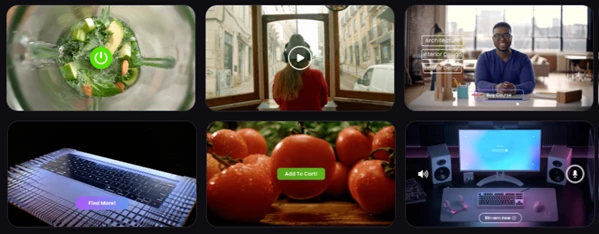
The most obvious use case is tutorial content. Imagine explaining a piece of software and displaying a clean animated button at the exact moment you're talking about an action. It creates an immediate visual connection between your explanation and what's happening on screen.
For promotional content, you might use a button to emphasize a call to action, product feature, website action, or next step.
They're also a natural fit for social media videos where viewers often have only a few seconds to understand the message. A short animated button can make an important phrase stand out without filling the screen with additional text.
You can even use these graphics in explainer videos to create interface-inspired scenes and give otherwise static information a more dynamic feel.
Tips for Getting Better Results
Try to match the button colors to the rest of your project's visual identity instead of using a completely different palette. Even a small adjustment can make a template feel much more integrated with your edit.
Timing matters too. Avoid leaving every button on screen for the same amount of time. Short actions can use faster animations, while an important call-to-action may benefit from staying visible a little longer.
It's also worth resisting the temptation to use too many animated elements at once. These buttons work best when they direct attention. If several graphics are competing for attention simultaneously, that purpose can get lost.
For tutorials, place buttons close to the relevant part of the interface whenever possible. In promotional videos, leave enough empty space around them so the animation has room to stand out.
Finally, if you've customized a style you like, save it for reuse. Keeping the same typography, colors, and motion behavior across multiple videos is one of the easiest ways to develop a more recognizable and professional visual style.
Small Graphics, Big Difference
The Buttons Title Pack allows editors to add animated buttons to their projects without the need to create their own from scratch.
With 30 customizable assets, Inspector-based controls, flexible animation options, support for different project formats, and no requirement for advanced Fusion knowledge, it can make adding interactive-looking graphics to DaVinci Resolve projects considerably easier.
Whether you're editing tutorials, explainers, promotional videos, or social content, the real strength of the pack is consistency. Instead of adding random graphics whenever you need them, you have a collection of elements designed to work together—and that can help the entire edit feel cleaner, more intentional, and more complete.

Files Password : gfxplugin.com OR 123456