Downloadable Files
You can download UI Mockup Builder for free from the bottom of this page.
Build Better UI Scenes Without Screen Recording 🎬
Creating a clean software interface for a promo video or tutorial sounds simple—until you actually have to do it. Screen recordings often include unnecessary panels, inconsistent layouts, distracting project files, or interface elements that simply do not fit the composition you are designing.
Rebuilding the entire interface manually is not much better. Drawing panels, timelines, buttons, tabs, scrollbars, and controls one by one can quickly turn into hours of repetitive work.
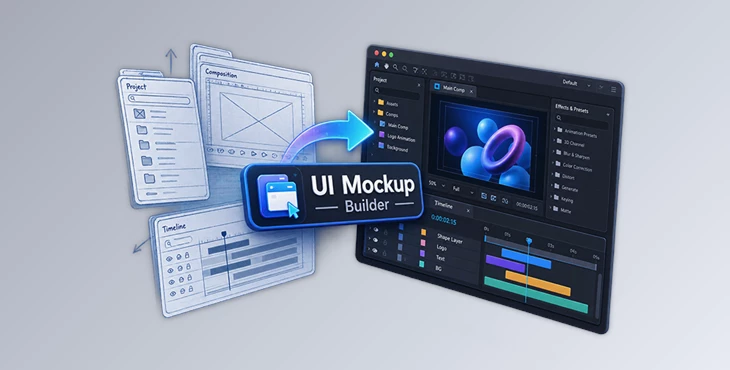
UI Mockup Builder offers a much more flexible approach. Instead of recording your real After Effects workspace, it lets you create clean, stylized UI scenes directly inside After Effects using editable vector elements.
That means you can decide exactly what the viewer sees, how the interface is arranged, and how it should animate.
What Is a UI Mockup and Why Use One?
A UI mockup is a designed representation of a software interface. Rather than capturing the real application exactly as it appears on your screen, you build a controlled version that contains only the elements needed for your shot.
Imagine you are creating a promo for an After Effects extension. You may want to show the extension beside a Composition Viewer and Timeline, but you probably do not want your actual project folders, random layer names, open tabs, or other workspace clutter appearing in the final video.
With an editable mockup, you can create a much cleaner scene.
This approach is especially useful for:
Product promos and launch trailers
Software tutorials and feature demonstrations
Explainer videos
Social media content
Help videos and documentation
Motion graphics involving software interfaces
Because every element can be intentionally positioned and styled, the final result feels more like a designed motion graphic and less like a raw screen capture.
Meet UI Mockup Builder
UI Mockup Builder is an After Effects tool designed to generate editable, AE-inspired interface scenes.
Instead of giving you a flattened screenshot, it creates a composition using editable shape layers, text layers, nulls, and precompositions. You can therefore continue adjusting and animating the interface after it has been generated.
You can build an entire workspace or generate only the panel required for a particular shot. This makes the tool useful for everything from wide product demonstrations to detailed close-ups.
Features
Full Workspace Generation
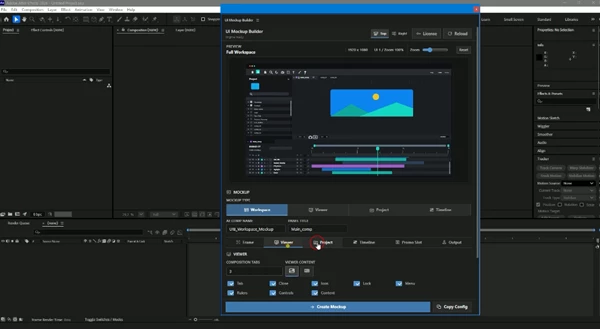
Need an entire software-style workspace for your scene? UI Mockup Builder can generate the main interface structure in one operation, including the Project panel, Composition Viewer, Timeline, toolbar, window shell, and optional space for your own product.
You can customize the composition dimensions, UI scale, panel split, and workspace size. Mac-style and Windows-style window controls are also available.
This is particularly useful when creating a product trailer where your extension needs to appear naturally inside a larger editing environment.
Composition Viewer
Not every shot needs a complete workspace.
For close-ups, tutorials, or feature callouts, you can generate a standalone Composition Viewer. Its tabs, labels, rulers, controls, and displayed content respond to your configuration.
You can use your own artwork or create a clean New Project-style state. Artwork can also be moved and resized while maintaining its proportions.
Project Panel
Long lists of project items can be difficult to recreate convincingly by hand. UI Mockup Builder lets you define the number of items and enter the names you actually need.
If the list is incomplete, additional items can automatically use names such as Comp_XX.
The generated Project panel can include elements such as search, columns, rows, previews, footer controls, and scrolling behavior. When the list becomes longer than the panel, its contents remain properly clipped and can be controlled using a dedicated scrollbar.
Editable Timeline
The Timeline is especially useful for creating believable motion-design and editing demonstrations.
Before generating it, you can set the duration, position the playhead, and arrange individual layer bars. Bars can be dragged, trimmed from either side, aligned, reset, or given randomized timing.
The generated Timeline keeps the configured timing, including the ruler, playhead, layer bars, and timecode.
So instead of animating a generic timeline and hoping it looks believable, you can art-direct its structure before it is created.
Live Preview
One of the most practical parts of UI Mockup Builder is its live preview.
You can configure names, rows, tabs, timing, artwork, panel details, and other interface elements while checking the result before generating the final composition.
This helps reduce trial and error, especially when you are trying to fit a UI scene into a specific video format.
Editable After Effects Layers
The generated interface is not a static image.
UI Mockup Builder leaves you with named and editable elements, including panel roots, control layers, resize handles, scroll controls, artwork controls, and animation-ready layers.
This gives you much more freedom when the generated mockup is only the starting point for a larger motion design.
UIB_CONTROL
A dedicated UIB_CONTROL layer provides access to global colors and available visual settings.
Instead of digging through numerous individual layers whenever you want to change the overall appearance, you can make broader adjustments from a centralized control layer.
Promo Slot
If you are creating a promo for your own script or extension, you can reserve a docked or floating Promo Slot inside the interface.
The slot does not automatically insert your product. Instead, it creates an integrated space where you can place your own panel screenshot, screen recording, or precomposition.
This can make product demonstrations feel much more intentional and visually balanced.
Visual Resize Handles
Complete workspaces and individual panels can be resized directly in the composition using visual handles.
This is particularly useful when adapting the same UI design for different formats, such as a horizontal YouTube video, a vertical social post, or a square presentation.
Starter Animation
A completely static interface can sometimes feel too flat for a promo.
UI Mockup Builder includes an optional staged starter animation, allowing the interface to build into the scene rather than simply appearing with a basic fade.
You can use this as a starting point and then customize the animation to match the pacing and visual language of your project.
Where Can UI Mockup Builder Be Useful?
For script and extension developers, it provides a controlled environment for presenting products without exposing a messy real-world workspace.
For motion designers, it can become part of explainers, title sequences, product films, and interface-based animations.
For educators and tutorial creators, it makes it easier to focus attention on specific panels or controls without showing irrelevant parts of an actual project.
And for content teams, the same visual system can be reused across launch videos, feature breakdowns, social posts, documentation, and other marketing materials.
Tips for More Professional UI Mockups ✨
Try to show only the interface elements that support the story of your shot. A full workspace can look impressive, but a standalone Viewer or Timeline may communicate the idea more clearly when you are explaining one specific feature.
Keep your panel proportions believable as well. Even though the interface is stylized rather than an exact copy of After Effects, familiar proportions help viewers immediately understand what they are looking at.
When using the Promo Slot, give your product enough visual space to become the focal point. The surrounding interface should provide context rather than compete for attention.
It is also worth taking advantage of the editable layers after generation. Small adjustments to spacing, timing, artwork placement, and animation can make the scene feel specifically designed for your project instead of looking like a reusable template.
Finally, consider creating several camera-ready versions of the same interface: a complete workspace for establishing shots, a Composition Viewer for artwork close-ups, and a Timeline for animation-focused shots. Switching between these views can make tutorials and promo videos feel much more dynamic.
A Cleaner Way to Present Software Interfaces
With UI Mockup Builder, you can finally solve a very specific but common problem: creating visuals of your software interface without screen recordings or rebuilding your interface.
Its combination of full workspaces, standalone panels, editable timelines, live preview, resize controls, Promo Slots, and animation-ready After Effects layers gives you plenty of room to shape each interface around the story you want to tell.
Whether you are presenting a new extension, creating a tutorial, building an explainer, or designing UI-based motion graphics, the biggest advantage is control. Instead of letting your real workspace determine how the shot looks, you can design the interface around the final composition.
For projects where presentation matters just as much as functionality, that extra control can make the whole result feel cleaner, more consistent, and considerably more professional.

Files Password : gfxplugin.com OR 123456