Downloadable Files
You can download Font Animator for free from the bottom of this page.
When Fonts Become Part of the Animation 🎬
Text animation in After Effects usually means moving letters, changing their scale, adjusting opacity, or adding effects. But what if the font itself could become part of the animation?
Imagine a title where one typeface gradually travels across the word, individual characters randomly switch between different fonts, letters turn into symbols, or the entire typography changes exactly on a beat or cut.
That is exactly where Font Animator comes in. Instead of converting text to shapes or separating every character into its own layer, it lets you control and animate fonts while keeping your original text editable.
For motion designers who work with kinetic typography, music videos, social media graphics, title sequences, or experimental text animation, this opens up some interesting creative possibilities.
More Than Just Changing a Typeface
Normally, changing a font in After Effects affects the selected text as a whole. If you want several fonts inside one animated text layer, things can quickly become more complicated.
Font Animator approaches the problem differently. It lets you decide exactly where, when, and how a font changes.
You can work with individual characters, complete words, or entire lines. For example, you could make a bold font sweep from left to right through a title, randomly distribute several typefaces across a sentence, or switch typography whenever the music reaches a specific beat.
Because everything remains on a standard text layer, you can still rewrite the text later without rebuilding the animation from scratch. This makes experimentation much easier, especially in projects where titles or copy may change several times before the final export.
Meet Font Animator
Font Animator is an After Effects tool designed to create dynamic font changes within a single editable text layer.
Instead of manually splitting text, creating multiple layers, or converting typography into outlines, you can manage the effect from one panel and Effect Controls.
Its workflow is divided into four main modes: Range, Random, Replace, and Marker. Each one handles a different type of font animation.
Features
Range Animator – Let the Font Travel Through Your Text
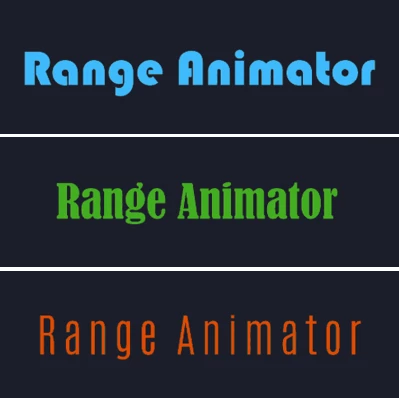
The Range Animator lets one font take over a selected portion of your text.
You can animate Start, End, and Offset values to make the typeface travel through the text character by character. The range can be based on characters, words, or lines, and you can work with percentages or exact indexes.
For example, imagine the word MOTION starting in a clean sans-serif font while a heavy display font gradually moves from the first letter to the last. Instead of animating six separate text layers, the entire effect stays inside one layer.
You can also add multiple ranges, each with its own controls, giving you more freedom to build layered typography animations.
Random – Mix Fonts Without the Manual Work
The Random mode is useful when you want typography to feel more unpredictable or energetic.
Create a pool of fonts and Font Animator can distribute them across characters, words, or lines. Coverage determines how much of the text is affected, while Seed gives you different combinations without rebuilding the setup.
Turn on animation and the font distribution can continuously reshuffle over time.
Each font in the pool can also have its own size, tracking, and color, and those properties can be keyframed.
This can work particularly well for glitch-inspired titles, experimental typography, fast social media edits, music visuals, or sequences where you want the text to constantly evolve.
Replace – Turn Characters Into Symbols and Glyphs
Replace goes beyond switching fonts because it can replace the characters themselves.
Letters can become icons, arrows, symbols, dingbats, box-drawing characters, or other glyphs available in your chosen font.
You can target a moving range or use Find and Replace to target a specific word. This is especially useful when the actual text may change later because you do not always have to rely on fixed character positions.
When replacement text is shorter than the original, you can decide how the remaining space behaves. It can repeat, remain blank, use a custom symbol, or create a scramble-style effect.
That makes Replace useful for decoding animations, futuristic interfaces, symbol transitions, stylized titles, and experimental motion graphics.
Marker Animator – Sync Typography With Your Edit
Sometimes you do not want to deal with lots of keyframes just to make font changes happen at specific moments.
With Marker Animator, you can place markers on the text layer and assign typography changes to them. Move a marker and the timing of the font change moves with it.
This makes it particularly handy when synchronizing typography with music beats, cuts, dialogue, or voice-over cues.
Each marker entry can also carry its own size, tracking, bold, skew, and color settings, so the transition can involve more than simply changing the font family.
Keep Everything Editable
One of the most practical parts of Font Animator is its non-destructive workflow.
Your typography isn't converted into outlines, and individual characters aren't separated into dozens of layers. The project still contains a regular editable text layer.
You can retype a sentence, replace a font, adjust an animation, precompose the layer, parent it, or combine it with other After Effects text animators.
For projects with frequent revisions, this can save a significant amount of repetitive work.
Tips for Better Font Animations ✨
Using more fonts does not automatically make an animation more interesting. In many cases, a smaller and more intentional font selection produces a cleaner result. Try combining two or three typefaces with noticeably different personalities rather than filling the font pool with similar options.
When using Random mode, adjust Coverage before increasing the number of fonts. Leaving some characters untouched can create contrast and make the animated typography easier to read.
For music-based projects, Marker Animator is especially useful. Place markers on important beats or edit points first, then experiment with font changes. This keeps the typography connected to the rhythm instead of making the changes feel arbitrary.
With Replace mode, choose symbols that visually relate to the original characters whenever possible. A carefully selected glyph can make the transformation feel intentional, while completely unrelated symbols are better suited to glitch or scramble effects.
And when working with animated font shuffling, remember that readability still matters. Fast changes can look impressive, but giving viewers enough time to understand important words usually creates a stronger final result.
A More Flexible Way to Animate Typography
Font Animator takes something that is normally static—the typeface itself—and turns it into another property you can creatively control.
Whether you want a font to sweep across a title, randomly shuffle between different styles, transform letters into glyphs, or switch typography exactly on timeline markers, the tool provides several ways to do it without destroying the editability of your text.
The biggest advantage is not simply having more effects. It is being able to experiment with typography while keeping the workflow manageable. Your text stays on one layer, remains editable, and can continue evolving alongside the rest of your After Effects project.
For anyone who enjoys kinetic typography and wants to explore font changes as part of the animation itself, Font Animator offers plenty of room to experiment.

Files Password : gfxplugin.com OR 123456