Downloadable Files
You can download MATE for Premiere for free from the product section at the bottom of this page.
AI Assistant for Adobe Premiere Pro
Editing in Premiere Pro often involves more than making creative decisions. A surprising amount of time can disappear into repetitive tasks: cutting clips at markers, organizing footage, renaming files, adjusting timelines, preparing captions, or getting sequences ready for export.
What if you could simply describe what you want and let an AI assistant handle those steps inside Premiere?
MATE for Premiere is designed around exactly that idea. Instead of navigating through menus and repeating the same actions manually, you can give MATE instructions in natural language and have it work directly with your Premiere Pro project.
When Editing Starts Feeling Like Repetitive Work 🎬
Imagine you have a large project with dozens of clips. You need to organize the footage into bins, rename several files, cut clips at specific markers, clean up gaps in the timeline, add captions, and finally prepare the finished sequence for export.
None of these tasks is necessarily difficult on its own. The problem is that together, they involve a lot of small clicks and repeated actions.
AI-assisted editing changes this workflow. Instead of performing every step individually, you describe the result you need. The assistant can interpret the request, examine the project, choose the appropriate actions, and perform the work.
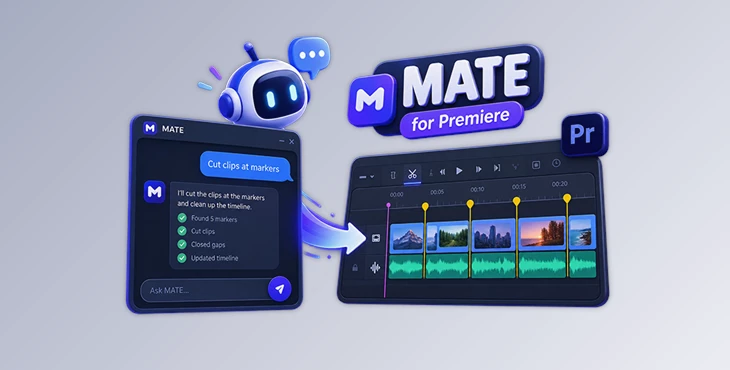
For example, you could ask it to cut clips at markers, close selected gaps, move linked audio and video correctly, organize footage into bins, and prepare the resulting sequence for export.
This leaves more of your editing time for decisions that actually require your attention.
Meet MATE for Premiere 🤖
MATE for Premiere by OMATA Labs is an AI assistant that works directly inside Adobe Premiere Pro.
Its main purpose is not simply to answer questions about editing. In Agent Mode, it can interact with the open Premiere project and perform actual editing and organizational tasks.
MATE also includes Script Mode, allowing you to describe an automation you need and generate Premiere Pro scripts without having to write the code yourself.
It supports multiple AI providers, including OpenAI GPT, Claude, Gemini, and Mistral. Base usage for OpenAI GPT 5.4 mini and Claude Haiku 4.5 is included, while higher-tier models can be connected using your own API key.
Features That Make MATE Useful ⚡
Agent Mode
Agent Mode is where MATE acts directly on your Premiere project.
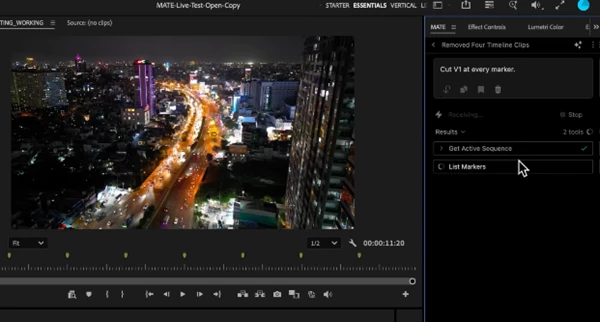
You can describe what you want changed, and MATE can read the project, select the necessary tools, perform the requested actions, and check the result.
This can be useful for tasks such as:
Cutting clips at markers
Trimming edits
Closing selected timeline gaps
Moving linked video and audio
Replacing clips
Creating bins
Moving and renaming footage
Reading metadata
Relinking media
Updating sequences
Adding markers and captions
Preparing sequences for export
The real advantage becomes clearer when several of these actions are combined into one instruction.
For example, you could ask MATE to create a new sequence, add markers and captions, adjust effects, and then queue the finished version for export.
Script Mode
Sometimes you need an automation that Premiere does not provide conveniently.
With Script Mode, you can describe the tool or workflow you want and let MATE generate an ExtendScript for Premiere Pro.
You do not need to know how to code. You can inspect the generated script before running it, make changes, save it, and reuse it later.
MATE can also work with existing scripts. Paste or import one and ask the AI to explain it, debug problems, modify its behavior, or add new functionality.
Support for Adobe's newer UXP scripting system is also planned for a future release.
Build a Reusable Script Library
A useful automation becomes much more valuable when you do not have to recreate it every time.
MATE lets you save scripts and prompts in a personal library. Saved scripts can then be launched again with one click without requiring another AI request.
Scripts and prompts can also be organized, starred, sorted with drag and drop, and shared with other members of your team.
Over time, this makes it possible to build your own collection of Premiere automations around the way you actually edit.
Work With External Files
MATE is not limited to information already inside your Premiere project.
You can provide files and content such as:
SRT subtitles
CSV files
JSON files
TXT documents
Word documents
Excel spreadsheets
MP4 videos
YouTube links
MATE can use the information from these sources while completing a task.
For example, you could provide prepared subtitle data and ask it to create a native caption track while preserving the original timing. You could then continue the same workflow by asking it to place relevant markers in the sequence.
It can even work with a YouTube video and use its content for tasks such as transcription and creating timed captions inside Premiere.
Connect External Services With MCP
MATE also supports Model Context Protocol (MCP), an open standard that allows AI tools to connect with external services.
This means information such as briefs, shot lists, project data, or review notes can be brought into your Premiere workflow from connected services such as Notion.
For example, you could retrieve a shot list and ask MATE to turn that information into clip names, markers, bins, or even the starting structure for a rough sequence.
Instead of constantly moving information between different apps manually, relevant project data can become part of the editing workflow itself.
Practical Ways to Use MATE More Effectively 💡
The quality of an AI-assisted workflow depends heavily on how clearly you describe the result you want. Instead of saying something vague like “clean this timeline,” explain what should actually change.
For example, specify whether MATE should remove selected gaps, preserve linked audio and video, cut clips at existing markers, or leave certain parts of the sequence untouched.
For larger jobs, it can also be useful to think in stages. Start with project organization, continue with timeline operations, and finish with captions or export preparation. Even though MATE can chain multiple actions together, clearly structured instructions make complex workflows easier to understand and review.
Script Mode is especially useful for repetitive tasks. If you notice yourself performing the same sequence of actions across multiple projects, consider turning that workflow into a reusable script rather than repeatedly asking AI to perform it from scratch.
And when working with generated scripts or large project changes, inspect the result before making it part of your regular workflow. AI can save a lot of time, but your own review is still an important part of a professional editing process.
Less Clicking, More Editing 🚀
MATE for Premiere takes a different approach to Premiere automation. Rather than giving you another collection of buttons and presets, it lets you describe what needs to happen in ordinary language.
Agent Mode can handle tasks directly inside a project, Script Mode can turn ideas into reusable Premiere scripts, external file support brings additional information into the workflow, and MCP extends that workflow to connected services.
For editors who regularly deal with repetitive timeline operations, large projects, captions, project organization, or custom automation, these features can remove a considerable amount of manual work.
The most interesting part is not simply that Premiere now has an AI assistant. It is the possibility of turning instructions such as “organize this footage,” “cut these clips at the markers,” or “build me a script for this repetitive task” into actual actions inside the editing workflow.