Downloadable Files
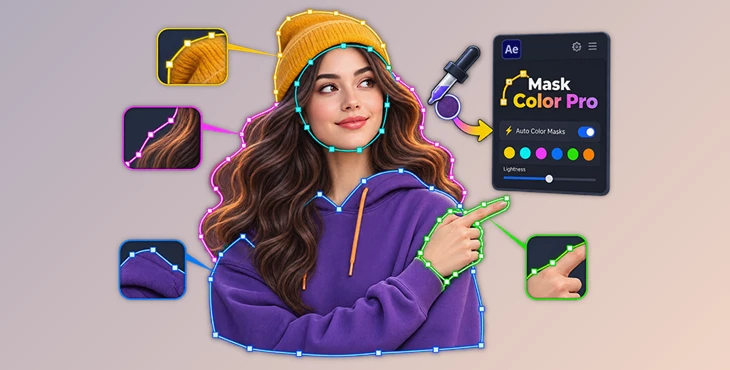
You can download Mask Color Pro for free from the bottom of this page and try it in your own After Effects workflow.
When Your Mask Is There… But You Can Barely See It 👀
If you work with masks in After Effects, you have probably run into this annoying little problem: you draw a mask perfectly, but its outline almost disappears into the footage.
A green mask over grass, a blue path against the sky, or a pale yellow outline over a bright area can quickly become difficult to follow. With a simple mask, this might only be a minor inconvenience. But when you are working on rotoscoping, compositing, or a shot with several masks at once, poor visibility can slow down the entire process.
You can manually change mask colors, of course. But doing that over and over is not exactly where you want to spend your time.
That is where Mask Color Pro comes in. Instead of leaving every mask with a random or hard-to-see color, it automatically chooses a color that stays visible against the image underneath.
Why Mask Color Matters More Than You Think 🎨
Mask colors in After Effects are mainly there to help you identify and edit your paths. They do not change the final rendered image, but they can make a big difference while you are working.
Imagine rotoscoping a person against a busy outdoor background. One part of your mask might pass over a dark jacket, another over bright skin tones, and another across green trees. A poorly chosen outline color can become almost invisible in some of those areas.
The problem gets even more noticeable when several masks are close together. If their colors look too similar, figuring out which path belongs to which mask becomes unnecessarily confusing.
A high-contrast mask color solves much of this. The outline stands apart from the footage, making anchor points and paths easier to identify and adjust.
This is especially useful for tasks such as:
Rotoscoping subjects and objects
Creating detailed masks for compositing
Working with multiple masks on the same layer
Masking footage shot against green or blue screens
Making precise path adjustments on visually complex footage
Managing large compositions with many overlapping masks
Better visibility does not change the mask itself, but it can make editing that mask noticeably faster and more comfortable.
Meet Mask Color Pro: Let the Mask Pick the Right Color ✨
Mask Color Pro is an After Effects tool designed to automatically give your masks colors that are easy to see.
Once you finish drawing a mask, the tool samples the colors underneath it and selects a high-contrast outline color automatically. You do not need to open the color picker or test several colors until you find one that works.
It works while you work, so the process feels simple: draw your mask, finish the path, and continue editing.
For example, if you draw a mask over a dark area, Mask Color Pro can give the outline a brighter appearance. If the underlying area is very bright, it can choose something darker and easier to distinguish.
The tool also considers nearby masks and keeps their colors visually distinct. This becomes particularly helpful during larger roto sessions where you may have many paths packed into the same part of the frame.
Features That Keep Your Masks Easy to Follow 🛠️
Automatic Mask Coloring
Every new mask can be recolored automatically as soon as you draw it. Mask Color Pro samples the underlying frame and chooses a contrasting color without requiring an extra manual step.
This works with the Pen tool as well as After Effects shape tools, including Rectangle, Ellipse, Polygon, and Star.
Smart Colors Based on the Actual Frame
Instead of simply cycling through a predefined list of colors, the tool looks at the image underneath the mask.
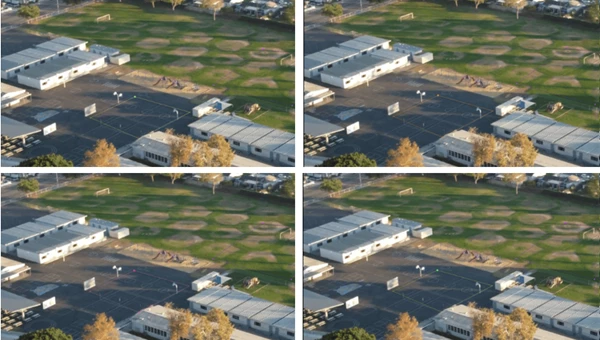
This helps avoid situations like green outlines disappearing against grass or greenscreen footage, blue masks becoming difficult to see against the sky or bluescreen, and light colors getting lost in bright highlights.
Distinct Colors for Nearby Masks
When several masks sit close together, Mask Color Pro tries to keep their colors visually different.
That can make a substantial difference in detailed rotoscoping. Even when a shot contains many masks, it is easier to recognize which outline you are currently adjusting.
One-Click Recoloring
The tool is not limited to newly created masks. Existing masks can also be recolored with a single action.
This is useful when opening an older project where mask colors were never organized or when the footage underneath a mask has changed enough that its current color is no longer easy to see.
Adjustable Lightness
A built-in lightness slider lets you push the selected mask color toward white or black.
The automatic result can therefore serve as a starting point while still giving you control when a particular shot needs a slightly brighter or darker outline.
Manual Sampling Tools
For situations where you want more control, the panel includes manual color-sampling options for the full frame or a selected region.
This gives you a useful balance between automatic coloring and manual adjustment rather than forcing you into one workflow.
Clean Undo Behavior
Actions are designed to produce clearly labeled undo steps. Batch recoloring can also be undone as a single operation, which makes experimenting with different mask colors much less disruptive to the rest of your edit.
Ready for Modern After Effects Workflows
Mask Color Pro handles 8, 16, and 32-bpc projects as well as color-managed workflows automatically. Its interface is designed to fit naturally alongside After Effects and supports both light and dark UI themes.
The tool requires Adobe After Effects 18.4 (2021) or newer and works on both Windows and macOS.
Where Mask Color Pro Can Save the Most Time 🎬
The benefits become especially clear when the masking work gets complicated.
Suppose you are rotoscoping a moving character and have separate masks for the head, arms, torso, and other details. After several frames, you may be dealing with a large collection of paths sitting close together. If those paths share similar colors, selecting and adjusting the right one can become frustrating.
With Mask Color Pro, nearby masks can receive visibly different colors while remaining easy to see against the footage itself.
The same idea applies to compositing. If you are masking several objects in a detailed scene, stronger visual separation between paths makes it easier to understand your composition without constantly checking which mask is selected.
It is a small workflow improvement, but during long masking sessions, those small improvements can add up.
Tips for a Cleaner Masking Workflow 💡
Automatic colors work best when you let them handle the repetitive part of the process and step in manually only when necessary.
For complex roto shots, try keeping neighboring masks visually distinct rather than forcing all masks into a consistent color scheme. The goal here is readability, especially when several paths overlap or cross the same region.
If an automatically selected color still feels too close to part of the footage, use the lightness control to move it toward white or black. A small adjustment can often create enough separation without requiring a completely different color.
It is also worth recoloring existing masks when returning to older projects. A composition that felt manageable with three masks can become much harder to navigate after ten or twenty more have been added.
Finally, remember that these colors are primarily workflow helpers. Focus on making your paths easy to identify rather than making the mask palette itself look aesthetically perfect.
A Small Change That Makes Masking Much Easier 🚀
Mask Color Pro solves a very specific After Effects problem: masks that are technically visible but practically difficult to work with.
By sampling the footage underneath each mask, choosing high-contrast colors automatically, separating nearby masks visually, and still giving you manual controls when needed, it removes a repetitive step from masking and rotoscoping workflows.
It will not change how your final composite looks, but it can change how comfortably you get there.
If masking is a regular part of your After Effects projects, Mask Color Pro is worth trying simply for the extra clarity it brings to the Composition panel. When every path is easier to see, it becomes much easier to focus on the mask itself rather than fighting with its outline.

Files Password : gfxplugin.com OR 123456