Downloadable Files
You can download Texto for free from the bottom of this page.
Make After Effects Text Animation Faster and Easier
While AE text animations can appear to be created in a few clicks, they typically take some time to create using the AE interface. Texto aims to simplify the text animation process in After Effects by making it a one-click process.
Rather than having to continually create the same animation for your text elements, you can select your text and choose a direction to make your text reveal itself in a matter of clicks. Choose how the text reveals itself letter by letter, word by word, or line by line.
The useful part about Texto is that the generated animations are editable. You can use Texto to generate an animation quickly and then edit it to your liking to fit your project.
What Is Texto and What Does It Do?
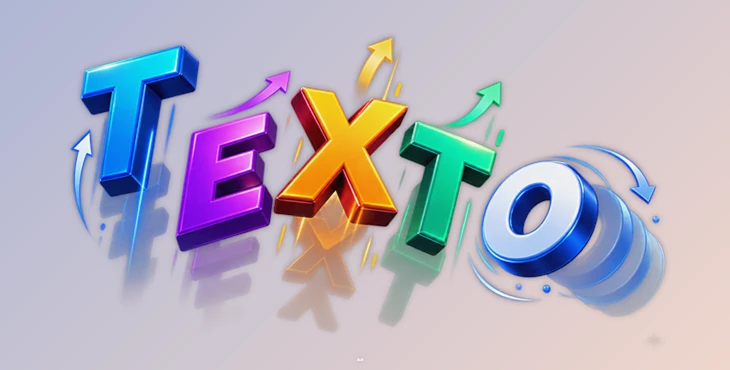
Texto is a text animation tool for Adobe After Effects that creates directional in and out animations directly on text layers. It eliminates much of the repetitive work normally involved in building text reveals manually.
For example, imagine creating a title for a promotional video. You might want every word to enter smoothly from the left, settle with a small bounce, remain visible for a few seconds, and then disappear in the opposite direction. Instead of manually creating and adjusting all of those animation properties, Texto can establish the basic movement with a few clicks.
The same workflow can be useful for social media videos, motion graphics, advertisements, typography sequences, presentation graphics, lower thirds, intros, and other projects where animated text plays an important visual role.
Because the resulting controls remain live and editable, you can use Texto for speed without giving up the ability to fine-tune your animation afterward.
Texto Features
One-Click Directional Animations
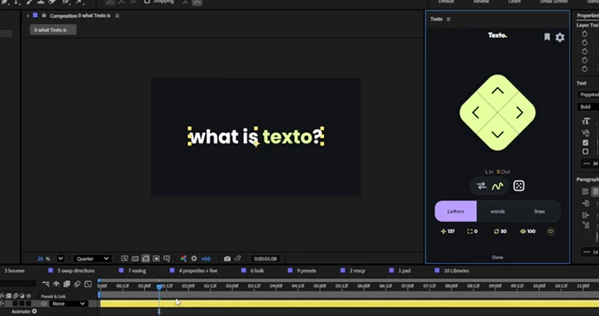
At the center of Texto is its Diamond Pad. Select a text layer and choose a direction from the pad to quickly build an animation. A left-click creates an In animation, while a right-click creates an Out animation.
This makes it easy to experiment with different entrance and exit directions without repeatedly rebuilding the effect.
Animate Letters, Words, or Lines
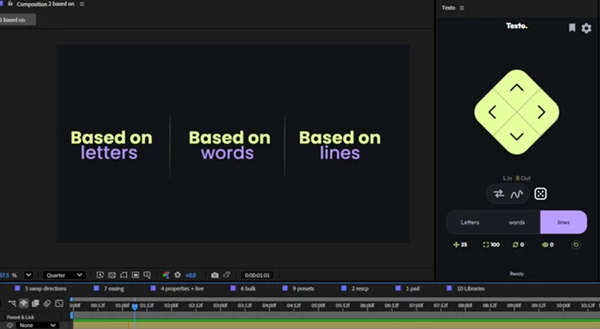
Different typography designs need different animation rhythms. Texto lets you choose whether an animation is based on individual letters, words, or lines.
Letter-based animation can work well for energetic titles and logo-style typography. Word-based animation is useful for headlines and promotional messages, while line-based reveals can be effective for paragraphs, quotes, and multi-line titles.
You can also re-scope an existing animation without having to rebuild everything from scratch.
Editable Motion Properties
Texto gives you control over important animation properties including:
- Position
- Scale
- Rotation
- Opacity
These properties can be adjusted directly from the panel by typing values or scrubbing controls.
The generated settings remain grouped on the text layer, so you can continue modifying timing, easing, spacing, and movement after applying the animation.
Natural Bounce Controls
For animations that need more personality, Texto includes a Bounce system.
Once enabled, the text can settle into position with a spring-like overshoot. You can adjust frequency, amplitude, decay, and delay to control the character of the bounce.
A subtle bounce can make a clean title feel more organic, while stronger settings can create playful motion for social content or energetic promotional graphics.
Reverse Animations with Swap
Sometimes an animation looks good but would work better in the opposite order. Texto’s Swap function lets you reverse the flow from first-to-last into last-to-first.
This works both when creating new animations and when modifying animations that have already been applied. It is particularly useful when coordinating text movement with cuts, transitions, or other animated elements.
Randomize Your Animation
When you are unsure what type of movement fits a design, the Randomize feature can help you explore alternatives.
Clicking the dice generates a different combination of direction, motion, and timing. Instead of manually testing every possibility, you can quickly browse variations and use an interesting result as a starting point.
Save and Share Custom Presets
Once you create an animation you like, Texto allows you to save it into your own preset library.
Saved animations retain details such as easing, spacing, and grouping. Presets can be renamed and reordered, and you can export or import them as JSON files.
This is especially useful when working on a series of videos where typography needs to maintain a consistent animation style.
Built-In Preset Libraries
Texto also includes 9 built-in presets divided across three libraries: Smooth, Clean, and Poppy.
Each preset can apply a complete In and Out animation pair. After applying one, you can still modify its settings rather than being restricted to the original preset.
For example, you could start with a clean animation, change its direction, increase the spacing, introduce a subtle bounce, and save the modified result as your own preset.
Practical Ways to Use Texto
Texto can fit into many common motion design workflows. A social media editor could use word-based reveals to animate short promotional headlines. A motion designer could create letter-by-letter title sequences and then adjust their timing to synchronize with music.
For corporate videos, line-based animations can introduce information in a controlled and readable way. For more energetic content, combining directional movement with scale, rotation, and Bounce can produce more expressive typography.
The ability to save presets is also valuable for recurring projects. If a YouTube series, advertising campaign, or brand package uses the same typography animation repeatedly, you can create the style once and reuse it instead of rebuilding it for every composition.
Tips for Better Texto Animations
Start with simple movement of the text objects and gradually add several different effects as needed for the best visual outcome.
Choose the animation basis for your texto according to your content. For instance, use the letter basis for detailed text, the word basis for readability in headlines, and the line basis for larger texts.
Use the bounce effect carefully. Only use small amounts of overshoot. Strong bounce settings are better for playful texto designs.
Finally, experiment with the in and out directions of your texto animations. The in and out directions do not have to be the same. For instance, your text can go in from the bottom of the screen and come out to the right.
Finally, save the animations that you use the most often. Creating your own library of Texto animations will significantly speed up your workflow if you have to apply the same text animations to multiple projects.
Final Thoughts
Texto focuses on one of the most common tasks in After Effects: creating attractive text animation without spending unnecessary time on repetitive setup.
Its one-click directional controls make it easy to build animations quickly, while options for letters, words, lines, motion properties, Bounce, Swap, Randomize, and custom presets provide room for customization.
Most importantly, the animations remain editable. You can use Texto to quickly establish the foundation of an animation and then refine the movement until it matches the style of your project.
For editors and motion designers who frequently work with animated typography, Texto can make experimenting with different ideas faster while keeping the workflow flexible and easy to manage.