Downloadable Files
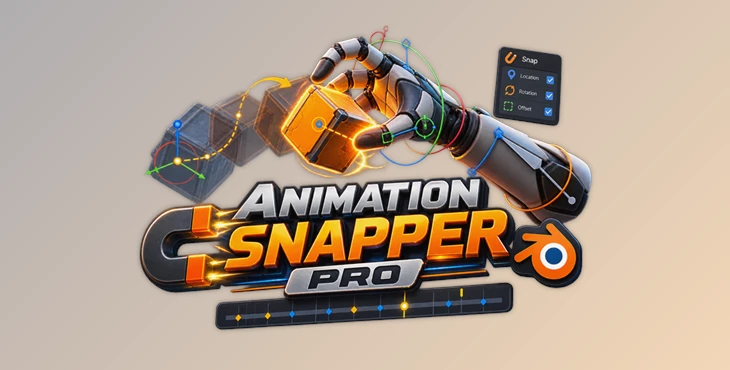
You can download Animation Snapper Pro for free from the bottom of this page.
Make Blender Animation Snapping Easier
Animating interactions in Blender can quickly become complicated when an object needs to follow different objects at different moments. Traditional workflows often require multiple constraints, carefully animated influence values, complex parenting setups, or duplicated objects. These methods can work, but they can also make an animation difficult to edit and understand later.
Animation Snapper Pro offers a cleaner approach. Instead of building complicated constraint systems, it allows animators to snap objects and bones to different targets and bake the resulting movement directly into keyframes.
This makes it especially useful for character animation, object interactions, game animation, blocking, and scenes where objects frequently need to change what they are following.
What Is Animation Snapping?
Animation snapping is a workflow where an object or bone is aligned with another object, bone, or point in the scene at specific moments during an animation.
Imagine a character picking up a sword. At first, the sword may stay on a table. Then it needs to follow the character’s hand. Later, the character might throw it or place it somewhere else.
With a traditional constraint-based workflow, this can require several constraints and carefully timed influence changes. Animation Snapper Pro simplifies the process by calculating the required transformations and baking them into normal animation keyframes.
Once the snapping operation is complete, the animation does not need to remain dependent on a complicated constraint network.
The same concept can be useful for feet contacting the ground, hands grabbing moving objects, props changing between characters, objects moving across animated surfaces, or simply aligning elements inside a Blender scene.
A Keyframe-Based Snapping Workflow
One of the main ideas behind Animation Snapper Pro is that everything ultimately comes down to keyframes.
Snapped motion can be baked directly into the animation, giving you standard keyframe data that can be adjusted, moved, or deleted using familiar Blender animation tools.
This approach keeps scenes easier to understand. If an object should stop following another object during a particular section, you can simply modify or remove the relevant keyframes rather than trying to untangle a network of constraints.
It can also be valuable when preparing animations for game engines, where custom Blender constraint setups may not always translate cleanly during export.
Features
Snap Objects and Bones
Animation Snapper Pro can quickly align an animated item with another source. You can perform an immediate snap or maintain an offset between the source and snapped object.
You also have control over whether the operation affects location, rotation, or both, while locked transformation channels can be respected.
Snap to Vertices, Edges, and Faces
Snapping is not limited to object origins or bones.
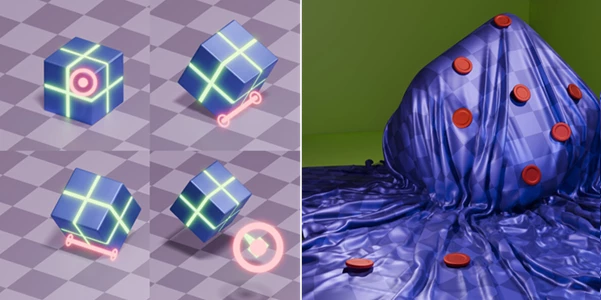
The addon can use selected vertices, edges, and faces as reference points. This means almost any useful location on a mesh can become an anchor for animation.
For example, an object could be positioned against a specific part of a moving or deforming surface rather than relying on the object’s main pivot point.
Batch Snapping
Forward and backward batch snapping allows an object to follow another element across a range of frames.
Instead of manually repeating the snapping operation frame by frame, you can process a larger animation section with a single workflow.
This is particularly helpful for interactions where one object needs to temporarily follow another.
Step Snapping
Step snapping provides more control when working incrementally through an animation.
It can be useful during blocking and posing, especially when you want to build complex interactions gradually rather than immediately baking an entire frame range.
Offset Helpers
One of the most flexible tools is the Offset Helper.
Instead of forcing two objects to snap pivot-to-pivot, you can create a parented empty that represents the required offset from the source.
A practical example is a character holding a cup. The hand’s pivot and the cup’s pivot may not naturally line up. An offset helper gives you an intermediate reference that preserves the desired relationship while still allowing the animation to be snapped cleanly.
Helper for Each
When several objects or bones are selected, Animation Snapper Pro can create correctly oriented helper empties for them.
These helpers provide convenient reference points that can be used for snapping, alignment, and other animation tasks.
Baked Helpers
The addon can also create helpers that inherit animation from selected objects or bones across a specified frame range.
These baked helpers can serve as clean reference points or animation drivers without requiring you to maintain the original relationship indefinitely.
Element Helpers
Static and baked element helpers can be generated from selected mesh vertices, edges, and faces.
This becomes especially useful when dealing with deforming geometry. You can establish a reference point on a particular part of a mesh and use it when building interactions with other animated elements.
Flexible Helper Display
Helper empties can be customized by changing their display type and size. This helps keep complicated animation scenes readable and makes important reference controls easier to identify.
No Permanent Helper Dependency
Helpers can remain in the scene if you think they will be useful again, but they are not necessarily required after the snapping process is finished.
Once the motion has been baked into keyframes, helpers can be deleted without destroying the resulting snapped animation.
Animation Snapper Pro – Switcher
The toolset also includes Animation Snapper Pro – Switcher for Blender 5+.
Switcher is designed for situations where you do want to quickly create a series of switching constraints. It reduces the amount of manual setup required and provides a faster way to establish these relationships.
The resulting constraints can then be baked into keyframes.
This creates an interesting combination: Switcher can handle convenient constraint switching when required, while the main snapping workflow can still be used to produce clean keyframe-based animation.
Practical Uses in Animation
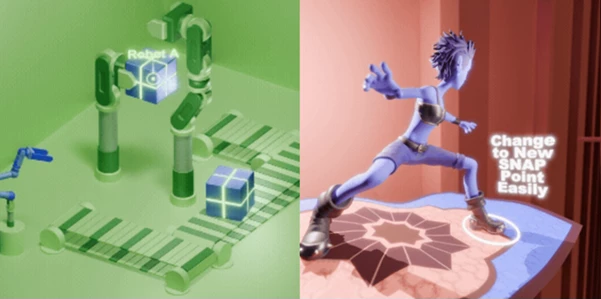
Consider a character walking toward a table, grabbing an object, carrying it, and finally handing it to another character.
The object needs several different relationships throughout the shot. It may initially remain stationary, then follow one character’s hand, move independently for a moment, and finally follow another character.
Animation Snapper Pro lets you approach these changes as snapping and keyframe operations instead of designing a large permanent constraint system.
Another useful example is character foot placement. If you need a foot to land at an exact position at the end of a movement, snapping provides a more direct way to establish the required pose and transformation.
The workflow is equally useful for mechanical animation, moving props, weapons, handheld objects, animated surfaces, and many other scenes involving temporary relationships between objects.
Tips for a Cleaner Workflow
When using Animation Snapper Pro, think of helpers as temporary animation controls rather than permanent rig components. Keep useful offset helpers when you expect to revisit an interaction, but remove unnecessary helpers once the final movement has been baked.
For hand-held props, use an offset helper when the natural pivots do not match. This usually provides much more convincing positioning than forcing two objects directly onto the same pivot.
When blocking complicated interactions, step snapping can give you greater control before committing to longer baked sequences. Once the motion feels correct, batch snapping can help complete larger sections efficiently.
Mesh element helpers are particularly valuable when an interaction depends on a specific point on an object rather than its origin. Using a vertex, edge, or face as the reference can produce more accurate contact and alignment.
Finally, keep the keyframe-based nature of the workflow in mind. Since the final result can exist as ordinary animation data, you can continue refining timing and poses with Blender’s regular animation tools after snapping.
More Than an Animation Tool
Although Animation Snapper Pro is primarily designed for animation, its helper and snapping tools can also be useful for general scene work.
Quickly creating reference empties or aligning objects to specific points on geometry can speed up positioning tasks even when you are not building an animation.
That makes the addon useful as both an animation workflow tool and a convenient scene-alignment utility.
Final Thoughts
Animation Snapper Pro provides Blender animators with a practical alternative to complicated constraint-heavy workflows.
Its keyframe-based approach makes temporary object relationships easier to create, modify, and understand. Features such as batch and step snapping, offset helpers, baked helpers, mesh element snapping, bone picking, and the additional Switcher tool give animators several ways to handle complex interactions without unnecessarily cluttering their scenes.
For character interactions, game animation, prop handling, precise posing, or simple object alignment, Animation Snapper Pro can make snapping feel much more direct while keeping the resulting animation flexible and editable.

Files Password : gfxplugin.com OR 123456