Downloadable Files
You can download Quest 61 for free from the bottom of this page.
Give Your Photos a More Dramatic Color Story
Photos might have all of the right elements to draw the viewer into them. However, the colors might be too neutral for your liking. Quest 61 was made to give photographers greater control over the colors in their photographs by using split toning.
The Ombra preset allows for dramatic shadows with color separation. This allows for your photographs to have a more graphic look, perfect for editorial publications.
The result can be dramatic without flattening the image or taking away from its natural character.
Understanding the Power of Split Toning
Split toning adds different colors to the darker and lighter parts of the photograph. For example, the shadows may have deep blue tones while the highlights are warmer colors.
The addition of color tones to the shadows can drastically alter the mood of the photograph. For example, using cool tones in the shadows can give the photograph a bold, contemporary feel. Warmer tones in the shadows can lend additional richness to the image.
Achieving the proper balance of highlights, midtones, and shadows in each exposure will give the photograph a sense of depth.
This editing style works best with editorial photography, portraits, fashion, and other types of lifestyle photography where color is important.
Meet Quest 61 Ombra
Quest 61 provides three base presets built around a signature split-tone approach. Each preset handles the relationship between shadows, highlights, and overall color differently, giving you several starting points for developing your final grade.
Rather than forcing every photograph into the same aesthetic, these presets provide a foundation that you can adjust according to your subject, lighting, and creative direction.
Features
Three Distinct Base Presets
Quest 61 includes three different starting looks, allowing you to explore cool, warm, and more balanced interpretations of the Ombra aesthetic.
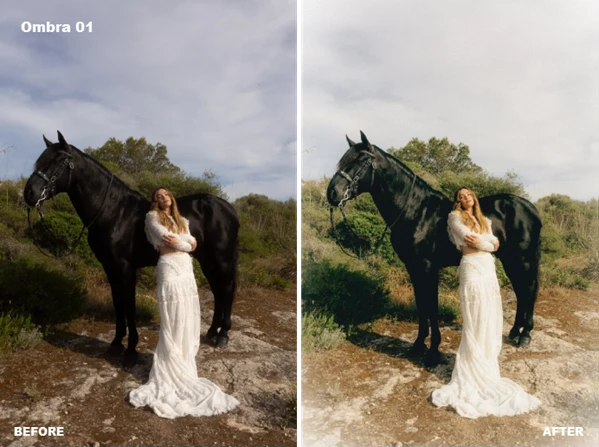
Ombra 01 – Deep and Cool
The coolest option in the collection, Ombra 01 introduces a strong blue influence into the shadows. It creates a graphic, high-contrast appearance that can work particularly well when you want an image to feel bold and contemporary.
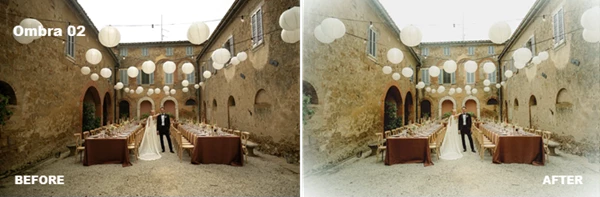
Ombra 02 – Warm Meets Cool
Ombra 02 combines rich red shadows with cooler blue-green midtones. This contrast between warm and cool colors gives photographs an expressive and distinctive character.
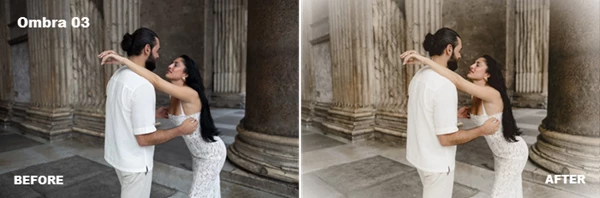
Ombra 03 – Soft and Balanced
For a more natural result, Ombra 03 maintains a balanced appearance with peachy warmth throughout the image. It is a useful starting point when you want the character of the Ombra look without pushing the color contrast too aggressively.
Sculptural Shadow Treatment
One of the defining characteristics of the collection is its emphasis on shadows. Instead of treating dark areas as purely neutral, the presets use color to give shadows additional presence and personality.
Creative Starting Points
Each preset is intended as a foundation grade. You can apply the preset first and then fine-tune exposure, contrast, white balance, and other settings to suit the individual photograph.
Where Quest 61 Works Best
The distinctive color separation of Quest 61 makes it particularly interesting for photographs where mood and visual identity matter.
For an editorial portrait, for example, Ombra 01 can introduce cooler shadows that make facial highlights and brighter areas stand apart more clearly. The result can feel sharper and more graphic.
Ombra 02 can be useful for fashion and lifestyle imagery where contrasting colors contribute to the visual narrative. Its red-shadow and blue-green tonal relationship can transform an otherwise straightforward photograph into something much more stylized.
When you want to keep skin tones and the overall atmosphere more approachable, Ombra 03 provides a subtler foundation with its natural peachy warmth.
Tips for Better Results
Try to pick a split toning preset that best matches the lighting in your photograph. This will ensure that your photo features tones that complement each other and require fewer adjustments after applying the split toning effect.
After you have chosen a split toning preset, ensure that your exposure and white balance settings are correct. Split toning can drastically alter the relationship between the colors in your photograph, so it is essential to get your exposure and white balance settings just right.
Pay particular attention to the skin tones in the image when editing portraits. If the tones of the shadows in the image become too dominant in their color, adjust the intensity of the grade for the image to even out the tones and make the subject of the portrait look natural.
Another option is to view all three of the available presets for the portrait to determine which one works best for the image. The portrait might appear beautiful when using one preset but look better with another, such as Ombra 02.
Finally, the presets are merely starting points for editing the photograph. Making subtle adjustments to the photo according to the lighting and subject in the image can make the photograph more intentional and personal to the photographer.
Create More Character Through Color
Quest 61 offers a focused approach to creative color grading through three carefully differentiated Ombra presets. By pushing color through shadows and highlights in different directions, the collection helps transform neutral photographs into images with greater depth, contrast, and visual personality.
Ombra 01 delivers a cooler and more graphic direction, Ombra 02 explores expressive warm-and-cool contrast, and Ombra 03 provides a softer, more naturally balanced alternative.
Whether you are working on portraits, fashion imagery, editorial photography, or other visually driven projects, experimenting with these different tonal relationships can help you discover a color treatment that supports the mood of your image rather than overpowering it.

Files Password : gfxplugin.com OR 123456