Downloadable Files
You can download Zap Board for free from the end of this page.
Keep Your References Right Inside Blender
If you work in Blender, you probably know the routine: open a reference image, switch away from Blender, check another image, come back, and repeat. When a project involves several references, renders, sketches, or visual notes, this quickly becomes distracting.
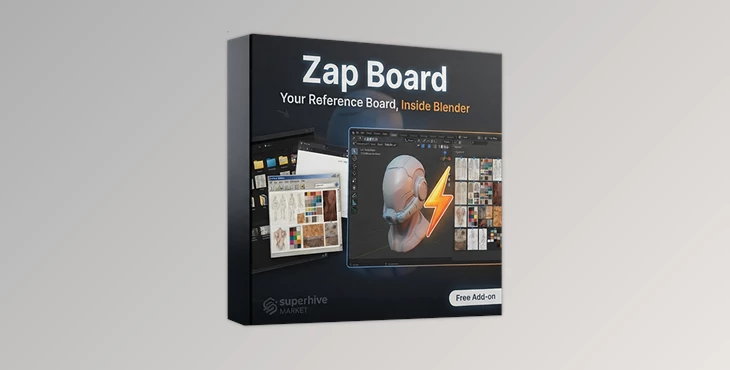
Zap Board solves that problem by turning Blender’s Image Editor into a flexible, free-form reference board. You can bring your images directly into Blender, arrange them however you want, add notes and drawings, compare references with renders, and keep the entire layout saved inside your .blend file.
Instead of treating references as something you simply look at, Zap Board turns them into an active part of your workflow.
A Reference Board That Works With You
At its core, Zap Board gives you a flexible workspace where images can be positioned, resized, organized, and compared without leaving Blender.
For example, you could place a character reference next to your work-in-progress render and reduce the reference opacity to quickly compare proportions or design details. You can also place several visual references together, add shot numbers as notes, or draw simple marks over images to keep track of what has been completed.
Because the board lives inside Blender, your references stay close to the project instead of being scattered across separate windows and applications.
Features
Drag, Drop, and Organize
Getting images onto the board is straightforward. You can drag and drop files directly from your file browser, paste images from the clipboard, or load an entire folder at once.
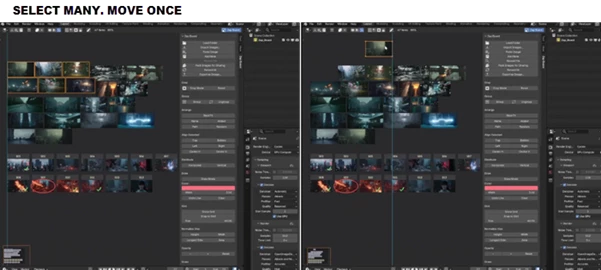
Once they are on the board, you can freely move and resize them, select multiple cards, or use box selection to work with several images at once.
If you prefer a cleaner automatic arrangement, Best Fit can organize the entire board without overlapping images. You can also sort images by name, added order, or file path.
Align Everything More Easily
When a board contains many images, manually lining everything up can take unnecessary time.
Zap Board provides alignment and distribution tools to help create cleaner layouts. You can also normalize image sizes according to height, width, longest side, or area.
This is especially useful when building organized reference sheets where consistency between images matters.
Compare Images Without Changing the Originals
Zap Board includes non-destructive editing options such as cropping, flipping, 90-degree rotation, and individual opacity controls.
The important part is that your original source files are not modified.
For example, you can lower the opacity of a reference image and place a render directly underneath it for visual comparison, without permanently changing either file.
Add Notes and Draw Over References
References are often more useful when you can write directly beside them.
You can add text notes anywhere on the board and adjust their size, color, and alignment. Freehand drawing is also available for quick annotations.
This can be useful for marking important areas, adding shot numbers, pointing out design changes, or simply leaving reminders for yourself.
Keep the Board Under Control
As your reference collection grows, organization becomes important.
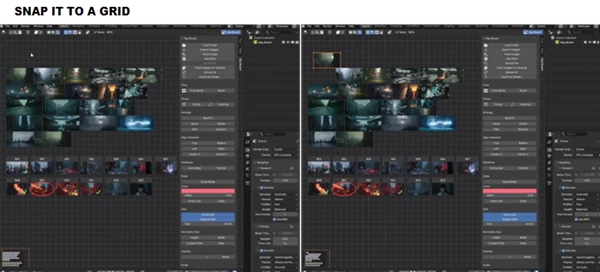
You can lock individual cards, group items together, solo a selection, and enable an optional grid for easier positioning. These features make it easier to maintain a clean board even when working with many references.
Stay Up to Date
If an image changes on disk, Zap Board can automatically reload it.
This is particularly useful when working with renders or other images that are regularly updated. You can keep the reference on your board without constantly replacing it manually.
Export the Finished Board
When you need to share the reference layout outside Blender, you can export the entire board as a single image.
This makes it easy to create a visual reference sheet or send the current board to someone else.
Nothing Gets Added to Your 3D Scene
One of the useful aspects of Zap Board is that it stays separate from your actual 3D scene.
It doesn’t add objects to your Outliner, and the board doesn’t appear in your renders. You can even remove the add-on and your Blender file opens as it did before.
Board Mode is also specific to each Image Editor. This means one Image Editor can work as a Zap Board while another continues to function as a regular image viewer.
Share Your Board With Others
The board layout is saved inside the .blend file, while the images use paths in the same way Blender normally handles image files.
If you’re preparing a file for someone else, Pack Images for Sharing can package the images with the Blender file so the references travel with it.
The recipient doesn’t need Zap Board installed to open the file. The Blender file opens normally, and the board remains intact when the file is edited and sent back.
Professional Tips for a Cleaner Workflow
A few simple habits can make Zap Board even more useful.
Keep related references together. Create visual groups for characters, environments, materials, lighting, or individual shots instead of placing everything randomly.
Use opacity for direct comparisons. When checking your render against a reference, lowering the reference opacity can make differences much easier to spot.
Add short notes instead of long descriptions. Simple labels such as shot numbers, design changes, or things to fix keep the board readable.
Use alignment tools after collecting references. Rather than spending time manually positioning every image, bring everything in first and organize the layout afterward.
Lock finished references. Once an important image is positioned correctly, locking it can prevent accidental movement while you work with other cards.
Pack images before sharing. If your .blend file is going to another computer or another artist, make sure the required images are packed so the references don’t depend on missing external files.
A More Focused Way to Work With References
Zap Board is useful because it removes a small but repetitive problem from the Blender workflow: constantly leaving your main workspace just to check visual references.
Instead, your references, notes, comparisons, and visual ideas can all exist on a flexible board inside Blender. You can arrange it like a moodboard, a shot-planning sheet, a comparison workspace, or simply a collection of images for the project you’re currently working on.
With support for image organization, annotations, non-destructive adjustments, automatic reloading, and board sharing, Zap Board can make reference-heavy Blender projects feel much more organized.
Final Thoughts
Zap Board is a very practical solution for any artist who works with multiple reference images within Blender. Zap Board allows the artist to work within Blender and avoid having to open up other programs to view their reference images.
Whether the artist is working with a single reference or a collection of concept art, Zap Board allows artists to manage their project within Blender itself.
For anyone who spends a considerable amount of time working between Blender and its reference images, Zap Board is worth trying to see the difference it can make to that process.

Files Password : gfxplugin.com OR 123456