Downloadable Files
You can download Whiteboard Rig Builder for free from the bottom of this product page.
Create Whiteboard Animations Without the Usual Hassle
Whiteboard animation can look simple on screen, but building it manually inside After Effects often involves a surprising amount of work. Every path needs its own reveal animation, every stroke needs proper timing, and changing the sequence can mean adjusting multiple keyframes all over again.
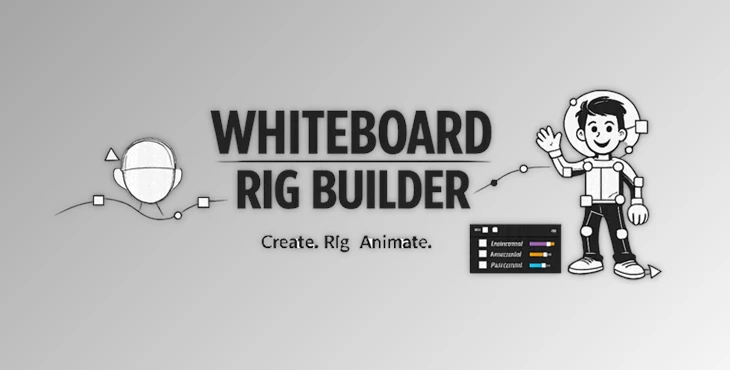
Whiteboard Rig Builder is designed to make this process much easier. It turns your native After Effects Shape Layers into a flexible and controllable whiteboard animation rig while keeping supported paths available for further editing.
Instead of manually setting up every stroke, you can decide what should draw, arrange the drawing order, control the timing, and adjust the overall animation speed from one central workflow.
What Is Whiteboard Rig Builder?
Whiteboard Rig Builder is an After Effects tool for creating whiteboard-style drawing animations from prepared Shape Layers and supported single-line text.
The main idea is simple: you create or prepare your artwork in After Effects, load its paths into the panel, organize how they should appear, and then build the animation rig.
For example, imagine a diagram containing a light bulb, arrows, labels, and several icons. Normally, you might need to animate each path separately and carefully coordinate their timing. With Whiteboard Rig Builder, those drawing segments can be detected and organized into an editable sequence.
You can then decide which element draws first, reverse the direction of individual segments, exclude unnecessary paths, add holds, and control how much time the complete drawing takes.
This makes revisions much easier, especially when working on projects where timing and sequence frequently change.
Keep Your Native After Effects Artwork
One of the most useful aspects of Whiteboard Rig Builder is that it works with prepared native After Effects Shape Layers rather than simply replacing your artwork with a flattened recreation.
Supported paths remain accessible for editing, and Bezier path animation can be retained, including animated vertices.
This is particularly useful in production environments. If the shape of an illustration needs refinement after the rig has been created, you can continue working with supported paths instead of having to start the entire animation from scratch.
Illustrator artwork can also be used after converting it into After Effects Shape Layers before running Load Paths.
A Simple Three-Step Workflow
The workflow is organized around three main stages.
Load Paths
Start by using Load Paths to detect and prepare compatible paths and single-line text elements.
The detected drawing segments are placed into an editable list, giving you a clear overview of the elements available for the whiteboard animation.
Arrange the Sequence
Next, organize exactly how the drawing should happen.
You can reorder segments, exclude elements you do not want to animate, restore excluded segments, reverse drawing directions, adjust start offsets, and configure individual timing behavior.
This makes it easy to create a logical drawing sequence—for example, drawing the main illustration first, adding connecting arrows second, and revealing text labels afterward.
Build Rig
Once the sequence is ready, use Build Rig to create the animation.
The resulting rig remains adjustable, allowing you to continue refining timing and supported segment behavior as the project develops.
Features
Central Full-Sequence Timing
Instead of manually retiming every drawing segment, Whiteboard Rig Builder lets you control the overall drawing duration from a central location.
If a complete animation needs to change from a slower explanatory sequence to a faster presentation, you can adjust the overall pace without individually rebuilding every segment’s timing.
Equal or Proportional Timing
You can choose how time is distributed across the drawing sequence.
Equal timing gives segments a similar amount of drawing time, while proportional timing can create pacing based on the characteristics of individual segments. This helps the drawing motion feel more appropriate for different types of artwork.
Flexible Segment Ordering
Detected segments can be reordered, excluded, or restored.
This gives you creative control over how viewers discover the illustration instead of forcing the animation to follow the original layer or path structure.
Reverse Direction and Start Offset
Individual drawing segments can have their direction reversed or their starting behavior adjusted.
These controls are especially helpful when a path naturally needs to draw from a particular side or when you want the movement to flow smoothly from one element to another.
Transitions and Holds
Per-segment transitions and holds give you more control over pacing.
For example, you could finish drawing an important diagram element, briefly hold the animation so viewers can understand it, and then continue to the next section.
Text Reveal and Wobble
Supported single-line point text can be incorporated into the whiteboard sequence with reveal and wobble controls.
This helps text feel more integrated with the hand-drawn animation rather than simply appearing as a static graphic.
Hand and Marker Following
The animation can automatically follow the drawing using the included hand or marker artwork.
You can also use custom artwork, which is useful when you want the visual style to match a specific brand, presentation, or illustration.
Support for Prepared Parametric Shapes
Supported static parametric shapes can be prepared automatically. Static Ellipse and Rectangle paths are supported, while static Polygon and Star paths require zero roundness.
Clean Rig
When needed, Clean Rig can remove generated rig controls and data.
Keep in mind that this does not restore preprocessing changes that Load Paths may have made to the original Shape Layer structure.
Where Can Whiteboard Rig Builder Be Useful?
Whiteboard Rig Builder can fit into many types of motion design projects where information needs to appear as though it is being drawn in real time.
It can work particularly well for educational videos, explainer animations, presentation graphics, diagrams, process illustrations, instructional content, social media animations, and visual storytelling.
Imagine an educational video explaining how a network works. Instead of displaying the entire diagram immediately, individual devices can be drawn first, followed by connection lines, arrows, and labels.
The progressive reveal helps direct the viewer’s attention to the part of the explanation that matters at that moment.
Tips for Better Whiteboard Animations
Prepare Clean Stroke-Based Artwork
Start with clean, stroke-based Shape Layers whenever possible. A well-organized source composition makes it easier to create a predictable drawing sequence.
If your artwork comes from Illustrator, convert it to Shape Layers before using Load Paths.
Think About Drawing Order
Do not simply animate elements in the order they happen to appear in your composition.
Think about how a real person might explain the illustration. Draw the main subject first, then supporting details, arrows, labels, and secondary information.
This can make the animation easier for viewers to understand.
Use Holds for Important Information
Constant movement is not always better.
A short hold after an important drawing can give viewers enough time to process the information before the next segment begins.
Keep the Hand Movement Logical
If you use a hand, marker, or custom drawing element, arrange your sequence so it does not constantly jump between distant areas of the composition.
A logical path through the artwork can make the animation feel more natural.
Adjust the Overall Pace Last
One major advantage of the centralized timing system is the ability to refine the complete animation after organizing individual segments.
Build the sequence first, make sure the drawing order feels right, and then adjust the overall duration to fit your edit.

Important Artwork Requirements
Whiteboard Rig Builder works best when the source artwork is prepared according to its requirements.
Use stroke-based After Effects Shape Layers. Bezier paths and single-line point text are supported, as are static Ellipse and Rectangle paths. Static Polygon and Star paths need zero roundness.
There are also several elements that are not supported, including locked layers, multi-line or paragraph text, animated or expression-driven parametric properties, rounded Polygon or Star paths, and user-created Trim Paths inside groups that will be rigged.
Load Paths may convert or reorganize parts of the source Shape Layer structure. For that reason, working inside a duplicate composition is a smart choice whenever you want to preserve an untouched version of your original artwork.
If you make structural changes to the source afterward, you will need to run Load Paths again.
Final Thoughts
Whiteboard animation becomes much easier to manage when drawing order, individual segment behavior, text controls, and overall timing are brought into a single workflow.
Whiteboard Rig Builder does exactly that while allowing you to continue working with supported native After Effects paths. Its centralized retiming is especially valuable when projects go through revisions. Instead of rebuilding dozens of timing decisions because the animation needs to become faster or slower, you can adjust the overall sequence while retaining much of the structure you already created.
For motion designers creating explainers, educational content, diagrams, presentations, or hand-drawn-style animations, Whiteboard Rig Builder offers a practical way to turn prepared Shape Layers into flexible whiteboard animation rigs while keeping the process much easier to revise.

Files Password : gfxplugin.com OR 123456