Downloadable Files
You can download DuckFlow for free at the end of this page.
Stay Focused While You Edit
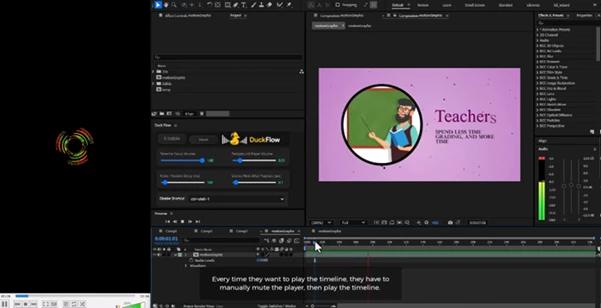
If you are someone who likes to listen to music, podcasts, or audiobooks while editing in After Effects or Premiere Pro, you will not be the only person to have struggled with the issue of audio from your editing software clashing with audio files playing in the background.
Every time you have to mute Spotify or another music or podcast application whenever you play audio within After Effects or Premiere Pro, you have likely found the experience to be frustrating.
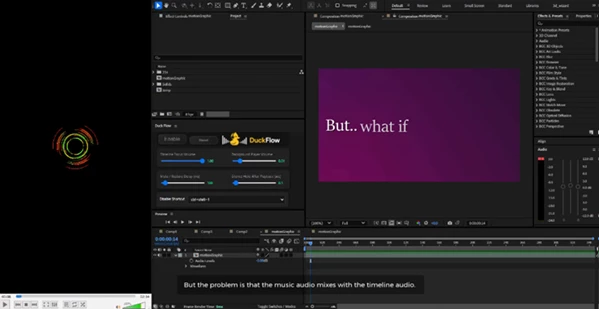
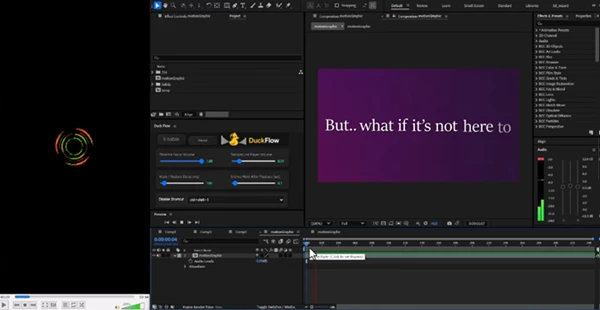
DuckFlow was created to fix this problem. Whenever your timeline starts to play within After Effects or Premiere Pro, DuckFlow will automatically lower the volume of music, podcasts, audiobooks, and other sounds playing in your system. When your timeline stops playing, the extension will restore the volume of those background sounds to their original setting.
What Is DuckFlow and Why Is It Useful?
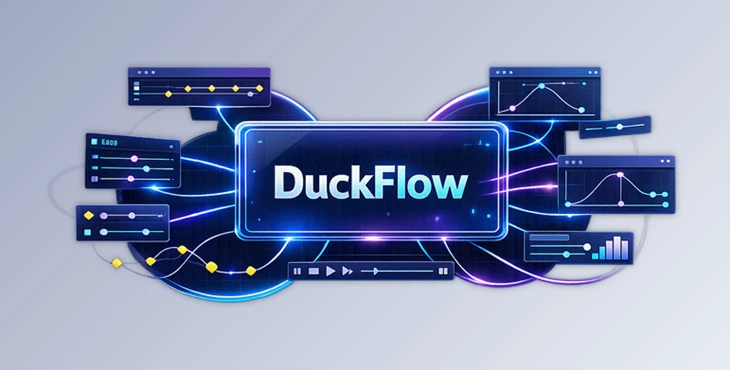
DuckFlow is a smart audio ducking extension created for video editors and motion designers using Adobe After Effects and Premiere Pro. Instead of manually controlling external audio sources, the extension automatically manages them in real time.
Imagine you’re editing a cinematic trailer while listening to your favorite playlist. As soon as you preview your sequence, DuckFlow reduces Spotify’s volume so you can clearly hear your timeline. Once playback stops, your music smoothly returns to its previous level without requiring any action from you.
This simple automation helps you:
- Stay focused on your edits.
- Avoid constant volume adjustments.
- Prevent notification sounds from interrupting previews.
- Create a smoother and faster editing workflow.
Because the process happens automatically, you spend less time managing audio and more time creating great content.
Meet DuckFlow: Smarter Audio Management
DuckFlow is a simple extension that was created to eliminate a major distraction and annoyance when editing in After Effects and Premiere Pro. DuckFlow works automatically for any users within both editing applications and will adjust audio from your system when necessary.
Whether you’re editing YouTube videos, documentaries, commercials, or social media videos, DuckFlow will ensure that you are able to stay focused on your editing software without having to worry about audio from your background music.
Features
Automatic Audio Ducking
Instantly lowers the volume of Spotify, YouTube, VLC, browser audio, notifications, and virtually any other system audio source whenever your timeline begins playing.
Instant Audio Restoration
Once playback stops, your external audio automatically returns to its original volume without delay.
Fully Adjustable Audio Levels
Control exactly how loud your timeline should be and how much your background audio should be reduced.
Custom Delay Controls
Adjust the ducking response time in milliseconds to match your preferred editing workflow.
Silence Hold Function
Keep external audio muted for a few extra seconds after playback ends, preventing rapid volume changes during frequent previews.
One-Click Enable or Disable
Activate or deactivate DuckFlow instantly with a simple toggle whenever needed.
Keyboard Shortcut Support
Turn DuckFlow on or off using your own custom keyboard shortcut without opening the extension panel.
Compatible with Multiple Audio Sources
Works with:
- Spotify
- YouTube (Browser or App)
- VLC Media Player
- Windows Media Player
- System Notifications
- Most other applications that output audio
One Extension for Two Applications
Install DuckFlow once and use it within both After Effects and Premiere Pro. DuckFlow will automatically detect which application is playing your timeline.
Real-World Examples
Editors creating YouTube videos can listen to background music during editing without constantly pausing it.
Motion designers previewing complex animations can immediately hear sound effects and voiceovers without notification sounds interfering.
Video production teams working on commercials can review timeline audio while maintaining a comfortable background listening experience between previews.
Professional Tips for Better Results
While DuckFlow is built to work perfectly with your music player and editing software with its default settings, there are a few adjustments you can make to your audio settings to enhance your experience with the extension.
Set the volume of your music player to around 20-30%. By not muting all of your music, your audio will not abruptly jump to full volume when your edit timeline ends.
Use a short delay to mutely your music if you click often on your timeline. This will prevent your music from being mutely when you are still working on your project.
Use the silence hold feature if you continually have to stop and start your edits. This will prevent your music from jumping to full volume when you stop your edit.
Create a keyboard shortcut so you can quickly turn on or off DuckFlow during your editing process.
If you work with voice over artists or have to create voice over content for your projects, increase the volume for your timeline to ensure that all of the elements of your project are audible.
A Small Tool That Makes a Big Difference
Created as a small extension to improve the editing experience, it does one thing exceptionally well: it automatically manages audio from your system while you are editing within After Effects or Premiere Pro.
You will no longer have to mute your Spotify or other music and podcast applications each time you play your edit timeline. It allows you to stay focused on your project, and DuckFlow handles audio in the background while you edit your projects. For editors who spend long hours editing in After Effects or Premiere Pro, DuckFlow can significantly improve your editing experience and workflow.