Downloadable Files
You can download Change it! for free from the end of this page.
Stop Editing Sequence Settings One by One
If you work on Premiere Pro projects with a lot of sequences, you've probably spent a lot of time opening each sequence individually to make changes. Editing settings on each sequence individually takes time and can develop mistakes due to having to perform the same actions repeatedly.
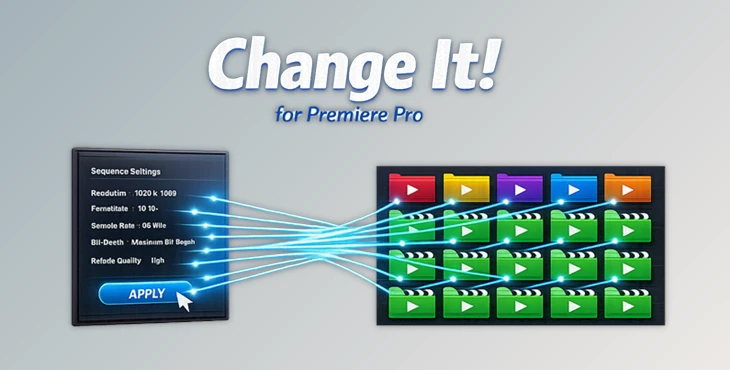
Change it! allows you to search for and edit multiple sequences at once. Instead of performing the same action again and again, review all your sequences in one panel and make changes with the click of a mouse.
What Is Change it!?
Change it! for Premiere Pro is a productivity panel designed for Adobe Premiere Pro that helps editors quickly locate sequences, modify their settings in batches, organize them into bins, and manage project structure more efficiently.
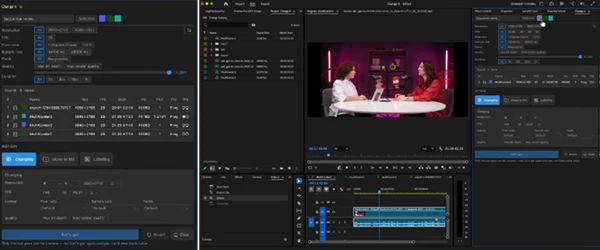
Rather than opening every sequence individually, the panel displays all matching sequences in a searchable table where you can preview, edit, and organize everything simultaneously.
This dramatically improves workflow in projects such as:
- Documentary productions with many timelines
- YouTube channels managing multiple episodes
- Corporate video libraries
- TV shows with numerous sequence versions
- Client projects containing different exports and revisions
Instead of spending minutes—or even hours—performing repetitive project maintenance, everything happens in one organized workspace.
Features That Make Editing Faster
Powerful Sequence Search
The plugin offers advanced search filters that help locate exactly the sequences you need. You can search using:
- Sequence name
- Label color
- Resolution
- Frame rate (FPS)
- Pixel aspect ratio
- Audio sample rate
- Field order
- Duration
- Maximum Bit Depth
- Maximum Render Quality
You can search across the entire project or limit the search to selected sequences only, making it easy to focus on a specific group of timelines.
Batch Change Sequence Settings
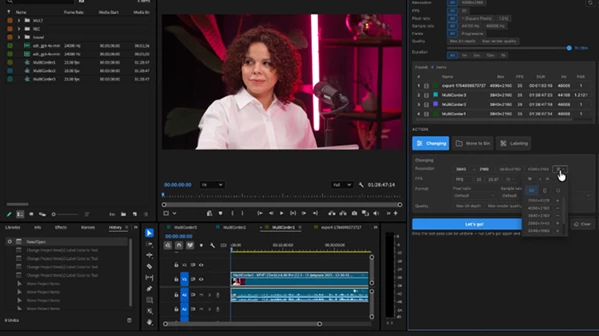
One of the biggest advantages of Change it! is its ability to modify multiple sequence settings simultaneously. You can batch edit:
- Resolution
- FPS
- Pixel ratio
- Audio sample rate
- Field settings
- Maximum Bit Depth
- Maximum Render Quality
The plugin also includes quick presets and customizable pinned settings so frequently used configurations can be applied with just a few clicks.
For example, if dozens of sequences must be converted from Full HD to 4K or from 30 FPS to 60 FPS, the task becomes almost instant.
Organize Projects Automatically
Large Premiere Pro projects can quickly become difficult to navigate.
This tool helps organize everything by allowing you to:
- Move matching sequences into existing bins
- Automatically create new bins
- Apply label colors
- Sort project structure
Instead of manually dragging sequences around the Project panel, the plugin performs the organization automatically.
This keeps projects cleaner and significantly reduces the time spent searching for assets.
Preview Before Applying Changes
Every sequence found during a search appears inside a convenient table.
Before making any changes, you can:
- Review all matching sequences
- Inspect their current settings
- Click any row to reveal the sequence inside the Project panel
This preview step reduces mistakes and gives editors confidence before applying batch operations.
One-Step Revert
Large batch operations can feel risky. Fortunately, Change it! for Premiere Pro includes a built-in revert feature that restores the last operation.
It can undo:
- Sequence settings
- Label colors
- Bin organization
This provides a safety net whenever you need to experiment or quickly reverse recent project changes.
Real Workflow Examples
Imagine you’re delivering a television series where every episode needs to be updated to a new frame rate before export.
Instead of opening twenty separate sequences, you search by FPS, select all results, apply the new settings, organize them into a delivery folder, and finish the task in minutes.
Or perhaps you’re cleaning up a client’s project before handing it off. You can instantly find every draft sequence, color-label them, move them into an archive bin, and leave the project organized for the next editor.
These small workflow improvements save significant time on professional productions.
Tips for Better Results
To get the most out of Change it! keep these tips in mind:
- Always use descriptive names for your Premiere Pro sequences.
- Create presets for the most used settings for your projects.
- Always organize your projects before you export them.
- Always preview the results of your search before editing.
- Use the revert feature when performing batch operations.
Final Thoughts
Editing dozens of Premiere Pro projects doesn’t have to be a repetitive task that takes up a lot of your editing time. With Change it! for Premiere Pro, you can edit your projects in a way that is organized and fast.
Whether you edit YouTube videos, documentaries, commercials, or large client projects, this editing plugin will save you time and allow you to focus on your editing skills instead of your project management skills.