Downloadable Files
You can download Glaze for free at the end of this page.
Add Realistic Glass Effects in One Click
Adding realistic glass to your After Effects compositions typically requires the use of several different effects or even the use of 3D software to create the effect. Glaze makes it easy to add realistic glass elements to any project with just one click.
Whether you are working on user interfaces, promotional videos, or even motion graphics for music videos, Glaze allows you to quickly produce realistic looking glass and chrome elements for your projects.
What is Glaze?
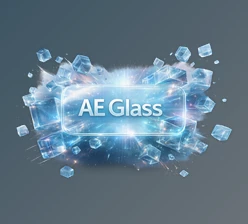
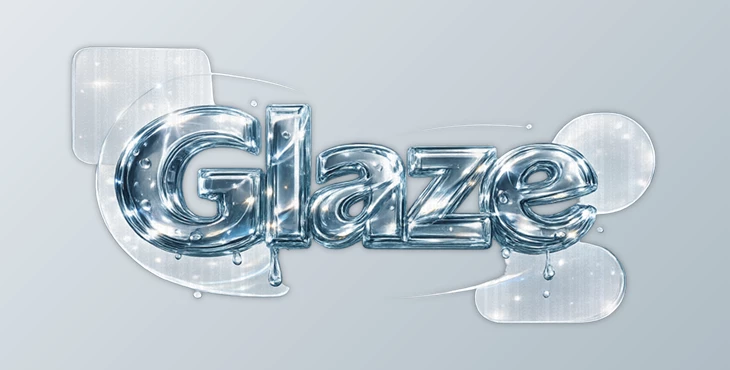
Glaze is a professional After Effects tool that converts any layer into realistic glass using the layer’s alpha channel. Instead of applying a simple distortion effect, it creates convincing glass with visible thickness, realistic light refraction, chromatic aberration, frosted surfaces, reflections, and caustics.
For example:
- Turn a company logo into a thick crystal glass badge.
- Create elegant liquid-glass titles for promotional videos.
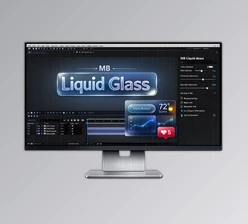
- Design frosted glass interface panels for UI animations.
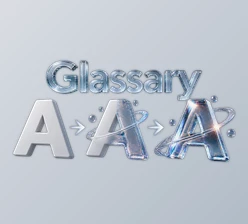
- Produce premium chrome text for cinematic intros.
- Add realistic optical distortion to social media graphics.
Because these effects simulate the behavior of real glass, the final animation feels much more believable and visually impressive than traditional blur or warp effects.
Why Glaze Makes Motion Graphics Look Better
Glaze allows you to produce realistic looking glass elements by simulating the way that light refracts on glass elements.
Some of the features that make Glaze look great include:
- Realistic depth of glass elements
- Refraction to simulate the way light bends on glass elements
- Chromatic aberration that mimics glass elements
- Frosted glass elements that add visual interest to your compositions
- Caustic lighting that reacts to specific elements in your composition
- Reflections on glass elements that can be blurred to create a specific look
These features all allow your elements to look great within your project. Another of the benefits of Glaze is that it allows you to see your changes in real time. This allows you to experiment with different effects to achieve the look that you want for your project.
Features
One-Click Glass Creation
Convert any text, logo, icon, or shape into realistic refractive glass instantly using the layer’s alpha channel.
Real Glass Thickness
Glaze will generate convincing glass thickness for your elements instead of just distorting them.
Interactive Real-Time Preview
Glaze allows you to adjust various elements such as refraction and thickness in real time to see your changes.
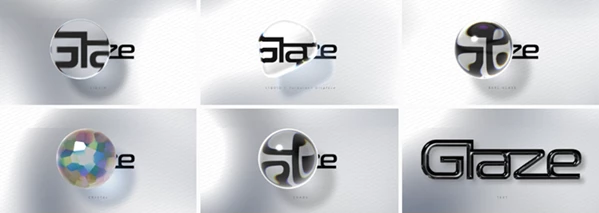
Five Glass Distortion Modes
Choose between several optical styles depending on your project:
- Solid for clean everyday glass
- Liquid for soft water-like distortion
- Chaos for artistic abstract refraction
- Crystal for faceted gemstone effects
- Real Glass for thick realistic optics
Frosted Glass Controls
Glaze allows you to create matte glass elements by adjusting the roughness and blur of your glass elements.
Chromatic Aberration
Glaze will allow you to add chromatic aberration to mimic the properties of lenses used in most cameras.
Realistic Caustics
Glaze will generate realistic caustic lighting for your glass elements to make them appear more realistic.
Built-In Studio Lighting
Glaze includes built-in lighting presets for your composition, or you can import your own lighting to enhance your project.
Chrome Material Creation
Reduce refraction and increase reflections to transform objects into polished chrome, brushed metal, or satin metallic finishes.
World Lock Technology
Keep image refraction stable even while objects move, resulting in much more believable animations.
GPU Acceleration
Supports CUDA and Metal acceleration with automatic CPU fallback for smooth performance across different systems.
Where Glaze Works Best
Glaze can be used for a variety of projects, and it will work best within the following composition types:
- Premium logo reveals
- Title sequences
- Liquid glass user interfaces
- Frosted information panels
- Social media animations
- Lower-third graphics
- Broadcast packages
- Chrome typography
- Product advertisements
- Luxury brand presentations
Some of the best ways to use Glaze include turning your company logo into a thick crystal element or turning your static text into glass typography for your commercials
Pro Tips for Better Results
Use a detailed background layer so the refraction has interesting content to bend through.
Combine subtle chromatic aberration with moderate glass thickness to create more natural-looking optics.
For elegant UI animations, apply a small amount of frosted roughness instead of perfectly clear glass.
Experiment with the different distortion modes to match your project’s style. Liquid mode works beautifully for modern interfaces, while Crystal mode is excellent for luxury branding.
If you’re creating metallic designs, reduce the refraction value and increase reflections to produce convincing chrome surfaces.
Using the interactive preview while adjusting parameters helps you quickly find the perfect balance between realism and artistic style.
Final Thoughts
Glaze allows you to add realistic looking glass and chrome elements to your compositions within After Effects. It is a much simpler way to achieve these effects instead of using several effects to achieve similar results or even using 3D software.
With the ability to create realistic glass elements, adjustable lighting, and built-in chrome and distortion effects, Glaze is a perfect effect for those who would like to add premium looking elements to their compositions at a fast rate.
Whether you are creating motion graphics for motion video projects, user interfaces, or even advertisements for luxury brands, Glaze will help to enhance the visual components of your projects.
 Glaze (v1.0.8 for Win and Mac).rar (Size: 5.3 MB - Date: 9/16/2026 1:56:16 PM)
- Glaze - Refractive Glass Tool by Aescripts (v1.0.6 for Win).rar (Size: 2.0 MB - Date: 9/8/2026 4:50:36 PM)
- Glaze - Refractive Glass Tool by Aescripts (v1.0.5 for Win, Mac).rar (Size: 6.1 MB - Date: 9/5/2026 3:40:02 PM)
- Glaze - Refractive Glass Tool by Aescripts (v1.0.4 for Win, Mac).rar (Size: 5.9 MB - Date: 8/29/2026 11:22:45 AM)
- Glaze - Refractive Glass Tool by Aescripts (v1.0.2 for Win, Mac).rar (Size: 16.9 MB - Date: 8/10/2026 11:09:00 AM)
- Aescripts - Glaze v1.0.0 (Win, Mac).rar (Size: 16.4 MB - Date: 8/1/2026 8:50:56 AM)
Files Password : gfxplugin.com OR 123456