Downloadable Files
You can download Subtext for free at the bottom of this page.
Edit Captions Without Leaving Premiere Pro
If you work with subtitles in Premiere Pro, you know the challenges of switching between an SRT editor, text editor, and Premiere Pro’s timeline. It’s inefficient and makes editing subtitles more complicated than necessary.
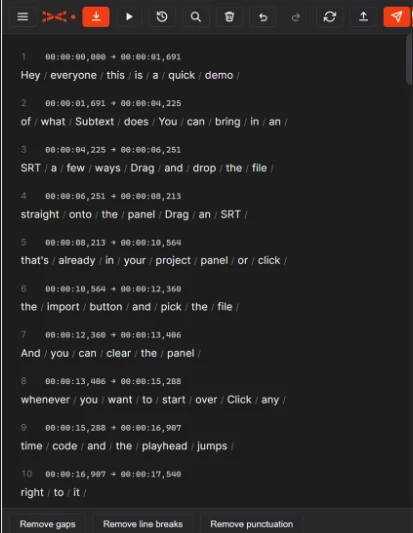
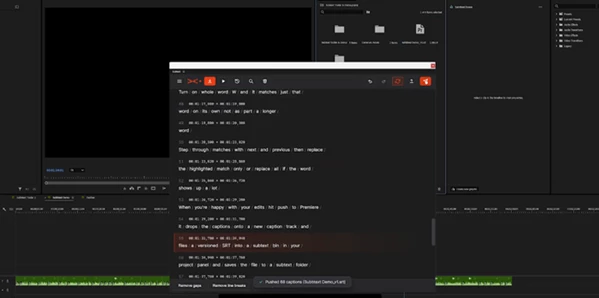
Subtext was made to solve this exact problem. This program allows you to edit your subtitles without having to leave Premiere Pro. It offers an easily dockable panel to Premiere Pro where you can import, edit, and export your subtitle files. Whether you are editing auto-generated or professionally made subtitles, Subtext will allow you to get them done in a faster amount of time.
What is Subtext?
Subtext is a professional extension for Adobe Premiere Pro that allows editors and subtitlers to import SRT files and place the captions directly onto the Premiere Pro timeline.
Click on any subtitle or word in the SRT file to make changes to the subtitles. All SRT files are stored on your computer so you have complete control over your files.
Subtext is made to improve the efficiency of editors who work with subtitles. Whether you are editing YouTube videos, course videos, documentaries, interviews, podcasts, or marketing videos, Subtext will allow you to edit captions faster.
Features
Fast Word-by-Word Caption Editing
One of the biggest advantages of Subtext is its click-based editing system.
Instead of retyping entire captions, simply double-click any word to edit it instantly. You can split captions by clicking between words, merge subtitle lines with a single click, and quickly insert or remove captions wherever needed.
This editing style feels natural and allows you to focus entirely on improving subtitle quality without constantly moving around the timeline.
Clean an Entire Subtitle File in Seconds
Messy subtitle exports often contain unnecessary gaps, inconsistent punctuation, or awkward line breaks.
Subtext includes three powerful cleanup tools that instantly:
- Remove unnecessary gaps
- Remove unwanted line breaks
- Remove unnecessary punctuation
Instead of fixing every caption individually, you can clean an entire subtitle file with just a few clicks, creating a more consistent and professional result.
Powerful Find and Replace
When a name, technical term, or repeated phrase appears multiple times, manually correcting every instance becomes time-consuming.
Subtext includes a full Find and Replace system with:
- Match Case
- Whole Word search
- Replace All functionality
This makes correcting repeated mistakes extremely fast while avoiding accidental replacements.
Send Captions Directly to Premiere
Once your subtitles are ready, a single button places them onto a brand-new caption track inside Premiere Pro.
At the same time, Subtext automatically stores a versioned SRT copy inside a dedicated Subtext project bin, making it easy to keep track of exactly which subtitle version was used in your project.
If needed, you can also export the edited SRT file anywhere on your computer.
Customize the Workspace
Every editor has different preferences. Subtext allows you to customize the interface by adjusting:
- UI scale
- Accent color
- Light theme support
All settings remain saved between sessions, so your preferred workspace is always ready when you open Premiere again.
Navigate Captions Instantly
Finding a specific subtitle no longer requires endless scrolling.
Simply click any caption inside Subtext and Premiere automatically moves the playhead to the matching location on the timeline.
When Sync Mode is enabled, the currently playing subtitle is highlighted automatically, making it much easier to review subtitle timing while watching your video.
Review Difficult Captions
Some subtitle lines need additional review before delivery.
Subtext lets you flag captions, attach notes, and quickly jump between flagged items later.
This is especially useful for long-form projects where collaboration or multiple proofreading passes are required.
Automatic Saving and History
Nothing is more frustrating than losing subtitle edits.
Subtext continuously saves your editing session while providing:
- Automatic session recovery
- Undo and Redo
- Full edit history
Even after reloading the panel, your work remains available, helping you edit with confidence.
Professional Tips for Better Subtitle Editing
To get the best results with Subtext, start with a clean SRT file. Clean up the subtitles with the built-in cleanup tools before reviewing them for individual captions.
Use Sync Mode to review subtitles while watching the video for any timing issues. Use the flag system to highlight subtitles that need additional review. Finally, use the Find and Replace system to correct repeated names and words in your subtitles.
Final Thoughts
Subtext makes editing subtitles possible without having to use other software or continually searching for the subtitles within the video in Premiere Pro. From its word-by-word editing tools, subtitle cleanup tools, timeline synchronization and exports, automatic saving features, and powerful search tools, Subtext will streamline your editing process if you work with subtitle files in Premiere Pro that already have transcripts or SRT files.
For video editors who work with subtitles, Subtext is a helpful program that will allow you to edit them in a more efficient way.

Files Password : gfxplugin.com OR 123456