Downloadable Files
You can download sWITCH for free at the end of this page.
Replace Assets Without Breaking Your Project
Have you ever faced the frustration of having to replace a video or a composition within After Effects only to find that all the elements of the project have become too large, too small, or even distorted from the original project?
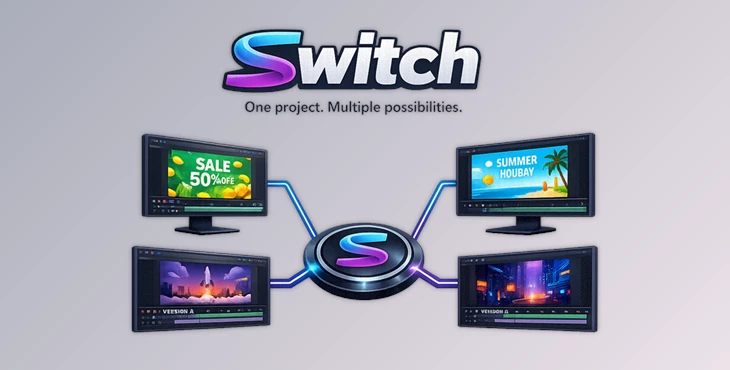
sWITCH will allow you to effortlessly replace footage and compositions throughout your After Effects project without having to worry about potentially breaking your project.
What is sWITCH and Why Is It Useful?
sWITCH is a free After Effects script that will allow you to easily and intelligently replace footage and compositions within your After Effects project. Currently, the only available option within After Effects for replacing media within your project will replace that media across your compositions but will not account for the dimensions of that media.
Imagine trying to replace a 1920x1080 resolution media with one of 3840x2160 pixels of resolution. Every composition within your project would automatically double in size, requiring you to adjust every composition manually to revert back to the original visual appearance of your project.
sWITCH will automatically preserve these visual elements of your project, allowing you to easily update your project’s media without having to touch a single composition.
Meet sWITCH – Smart Project-Wide Asset Replacement
No matter your project type within After Effects, whether it be motion graphics, commercial videos, YouTube videos, or broadcast videos, sWITCH will make it easy for you to manage your project’s assets within After Effects.
Simply select the original asset within your project and the new asset you wish to use to replace it. You can then choose to apply this change only to the currently selected composition, all selected compositions, or your entire project.
Furthermore, your project will look the same before and after replacing its assets with sWITCH.
Features
Smart Scale Compensation
One of the biggest advantages of sWITCH is automatic scale compensation.
If your replacement footage has a different resolution, the script adjusts every layer automatically. Whether you’re upgrading from HD to 4K or changing to an entirely different resolution, your compositions keep their intended visual size.
You can even choose to match by width or height for greater control over aspect ratio changes.
Automatic Mask Preservation
Changing aspect ratios usually stretches masks and ruins carefully designed animations.
sWITCH automatically preserves the visual shape of masks while proportionally adjusting feather and expansion values.
This is particularly useful for:
- Motion graphics
- Character animations
- Logo reveals
- Screen replacements
- UI animations
Batch Processing for Large Projects
Large After Effects projects often contain dozens—or even hundreds—of compositions.
Instead of replacing assets individually, sWITCH performs batch replacements across selected compositions or the entire project.
This feature is ideal for:
- Client revisions
- Broadcast graphics packages
- Product mockups
- Localization projects
- Marketing campaigns
Protected Folders
Not every composition should be updated.
sWITCH allows you to protect specific folders before running a project-wide replacement. Anything inside those folders remains untouched, making it perfect for preserving approved client work or archived versions.
Parent & Layer Relationship Protection
Complex animation rigs often rely on parenting relationships.
Fortunately, sWITCH keeps parent-child connections intact while replacing assets, ensuring your animations continue to behave exactly as intended.
Shell-Safe Mode
Nested compositions sometimes create circular reference issues during replacement.
sWITCH detects these situations automatically and offers Shell-Safe Mode, preventing broken precompositions and making large production workflows much safer.
Smart Asset Selection
Finding the correct source footage inside a huge project can be frustrating.
With Smart Selection, simply select the footage directly in the Composition panel or Timeline. sWITCH automatically identifies the corresponding project asset and prepares it for replacement.
This saves valuable time when working with deeply organized project folders.
Real-World Examples
Imagine receiving a client’s final 4K footage after building an entire commercial using HD proxy files.
Normally, you would spend hours fixing scale differences.
With sWITCH, every composition updates automatically while preserving its original appearance.
Another example is creating social media templates. You can replace placeholder videos for multiple customers in seconds without manually editing each composition.
Motion designers working on broadcast graphics can also swap dozens of product images or promotional videos throughout an entire project almost instantly.
Pro Tips for Better Results
Before using sWITCH, always ensure you have a copy of your After Effects project. While sWITCH ensures that each asset replacement is grouped into a single “Undo” action, having a backup of your project will provide an additional level of security should something go awry during the replacement process.
Some pro tips to remember when using sWITCH include the following:
- Always save your project prior to using sWITCH.
- Organize the assets within your project into easily identifiable folders.
- Use the “Protected Folders” function to protect client work from accidental replacement.
- Only replace proxy footage once you have completed your After Effects animations.
- Always review the project before and after using sWITCH to ensure everything is as you would like it.
- Perform a few test replacements on a few compositions before processing your entire project.
Following these suggestions will ensure that your projects remain safe and efficient while using sWITCH.
Final Thoughts
Replacing assets across a large After Effects project has traditionally been one of the most time-consuming tasks for motion designers.
sWITCH transforms that workflow into a fast, reliable, and intelligent process by automatically preserving scale, masks, layer relationships, and overall visual consistency.
Whether you’re updating templates, replacing proxies, delivering client revisions, or managing complex animation projects, sWITCH helps eliminate repetitive manual adjustments so you can spend more time creating and less time fixing.
If you regularly work with large After Effects projects, sWITCH is a practical tool that can significantly improve both speed and workflow efficiency.

Files Password : gfxplugin.com OR 123456