Downloadable Files
You can download RePin for free from the end of this page.
Make Corner Pin Workflows Faster and More Accurate
When working with distorted footage, it can be challenging to adjust the corners to achieve the desired result. RePin makes this process easier by automatically undistorting and stabilizing your media using the corners of a Solid Layer in After Effects.
You can skip the tedious process of manually adjusting the distortion and aspect ratio of your media. RePin gives you a fast way to achieve your desired result. This tool will make your corner pin process easier and more efficient in your projects.
What is RePin?
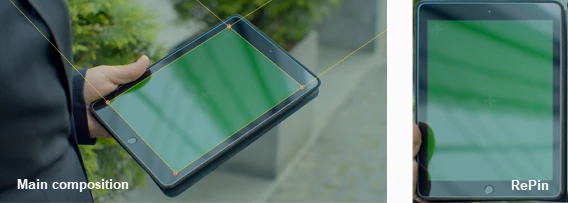
RePin is an After Effects utility that uses the corners of any 2D or 3D Solid Layer to undistort, stabilize, and accurately reapply perspective to tracked media. It also supports Solid Layers with a Corner Pin effect, making it much easier to work with tracked surfaces.
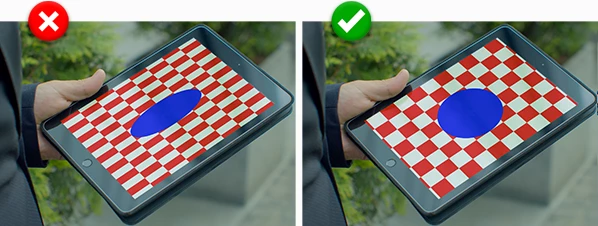
One of its most practical features is its built-in real-time visual guide, allowing you to fix the aspect ratio of a corner pin without knowing the original dimensions of the tracked object.
This improves workflow because you spend less time estimating proportions and more time focusing on creative compositing.
Real-world examples include:
- Replacing smartphone, tablet, or TV screens.
- Stabilizing tracked signs or billboards for editing.
- Correcting perspective before adding graphics.
- Preparing tracked footage for motion graphics or visual effects.
By creating an undistorted working composition and automatically repinning it into the original scene, RePin reduces manual adjustments while improving overall tracking accuracy.
A Smarter Tool for Perspective Correction
RePin is built to remove much of the repetitive work involved in perspective correction and corner pin workflows. Instead of manually calculating proportions or rebuilding distorted footage, the plugin creates an optimized working composition where editing becomes significantly easier.
Once your work is complete, everything is seamlessly reapplied to the original composition with the correct perspective.
Features
Automatic Media Undistortion
RePin instantly creates a working composition where tracked media is undistorted. This gives you a perfectly flat surface for editing before automatically restoring the original perspective.
Real-Time Aspect Ratio Guide
The built-in visual guide displays reference squares and circles so you can adjust the Solid Layer resolution until the proportions become correct. No need to know the original dimensions of the tracked object.
Works with 2D and 3D Solid Layers
The plugin supports both standard 2D and 3D Solid Layers, making it flexible for a wide variety of motion graphics and compositing projects.
Compatible with Corner Pin Effects
If your Solid Layer already uses a Corner Pin effect, RePin integrates directly into the workflow while helping maintain accurate proportions.
Faster Screen Replacement
Editing screens becomes much easier because you work inside an undistorted composition instead of constantly fighting perspective distortion.
Cleaner Motion Graphics Integration
Logos, UI elements, text animations, and visual effects can be designed in a flat workspace before being perfectly mapped back onto tracked footage.
Practical Workflow Examples
Professional editors can use RePin for projects such as:
- Device screen replacement
- Digital billboard editing
- Interface animation
- Product advertisements
- Motion graphics compositing
- Visual effects cleanup
- Perspective correction for tracked footage
Pro Tips for Better Results
For the most accurate results, begin with a well-tracked Corner Pin before creating your RePin composition. Cleaner tracking data produces a cleaner perspective correction.
Use the visual guide carefully. Continue adjusting the Solid Layer resolution until the guide displays perfect squares and circles, ensuring the correct aspect ratio before editing.
Perform graphic design, text animation, or retouching inside the undistorted composition whenever possible. Working on a flat image is much faster than editing directly inside a distorted perspective.
If you’re replacing screens, keep your replacement graphics at a high resolution so they remain sharp after RePin maps them back into the original shot.
Finally, organize your compositions by separating tracking, editing, and final compositing. This makes future revisions much easier.
Why RePin Deserves a Place in Your Workflow
Perspective correction is one of the most time-consuming parts of many compositing projects. RePin simplifies this process by giving artists a clean, undistorted workspace while automatically preserving the original perspective.
Its real-time aspect ratio guide, seamless repinning workflow, and support for both 2D and 3D Solid Layers help reduce repetitive manual work and improve the accuracy of tracked media.
Whether you’re replacing screens, creating motion graphics, or building visual effects, RePin allows you to focus more on creativity and less on technical corrections.

Files Password : gfxplugin.com OR 123456