Downloadable Files
You can download the Anchor Visualizer for free from the end of this page.
Make Your Vector Paths Easy to Understand
Have you ever wanted to show your vector artwork to others, but found that simply displaying your artwork did not tell the whole story?
The Anchor Visualizer will generate a visualization of your vector paths - without changing your artwork at all. Each visualization can be customized to your heart's desire, so that your vector illustrations can easily be understood by others.
What Is Anchor Visualizer?
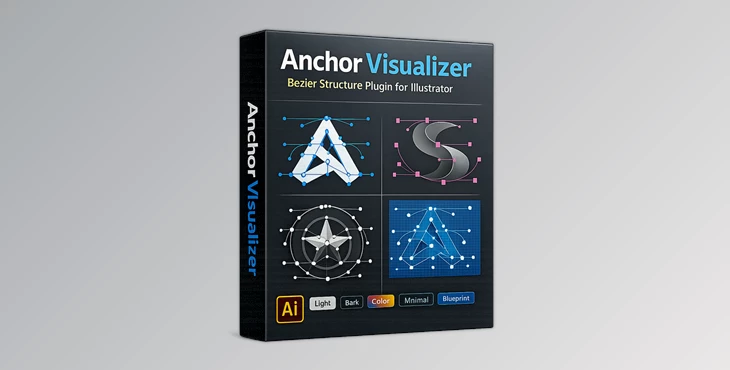
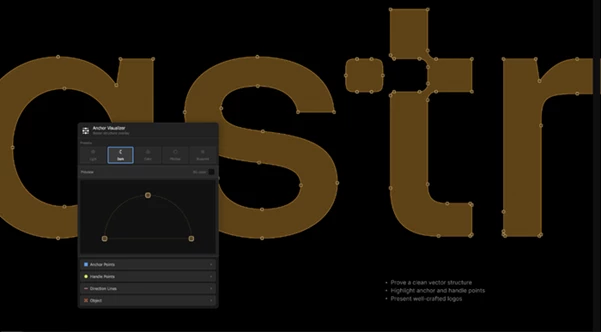
Anchor Visualizer is an Adobe Illustrator plugin designed to visualize the structure of vector paths. It automatically creates an editable overlay that highlights every important part of your vector artwork, including anchor points, handle points, direction lines, and optional pattern fills.
Rather than manually drawing guides for presentations, the plugin generates everything with a single click.
This makes it especially useful for:
- Portfolio case studies
- Design process presentations
- Illustrator tutorials
- Educational content
- Client presentations
- Quality control when reviewing vector artwork
For example, if you’re presenting a logo design, you can instantly show the precise placement of anchor points and Bezier handles to demonstrate the quality of your vector construction.
Why Anchor Visualizer Makes Presentations Better
Presenting vector artwork isn’t only about showing the finished result. Many designers also want to explain how they created it.
Without a visualization tool, highlighting anchor points requires screenshots, manual annotations, or extra editing work.
Anchor Visualizer automates this process by generating a dedicated visualization layer that leaves your original artwork untouched. This not only saves time but also produces cleaner, more professional presentations.
The customizable appearance also allows every visualization to match your branding or presentation style.
Features of Anchor Visualizer
Automatic Vector Visualization
Generate a dedicated visualization layer that displays anchor points, handles, direction lines, and path outlines without modifying the original artwork.
Fully Customizable Anchor Points
Adjust:
- Fill color
- Stroke color
- Stroke width
- Point size
- Corner radius
This gives complete control over the appearance of every anchor point.
Custom Handle Points
Customize handle point colors and sizes to create visual styles that match your presentation or educational material.
Direction Line Styling
Display Bezier direction lines using either:
- Solid lines
- Dashed lines
This makes the path flow easier to understand in tutorials and design breakdowns.
Object Stroke Overlay
Generate an additional stroke overlay around the original vector object, making path shapes easier to read during presentations.
Pattern Fill Options
Choose decorative visualization styles such as:
- Diagonal line patterns
- Dot patterns
These options help separate visualization layers from the original artwork while improving readability.
Built-in Visualization Presets
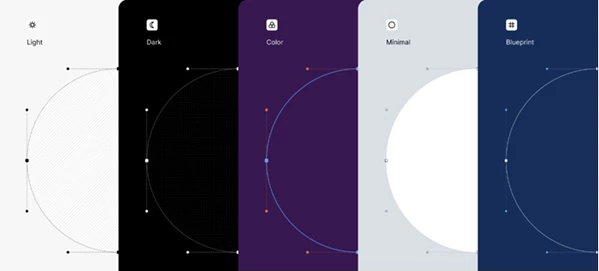
Anchor Visualizer includes five ready-to-use styles:
- Light
- Dark
- Color
- Minimal
- Blueprint
These presets make it easy to switch between different presentation styles without rebuilding the visualization.
Supports Complex Artwork
The plugin works with:
- Simple paths
- Compound paths
- Complex vector logos
This flexibility makes it suitable for both beginner projects and professional branding work.
Real-World Examples
One of the best uses for the Anchor Visualizer is in creating case studies for platforms like Behance. Suddenly, others can view your vector artwork’s components and understand how you created it.
Another great use case is in creating Illustrator tutorials. Students can view how the Bezier curves within your vector artwork are created.
Another great use case is in design teams giving presentations to each other about the quality of the vector artwork they have created - quickly spotting any issues before it is delivered to the client.
Professional Tips
- Use the Blueprint preset when creating educational graphics for a technical look.
- Increase anchor point size for presentations displayed on large screens.
- Use dashed direction lines to keep complex illustrations easier to read.
- Generate separate visualization layers for different design stages to better explain your creative process.
- Review your vector artwork using the visualization layer to spot extra anchor points that may affect editing efficiency.
Final Thoughts
Creating vector presentations takes a great deal of time. The Anchor Visualizer helps to make that process easier for you and your viewers - without changing your artwork.
Useful for presenting vector artwork in portfolios, tutorials, clients, and more - the Anchor Visualizer will help you present your best work in a visually appealing manner. Your original artwork will remain untouched.

Files Password : gfxplugin.com OR 123456