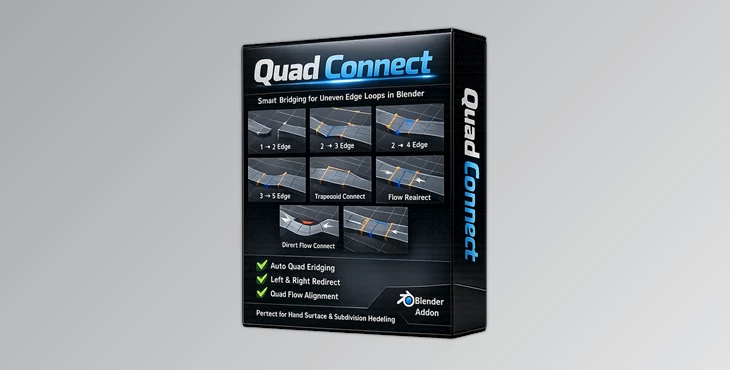
Downloadable Files
You can download Quad Connect for free from the end of this page.
Stop Fighting Uneven Edge Loops
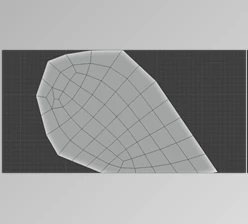
Creating a clean quad topology is one of the most important parts of 3D modeling. Yet connecting unevenly selected edges can be one of the most frustrating parts of the process. Often, manual ways of bridging edges require a lot of extra cutting and tweaking of the mesh before it is ready to use in a subdivision process.
Quad Connect was designed to remove this tedious work from your workflow. Quad Connect will intelligently connect unevenly selected edge loops while preserving any clean quad flow that might be part of your model.
What is Quad Connect?
Quad Connect is a precision 3D modeling add-on for Blender that intelligently bridges unevenly selected edge loops. It features several dedicated operators that make it easy to perform common topology editing tasks without constantly fighting the software’s generic edge-bridging tools.
Quad Connect can make it easier to solve the following problems:
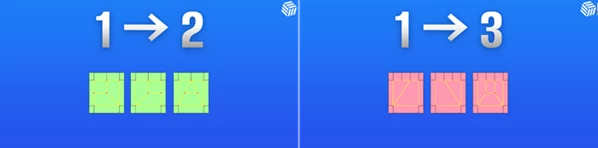
- Connect 1 → 2 edge loops
- Connect 1 → 3 edge loops
- Connect 2 → 3 edge loops
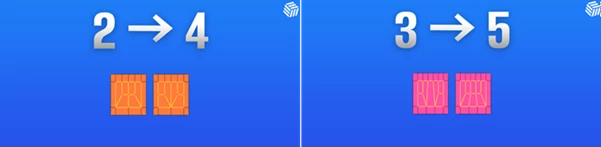
- Connect 2 → 4 edge loops
- Connect 3 → 5 edge loops
- Create trapezoid-based edge connections
- Change the flow of the topology
Create direct edge flow transitions between uneven edges.
Rather than spending several minutes manually adjusting your 3D model’s topology, Quad Connect allows you to fix these issues with a single click. The result will be a much more suitable 3D model for any subdivision process.
Meet Quad Connect
This tool is built specifically for 3D modelers who care about creating a clean and predictable topology on their models. Each of the topology editing operators aims to produce clean, organized quads instead of creating geometry that will have to be edited to remove unwanted polygons.
Whether you are creating mechanical models, game models, product models, or any other kind of 3D model that requires a clean subdivision workflow, Quad Connect will save you time and create professional-looking results.
The intelligent edge detection within Quad Connect will also automatically find the best way to connect your edges, avoiding common placement mistakes that often occur when performing these tasks manually.
Features
Intelligent Edge-Chain Detection
Quad Connect will automatically detect your unevenly selected edge loops and determine how to best connect them to each other.
Automatic Vertex Ordering
Quad Connect will automatically order your vertices to ensure your edges are correctly connected.
Clean Quad Generation
Each of Quad Connect’s bridge operators will generate a topology with organized quad faces instead of creating messy polygons.
Specialized Bridge Operators
Rather than using one generic bridge tool, Quad Connect includes dedicated solutions for different topology situations, including:
- Direct Flow Connect
- Left Redirect Connect
- Right Redirect Connect
- Trapezoid Connect
- Multiple uneven edge-count combinations
Each operator is optimized for a specific modeling scenario.
Optional Quad Flow Alignment
An additional quad flow alignment system helps maintain smooth edge flow, producing cleaner surfaces that deform and subdivide more naturally.
Edit Mode Workflow
Everything works directly inside Blender’s Edit Mode, allowing artists to stay focused on modeling without switching between complicated workflows.
Built for Production
The addon is designed for predictable, repeatable, production-ready topology that saves time across professional modeling projects.
Real Modeling Benefits
Quad Connect becomes especially useful during projects such as:
- Hard-surface mechanical modeling
- Product visualization
- Vehicle modeling
- Sci-fi assets
- Game-ready meshes
- Subdivision modeling
- Complex retopology adjustments
For example, when creating a mechanical object with multiple intersecting panels, uneven edge counts often appear between different components. Instead of rebuilding loops manually, Quad Connect automatically generates clean quad transitions, allowing you to continue modeling without interrupting your workflow.
Pro Tips for Better Results
- Select clean edge loops before running an operator for the most predictable results.
- Choose the bridge operator that matches your edge-count combination for cleaner topology.
- Use the redirect tools when you need to change edge flow without introducing unnecessary geometry.
- Combine Quad Connect with Blender’s subdivision workflow to immediately verify surface quality.
- Keep your mesh organized by solving topology issues early instead of waiting until the end of the project.
- Use the Quad Flow alignment option whenever you want smoother edge distribution across curved surfaces.
Final Thoughts
Creating a model with even topology is one of the foundations of 3D modeling. One of the most common issues with 3D models is the presence of uneven edge loops. Quad Connect was created to fix this issue.
No matter what kind of projects you are working on, this tool will allow you to maintain even edge loops and work more efficiently within Blender. Once you add Quad Connect to your modeling workflow, you will have significantly less time spent fixing topology issues and more time creating your 3D models.

Files Password : gfxplugin.com OR 123456