Downloadable Files
You can download the Fusion plugin for free from the end of this page.
Bring Your Meshes Together Without Destructive Modeling
Often, Blender users will turn to boolean operations or even more destructive modeling operations to bring their separate objects together into one seamless model. While many of these operations work wonderfully, they tend to commit irreversible changes to the original models that are often difficult to reverse once they have been applied.
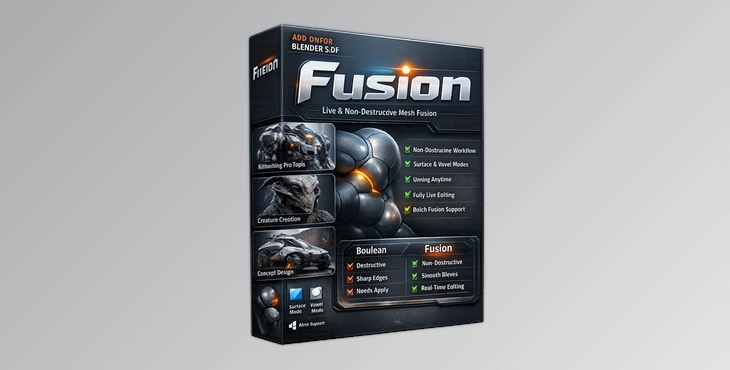
Fusion changes the game here. With Fusion, users can create beautiful models that seamlessly blend two or more objects together with clean, real geometry that can be edited at any time. Whether users are creating creatures, designing mechanical models, or even performing concept art, Fusion can significantly decrease the time it takes to blend models together.
What Is Fusion and Why Is It Useful?
Fusion is a Blender add-on that allows users to generate smooth and realistic geometry between two or more intersecting meshes. Many of the boolean operations that Blender offers will simply hide the portion of the model where the two meshes intersect. Fusion goes a step further and generates geometry between the two models so that users do not have to rely on those boolean operations.
Why is this so useful?
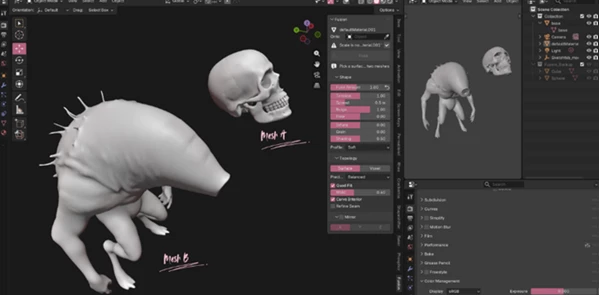
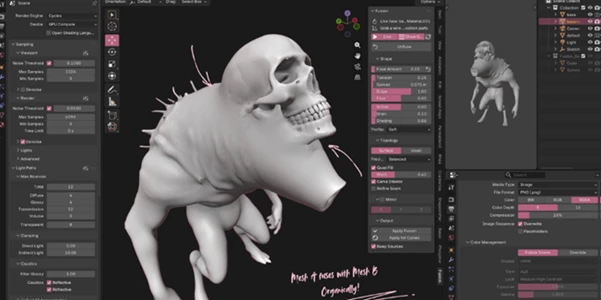
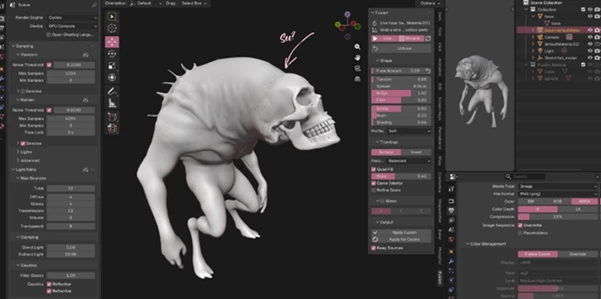
- Users can create organic creatures with separate body parts that naturally connect.
- Multiple mechanical models can be merged seamlessly to highlight specific components of the model.
- Users have the ability to experiment with their designs without committing irreversible changes to their models.
- Even after the models have been fused together, the separate objects can still be edited.
This ability to edit separate models after fusing them is a time-saving tool for Blender users. Instead of committing to a destructive editing process, users can experiment with their designs and fuse their models together to achieve their desired outcome within their Blender project.
Features
Live and Completely Reversible Mesh Fusion
Fusion’s most important feature is that the mesh fusion process is live and reversible.
After the meshes have been fused together, the original objects can be edited at any time.
In the case that users decide they no longer want to use the models that have been fused together, the unfusion tool will restore the original meshes to their initial state. This is incredibly helpful for Blender users who want to experiment with different models. If users find the desired outcome through the fusion process, their original meshes are still intact and usable.
Beautiful Metaball-Style Blending with Real Geometry
Fusion delivers the smooth appearance of metaballs while generating actual mesh topology.
Instead of temporary visual effects, you receive clean geometry suitable for further modeling, sculpting, rendering, and animation.
Several blend profiles are available:
- Soft
- Even
- Crisp
- Bell
These profiles allow you to create everything from subtle fillets on hard-surface models to rounded organic transitions for creatures and characters.
Powerful Shape Controls
This product includes an extensive collection of parameters that let you fine-tune every aspect of the blend. Key controls include:
- Fuse Amount for overall blending strength
- Bulge to create classic metaball swelling or tighter joins
- Spread to control how far the blend extends
- Flow to bias the transition toward one object
- Inflate to expand or shrink the blend
- Grain to add natural surface variation
- Shading Width for smoother lighting transitions
Together, these controls provide remarkable artistic freedom while keeping adjustments intuitive.
Surface Mode for Localized Editing
Surface Mode preserves almost everything from the original meshes, including:
- UV maps
- Material assignments
- Existing topology outside the contact area
Only the intersection region is rebuilt, making it ideal for product visualization, kitbashing, mechanical assemblies, and projects that already contain detailed textures.
Voxel Mode for Organic Models
When creating creatures, sculptures, or concept models, Voxel Mode rebuilds the entire object using clean quad-based topology. Benefits include:
- Uniform mesh density
- Smooth organic silhouettes
- Excellent sculpting workflow
- Reliable all-quad geometry
Although UVs and material assignments are regenerated in this mode, it produces an extremely clean topology for artistic modeling.
Batch Fusion for Faster Workflows
Instead of merging objects one at a time, Fusion supports batch operations.
Select multiple source objects together with a destination mesh, then fuse everything at once. Each generated connection remains independently editable and reversible, making large projects much easier to manage.
Smart Workflow Tools
This product includes a variety of additional tools that can assist users in their projects:
- Live Guide Visibility
- Manual Rebuilding
- Mirror Tools (across X, Y, and Z axes)
- Automatic Modifier Evaluation
- Scale Guard
- Vertex groups for blend weights
These additional tools help users to have more control over the entire Fusion process while also saving them time.
Real-World Examples
There are a variety of ways in which Fusion can be applied to projects in Blender. Some of these examples include, but are not limited to:
Creating creatures with separate body parts that blend together
Building products with separate models that are to be merged together
Concept art projects that require a variety of designs
Even in the field of environmental art, Fusion can be used to create natural structures with many different models of rock, root, branch, and more.
Professional Tips for Better Results
These tips will improve the outcome of the Fusion process:
Use the Bell profile with Bulge set to 1.0 to blend meshes together for organic projects.
Use the Crisp profile with a low Spread setting for hard-surfaced projects.
Enable the Refine Seam parameter for even more control of the outcome of the fusion process.
Edit models in Draft Precision until you are satisfied with the outcome of the model’s density, then switch to High when you are ready to apply the mesh.
When working on complex scenes, disable Live rebuilding to avoid errors in reconstruction, then rebuild the models manually after positioning them where they are desired.
Use Voxel mode when creating organic models with Sculpting tools to ensure that the outcome has even mesh density.
Keep the original meshes by enabling the Keep Sources option so that projects can be revisited at any time.
These professional tips will increase the control that users have over this product and will significantly improve the outcome of their projects.
Final Thoughts
Fusion allows users to think about their mesh blending projects in a completely different way within Blender. Instead of committing to a variety of destructive operations that can make it difficult to reverse their changes, they can experiment with the different outcomes of their projects.
With the variety of project types for which this product can be applied, it is a tool that every Blender artist should have at their disposal. Whether users are interested in creating organic creatures, sculpting projects, or even working on hard-surfaced concept art projects, Fusion will save them time and create some of the smoothest meshes in their Blender projects. For anyone who loves to experiment with their designs within Blender, Fusion is an essential plugin for their project.

Files Password : gfxplugin.com OR 123456