Downloadable Files
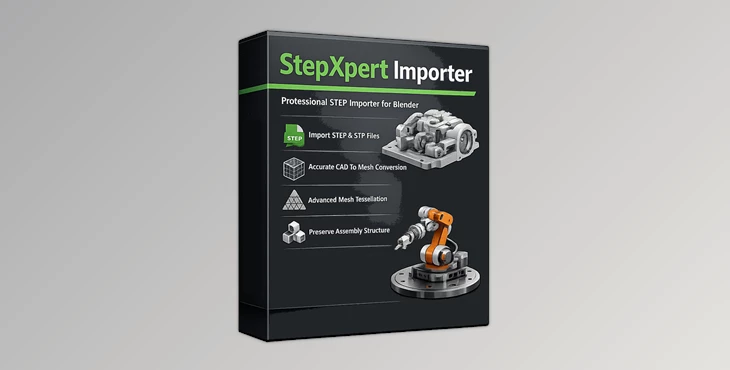
You can download the StepXpert Importer for free from the end of this page.
Make CAD Models Blender-Ready in Minutes
STEP files are notoriously difficult to import into Blender. Working with them often involves quite a few complicated conversion steps and cleanup tasks after import to fix the model’s structure and ensure it’s suitable for rendering. However, the StepXpert Importer addon will significantly simplify this entire process for you by directly importing your CAD assemblies into Blender.
Perfect for anyone who regularly works with product visualizations, engineering projects, technical animations, or manufacturing renders, the StepXpert Importer will transform your CAD models into Blender-ready models in minutes - without any unnecessary manual work.
What Is StepXpert Importer?
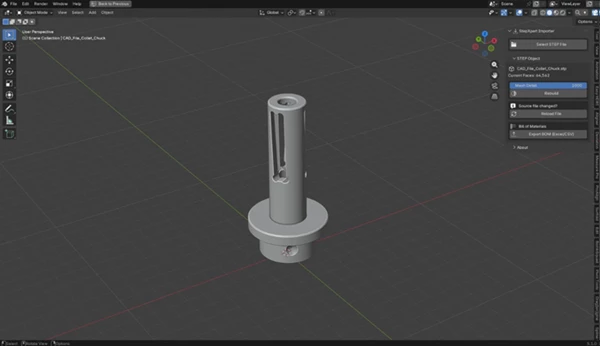
The StepXpert Importer is a professional Blender addon that allows you to import STEP CAD files and automatically convert them into watertight meshes with adaptive tessellation technology.
By analyzing the models you import, the importer will automatically add more polygons only to areas with curved surfaces. This ensures the final model is easy to render and animate but takes up as few system resources as possible.
Furthermore, all original part data from the CAD models - including their names, colors, and attributes from software like CATIA, SolidWorks, NX, and Creo - is automatically preserved during import.
Thanks to this robust functionality, users can directly begin rendering and animating their models after importing them into Blender. They won’t have to spend hours in the modeling software fixing the models or restructuring them.
A Smarter Way to Import CAD Projects
Unlike traditional importers that simply generate static meshes, StepXpert Importer focuses on maintaining both geometry quality and project organization.
Features
Curvature-Adaptive Tessellation
The importer automatically generates more geometry on curved surfaces while keeping flat areas efficient. Why it matters:
- Produces smoother, rounded objects.
- Reduces unnecessary polygons.
- Improves viewport performance.
- Creates cleaner render-ready models.
Preserve Complete Assembly Hierarchy
Complex CAD assemblies are imported as properly nested Blender Collections. Instead of manually reorganizing hundreds of individual parts, every component stays grouped exactly like the original CAD project. Perfect for:
- Mechanical assemblies
- Industrial equipment
- Automotive models
- Product visualization
Keep Original Part Names and Colors
The addon reads XCAF metadata directly from supported CAD software. This means:
- Real part names remain intact.
- Original material colors are preserved.
- Large engineering projects stay organized.
This makes editing, selecting, and animating components much easier.
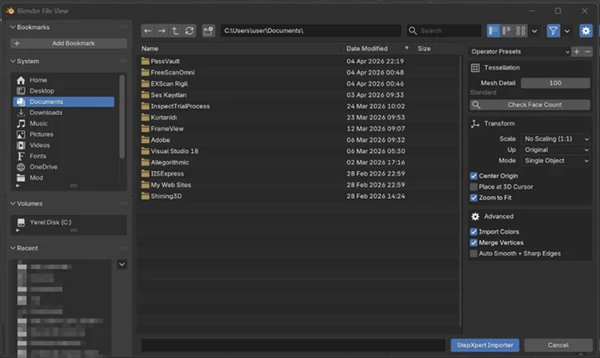
Adjust Mesh Detail Without Reimporting
Need higher quality for close-up renders? Need lower polygon counts for animation previews? StepXpert Importer allows you to change tessellation quality after importing without loading the STEP file again. This saves considerable production time during look development.
Reload Updated CAD Files
Engineering projects often change during production. Instead of importing everything again, the reload function updates the geometry while preserving:
- Object transforms
- Existing materials
- Scene organization
This creates a much smoother collaboration between CAD engineers and Blender artists.
Automatic Scale Detection
The importer automatically recognizes the correct model scale. This eliminates common sizing problems when importing CAD assets from different software packages.
Export Bill of Materials (BOM)
Generate a complete Bill of Materials directly from the imported assembly. Supported export formats include:
- Excel
- CSV
This is especially useful for documentation, manufacturing workflows, and engineering reviews.
Real-World Examples
StepXpert Importer is particularly valuable in projects such as:
- High-quality product visualization
- Mechanical engineering presentations
- Industrial equipment rendering
- Automotive animations
- Manufacturing documentation
- Technical marketing videos
- CAD design reviews
- Engineering prototypes
Instead of rebuilding assembly structures manually, artists can immediately focus on lighting, materials, animation, and rendering.
Pro Tips for Better Results
Here are a few practical tips to get the most out of StepXpert Importer:
- Choose tessellation based on your final output. Use lower detail while working and increase it only for final renders.
- Keep the original STEP file in a fixed location. This makes the reload feature much more convenient when engineers send updated revisions.
- Take advantage of preserved assembly collections. Animating grouped mechanical components is much easier when the hierarchy stays intact.
- Use the original part names. Clear naming speeds up material assignment, animation, and scene navigation.
- Export the BOM when collaborating with engineering teams. It provides a quick reference for all imported components.
Final Thoughts
If your workflow regularly involves CAD data, StepXpert Importer can save countless hours by eliminating repetitive import and cleanup tasks. Its adaptive tessellation, preserved assembly hierarchy, automatic scale detection, reload capability, and metadata support create a workflow that feels much closer to working directly with native CAD software inside Blender.
Rather than spending time fixing imported geometry or reorganizing hundreds of parts, you can move straight into rendering, animation, visualization, or presentation with confidence.

Files Password : gfxplugin.com OR 123456