Downloadable Files
You can download the Blueprints Autosetup for free from the end of this page.
Start Every Vehicle Project the Right Way
If you’ve ever modeled a car, motorcycle, or aircraft in Blender, you already know how frustrating it can be to manually align blueprint images before the real work even begins. Incorrect scaling, uneven positioning, or slightly misplaced reference images can affect the entire modeling process.
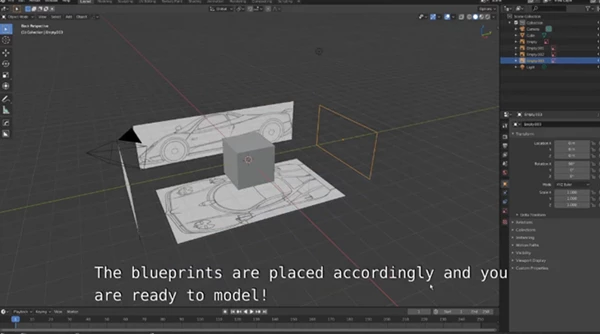
Blueprints Autosetup removes this repetitive setup work by automatically importing and arranging blueprint views in the correct positions. Instead of spending valuable time preparing your references, you can start modeling almost immediately with properly aligned blueprints.
Why Blueprint Alignment Matters
Blueprint images are one of the most common types of references that 3D artists use to accurately model their products.
The common practice is to use images of the front, side, rear, and top views of the product that is being modeled.
For those blueprints to not be aligned correctly with the object being modeled introduces issues such as:
- Incorrect modeling of proportions between the different views of the same object
- Extra time required to manually adjust each blueprint image to the correct view
- Potential inaccuracies in the 3D model that must be corrected at a later stage
- Slowed the modeling workflow throughout the entire project
Using an add-on product such as Blueprints Autosetup will eliminate these issues from the start of the project. Whether you are creating a realistic sports car, a classic car, or an aircraft concept, properly aligning the blueprint images will result in a more accurate 3D modeling process.
Meet Blueprints Autosetup
Instead of manually importing every blueprint image and adjusting each one by hand, Blueprints Autosetup automates the entire preparation process.
After installing the add-on, simply navigate to File → Import → Blueprints, select all your blueprint images, and let the add-on position them correctly inside your Blender scene.
This simple workflow saves time while ensuring that every reference image is placed consistently before modeling begins.
Features
Automatic Blueprint Import
Import multiple blueprint images at once without placing each image individually.
Correct View Alignment
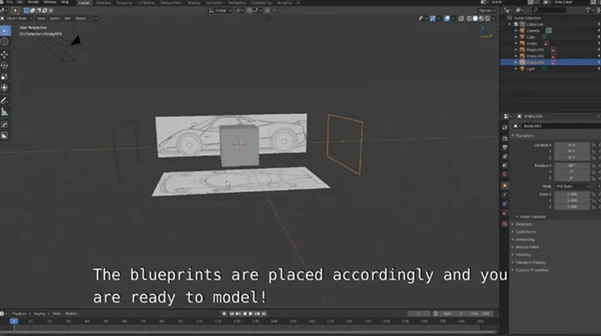
The add-on automatically positions the front, side, rear, and top views in their proper locations, reducing setup errors.
Eliminate Scaling Problems
Proper blueprint placement helps maintain consistent proportions across every reference image, making accurate modeling much easier.
Faster Vehicle Modeling Workflow
Skip repetitive preparation work and spend more time creating detailed models instead of organizing reference images.
Compatible with Multiple Blender Versions
The package includes legacy installation files for earlier Blender releases, allowing artists to use the add-on across different project environments.
Ideal for Various Vehicle Projects
Whether you’re modeling cars, motorcycles, trucks, aircraft, or other mechanical objects, properly aligned blueprints create a cleaner starting point for every project.
Tips for Better Results
A few simple habits can make your workflow even smoother when using Blueprints Autosetup.
- Use blueprint images with matching proportions: Reference images from the same blueprint set provide the most accurate alignment.
- Organize your images before importing: Keeping your front, side, rear, and top views together makes the setup process faster.
- Lock your blueprint objects after positioning: This prevents accidental movement while modeling.
- Check image quality first: High-resolution blueprints make it easier to model precise shapes and small details.
- Apply real-world measurements when possible: Combining aligned blueprints with known vehicle dimensions results in even greater modeling accuracy.
Final Thoughts
While the preparation of your blueprints may seem like a small part of the 3D vehicle modeling process, it can consume a great deal of your available production time.
Blueprint Autosetup will save you time by automatically importing and correctly aligning your blueprint images into Blender.
Regardless of the type of 3D project that you are creating, properly positioned and aligned blueprints will give you an accurate starting point for your modeling project.

Files Password : gfxplugin.com OR 123456