Downloadable Files
You can download Smart Resize for free from the end of this product page.
Create Adaptive Motion Graphics with Ease
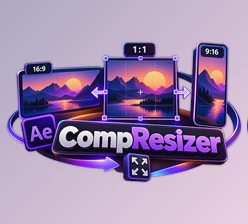
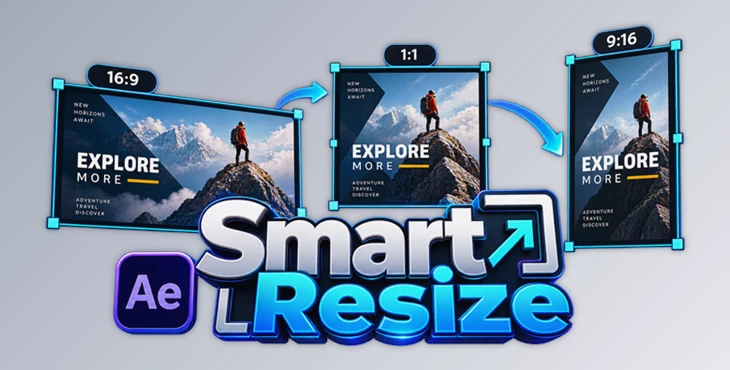
Creating motion graphics for different aspect ratios can quickly become repetitive. A composition that looks perfect in a horizontal format may require significant repositioning and resizing when converted to another proportion. Smart Resize is designed to make this process easier by helping you build adaptive motion graphics that can respond to different aspect ratios.
Instead of manually adjusting every layer whenever the composition proportions change, Smart Resize gives you control over how elements are positioned and sized in different formats. This creates a more flexible workflow for motion designers working with multiple layouts.
What Is Smart Resize?
Smart Resize is a motion graphics tool designed for dynamically resizing compositions with different aspect ratios. It allows you to define specific position and size settings so that elements can be adapted more efficiently when the proportions of a composition change.
For example, imagine creating a graphic with a title, logo, and several visual elements. Everything may look balanced in one aspect ratio, but changing the proportions can move important elements too close to the edges or make their scale unsuitable.
Smart Resize helps you prepare different position and size behaviors for these proportions through effect controls, giving you greater control over adaptive layouts.
Features
Dynamic Resizing for Different Aspect Ratios
Smart Resize helps you create compositions that can be adapted to different aspect ratios. This is useful when the same motion graphics design needs to work across multiple proportions.
Simple Three-Button Interface
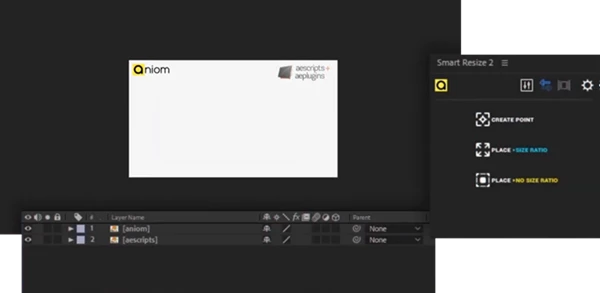
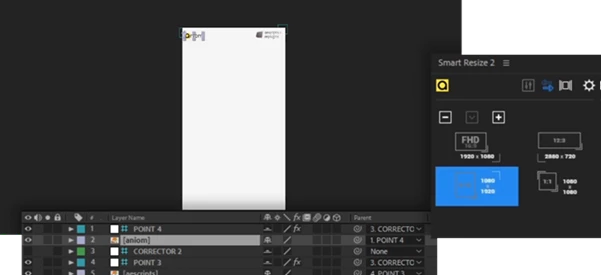
The tool features a new and straightforward interface with only three buttons. This keeps the workflow clean and makes the essential functions easy to access.
Flexible UI Panel
The Smart Resize panel is dynamically flexible. You can resize the panel according to your preferred workspace layout, allowing it to fit comfortably alongside your other tools.
Position and Size Controls
You can adjust the position and size of elements for different aspect ratios using effect controls. This gives you more control over how your design responds when its proportions change.
Anchor Point-Based Workflow
The workflow begins by adjusting the anchor points of your layers. Select one or multiple layers and click Create Point. By default, the pointer is created according to the anchor point of the selected layers.
You can then select the pointer layer and customize its effects to define special position and size settings for different proportions.
Multiple Layer Support
Smart Resize allows you to select multiple layers when creating a point. This makes it easier to work with compositions containing several visual elements that need to adapt together.
Build More Flexible Motion Graphics
The main benefit of Smart Resize is its ability to make motion graphics layouts more adaptable.
Suppose you have carefully positioned text, logos, shapes, and other design elements inside a composition. When you switch to another aspect ratio, those elements may require new positions or sizes to maintain a balanced layout.
With Smart Resize, you can control these changes through dedicated effect settings. This can reduce repetitive manual adjustments and make it easier to prepare the same design for different proportions.
Tips for Better Results
Before creating pointers, carefully adjust the anchor points of your layers. Since Smart Resize creates pointers based on layer anchor points by default, good anchor point placement can make the entire setup easier to control.
It is also helpful to test your design with different aspect ratios while adjusting position and size settings. This allows you to see how individual elements behave and refine their placement for each proportion.
Take advantage of the flexible panel as well. Resize the Smart Resize interface according to your workspace so that the controls remain accessible without taking up unnecessary space.
Finally, customize each pointer according to the needs of your composition. Different elements may require different position and size adjustments to maintain a natural and professional-looking layout.
Compatibility
One important limitation should be considered before using Smart Resize. According to the provided product information, Smart Resize is not compatible with Apple Silicon chips.
Make sure your system is compatible before adding the tool to your workflow.
Make Your Compositions More Adaptive
Smart Resize offers a simple solution for a very common problem in motion graphics: adapting the same composition to various aspect ratios.
Smart Resize features customizable size and position controls, an anchor point system, support for multiple layers, a simple three-button interface, and dynamic composition resizing to help make adaptive motion graphics easier to use.
Compositions that need to be used in various aspect ratios can benefit from Smart Resize by reducing the amount of repeated work required and giving more control over how each object behaves in adaptive compositions. Simply set your anchor points, create your pointers, customize their controls, and then create compositions that can be used in various aspect ratios.

Files Password : gfxplugin.com OR 123456