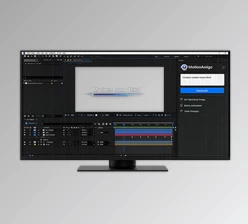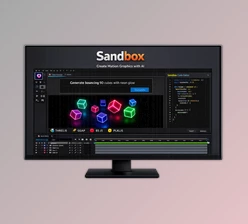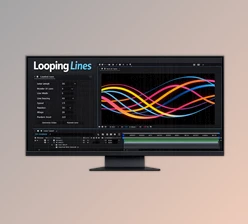
Downloadable Files
You can download Kineto for free from the end of this page.
Turn Ideas into Motion in Seconds
Creating animations from scratch takes hours. With Kineto, creating animations is much easier and faster. Instead of having to create each element of your animation, all you need to do is describe the motion to the AI system, and it will create an editable animation for use within Adobe After Effects.
Use Kineto to create a variety of animations within After Effects. Whether you are creating animated icons, motion graphics, explainer videos, UI animations, or even logo reveals, the tool will transform your text descriptions into motion graphics that you can further edit to match your creative vision.
What Is Kineto?
Kineto is an AI tool for creating animations within Adobe After Effects. It creates After Effects Shape Layers that contain keyframes for the Position, Scale, Rotation, and Opacity of the generated shapes and elements.
Because these animations are created as Shape Layers within After Effects, they are fully editable. You can change the Position, Scale, Rotation, Opacity, and Anchor Points of each element within the animation after it is created by Kineto.
All you have to describe is the following:
- A rocket taking off
- A circular loading spinner
- A bell icon ringing
- A pendulum swinging
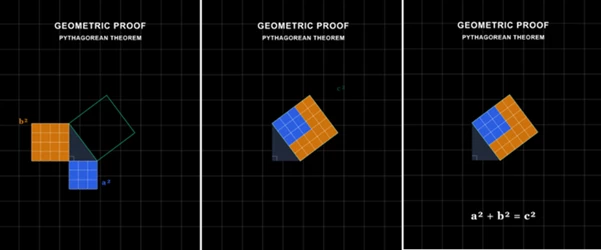
- An animation explaining the Pythagorean theorem
Instead of having to manually draw each of these into After Effects, Kineto will create these animations and allow you to continue editing them to your specifications.
Why Kineto Makes Animation Easier
Instead of removing your ability to create unique animations, Kineto automates many of the repetitive steps in the process.
With Kineto, you can automatically create:
- Shape Layers
- Layer Hierarchy
- Anchor Points
- Position animation
- Scale animation
- Rotation animation
- Opacity animation
- Editable text animations
These generated animations can be used for a variety of projects within After Effects. Whether you want to create motion graphics for your social media channels, educational projects, or even for your UI projects, these animations can easily be used for any of these purposes.
Features
AI Animation from Natural Language
Describe your animation in plain English, and Kineto generates both the artwork and the motion automatically.
No scripting.
No manual rigging.
No drawing every object yourself.
Fully Editable After Effects Layers
Unlike AI tools that export flat videos, Kineto imports native Shape Layers directly into your composition. Every animation includes editable:
- Position
- Scale
- Rotation
- Opacity
- Anchor Points
This gives you complete freedom to customize every part of the animation.
Live Preview Before Import
Preview the generated animation inside the extension before bringing it into your project.
This helps you quickly evaluate the result and regenerate if necessary before adding anything to your composition.
AI Refinement Loop
One of Kineto’s most impressive capabilities is its optional Visual Critique system.
The extension renders its own animation preview, sends it to a vision model, evaluates the result, and automatically improves timing, positioning, and overall motion before importing it.
The result is cleaner and more polished animations with less manual correction afterward.
Built-In Animation Library
Every generated animation can be saved to your personal library.
Instead of generating the same motion repeatedly, you can quickly reuse your favorite animations across multiple projects.
AI Editing After Generation
Need changes? Simply describe them naturally:
- Make it bounce faster
- Add another swing
- Slow down the ending
- Increase rotation
Kineto regenerates the animation based on your instructions without forcing you to start from scratch.
Choose Your Preferred AI Model
Kineto supports multiple AI providers, allowing you to work with the model that best fits your workflow. Supported models include:
- OpenAI ChatGPT
- Anthropic Claude
- Google Gemini
- xAI Grok
You can also connect local OpenAI-compatible models through Ollama or LM Studio for private, offline, and API-free workflows.
Professional Tips for Better Results
Write clear prompts that describe both the object and its movement. Instead of saying “animate a logo,” try “a logo that scales up with a soft bounce and settles naturally.”
Generate a simple version first, then use Kineto’s editing feature to refine details instead of trying to achieve perfection in one prompt.
Take advantage of native After Effects layers by adjusting easing, timing, colors, and shapes after import to better match your project’s style.
Save commonly used animations into the built-in library so future projects become even faster.
Use the Visual Critique option for more polished motion when creating client presentations or professional explainer videos.
Final Thoughts
Kineto provides a faster and smarter way to generate animations within After Effects.
It takes the place of repetitive steps in the animation creation process and allows you to focus on your other projects within After Effects.
Whether you are creating animated icons, motion graphics, educational content, logos, or even explainer animations, Kineto will help you to get from idea to finished product much faster. It will remove the need for you to spend much of your effort generating basic keyframes and allow you to focus on fine-tuning the final animation to your specifications.

Files Password : gfxplugin.com OR 123456