Downloadable Files
You can download Version Raptor for free at the end of this page.
Never Lose Track of Your Project Versions
When working on a creative project, it is common to produce dozens of versions of a project before completing it. Often, a simple forgotten save or overwrite on a project can waste hours of work. Version Raptor will eliminate that problem for you.
Whether you’re editing videos in Premiere Pro or creating motion graphics in After Effects, Version Raptor will allow you to quickly and easily create a new version of your project while minimizing the chance of losing your work.
What Is Version Raptor?
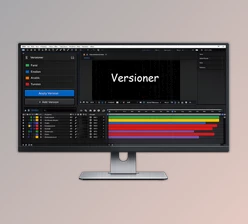
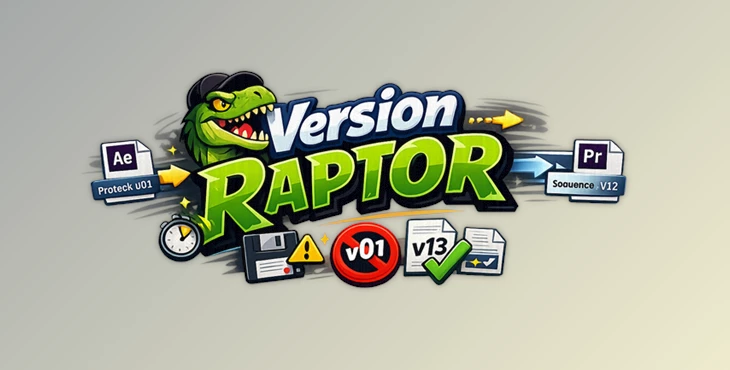
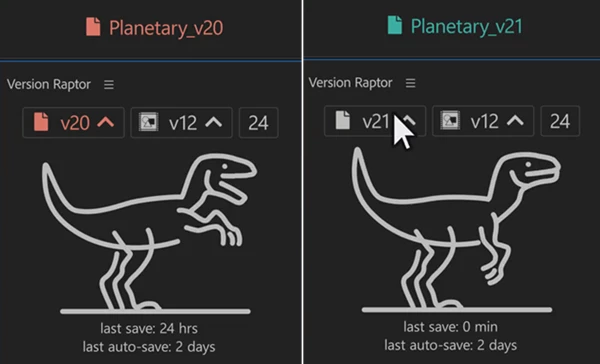
Version Raptor is a productivity tool for Adobe Premiere Pro and Adobe After Effects that simplifies project versioning. Instead of manually renaming files or duplicating compositions and sequences, it automatically detects existing version numbers and safely creates the next version.
For example:
- project-v01 → project-v02
- comp_0001 → comp_0002
- sequence_v01_JT → sequence_v02_JT
This automatic workflow keeps every project organized and makes it much easier to return to earlier revisions whenever necessary.
The result is a cleaner editing workflow, fewer naming mistakes, and greater confidence when experimenting with creative ideas because every important stage of your project is safely preserved.
Why Version Control Makes Creative Work Better
Large editing and motion graphics projects constantly evolve. Clients request revisions, new ideas appear, and multiple drafts become part of the normal workflow.
Without proper version control, you may accidentally overwrite files or spend valuable time searching for the correct project.
Version Raptor solves these everyday problems by making versioning effortless. Since every new version is created automatically, you can freely experiment with edits, effects, animations, and color grading without worrying about losing previous work.
This improves productivity, reduces stress, and creates a much more organized project structure that remains easy to manage even after weeks or months.
Features
Smart Version Up
Version Raptor automatically detects the last numerical version in your project, composition, or sequence name and increments it safely.
Instead of manually editing filenames, one click creates the next version while preserving the previous one. This makes experimentation much safer because older versions remain available if you ever need to roll back.
Add Version to Existing Projects
If your project doesn’t already include version numbers, Version Raptor can instantly append one.
This allows older projects to adopt a consistent naming system without manually renaming dozens of files.
Save Reminders That Actually Help
Creative professionals often become deeply focused and forget to save their work for long periods.
Version Raptor monitors your activity and reminds you when it’s time to save after your chosen time interval.
These reminders help reduce the chances of losing valuable progress due to crashes or unexpected interruptions.
Adjustable Reminder Threshold
Every editor works differently.
Version Raptor lets you customize how frequently save reminders appear, allowing the tool to match your personal workflow instead of forcing fixed intervals.
Safe Version Protection
One of the smartest features is its protection against creating outdated versions.
If Version Raptor detects that a newer project version already exists, it disables the Version Up button and alerts you that you’re probably working with an older file.
This simple safeguard prevents accidental overwriting and keeps your project history clean and reliable.
Real-World Examples
Imagine you’re editing a commercial and your client asks to compare three different endings. Instead of saving confusing filenames like:
- Final
- Final_New
- Final_Final
- Final_Last
Version Raptor automatically creates clear versions such as:
- Commercial_v01
- Commercial_v02
- Commercial_v03
- Commercial_v04
The same workflow is equally valuable for:
- Motion graphics revisions
- YouTube video editing
- Documentary projects
- Client review sessions
- Team collaboration
- Animation development
- Long-term production projects
Professional Tips
Version Before Every Major Change
Create a new version before making significant edits such as color grading, visual effects, audio mixing, or animation revisions. If the new direction doesn’t work, you can instantly return to the previous version.
Keep a Consistent Naming Style
Although Version Raptor supports many naming formats, using a consistent convention across your projects makes searching and collaboration much easier.
Don’t Ignore Save Reminders
Even with Auto Save enabled, manual saves remain an excellent habit. The reminder system helps build that habit naturally and greatly reduces the chance of losing work.
Preserve Milestones
Create versions after completing important stages of your project instead of waiting until the end. This provides clear checkpoints throughout the production process.
Final Thoughts
Version Raptor may seem like a small utility, but it solves one of the most common problems faced by Premiere Pro and After Effects users: keeping project versions organized and protected.
Its automatic version detection, one-click version creation, customizable save reminders, and built-in safety checks help streamline your workflow while protecting hours of creative work.
Whether you’re a freelance editor, motion designer, or part of a larger production team, Version Raptor makes project management cleaner, safer, and far more efficient.